
Restoring Dashboard Versions
Review saved dashboard versions, restore an earlier version, and publish it again when it is ready.

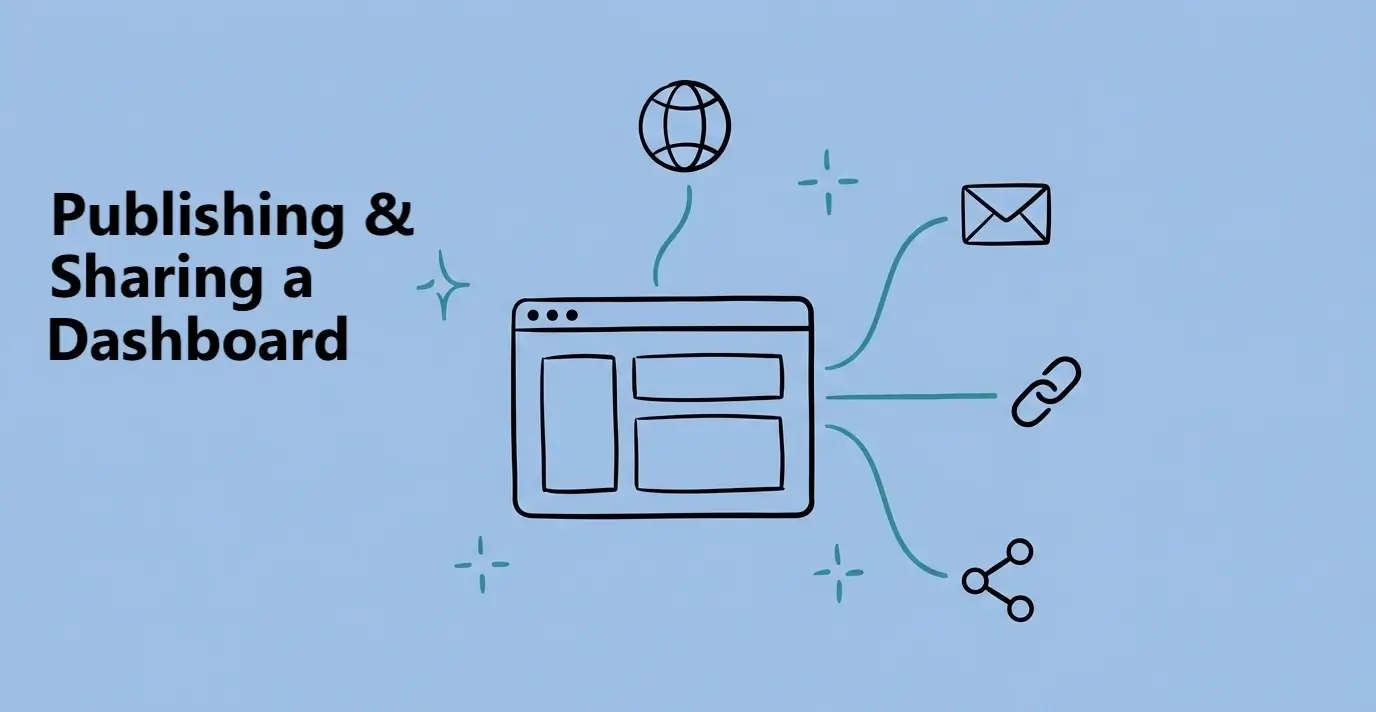
Publish a dashboard when it is ready for people outside your workspace. Then choose who can open it: anyone with the link, anyone with the link and password, or only people you invite by email. Every shared dashboard is read-only.
Publishing and sharing are different:Publishing creates the live version. Sharing controls who can open that version.
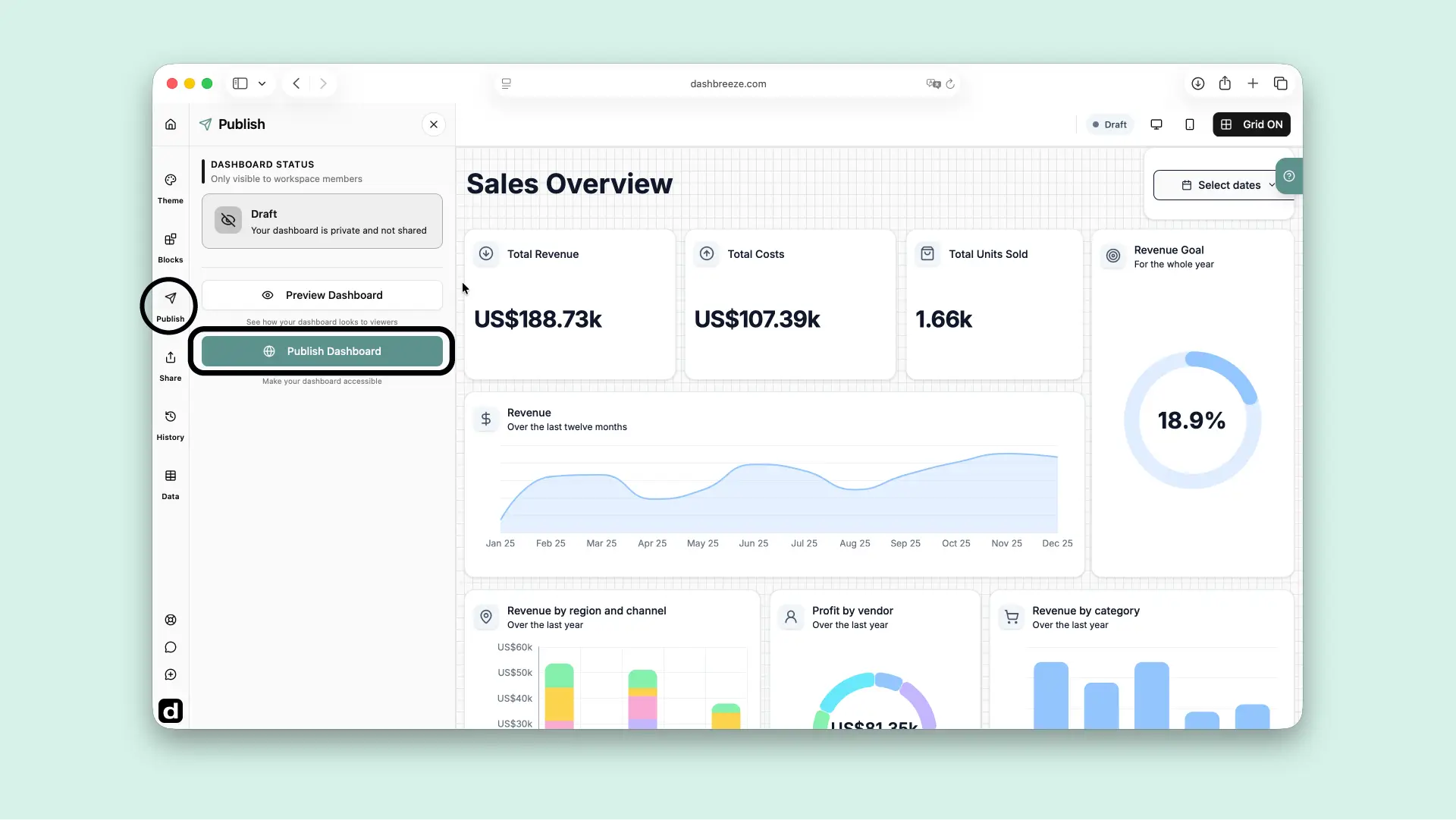
Publishing saves a version and makes it available through the dashboard's sharing settings. If you edit the dashboard later, publish again to update every shared link and embed.
Draft
Not published. Only workspace members can see it.
Published
Live. People allowed by the sharing method can see it.
Unpublished Changes
Workspace members see the current version with your latest changes. Viewers still see the last published version until you publish again.
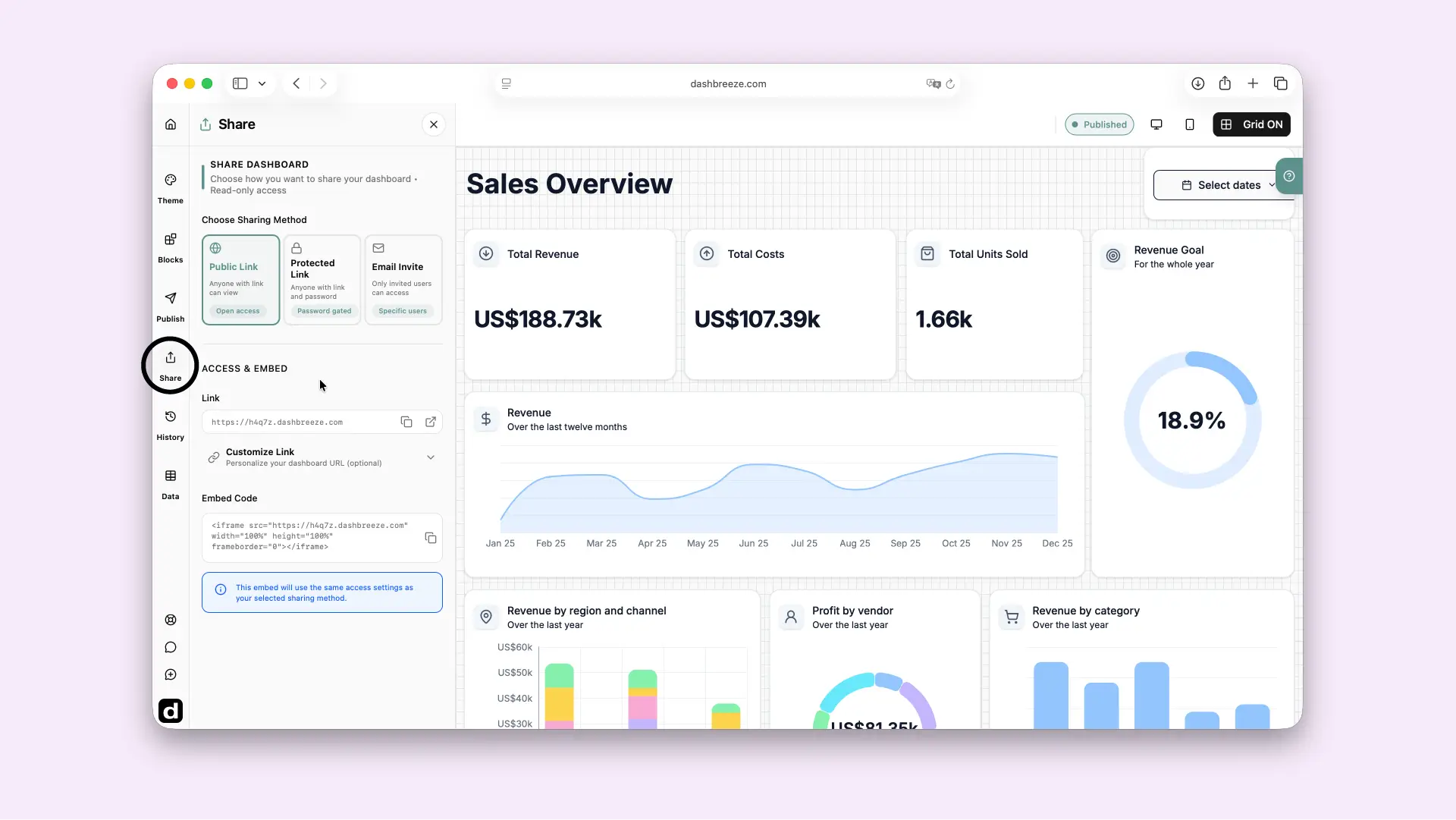
Open Share in the left sidebar. Choose the method that matches the level of access you need.
Public Link
Open access
Anyone with the link can open the dashboard. They do not need a Dashbreeze account or password. The link can also be forwarded to other people, so use this method only when the dashboard does not need restricted access.
Best for: public reports, broad audiences, and dashboards that are safe to share freely.
Protected Link
Password access
Anyone with both the link and password can open the dashboard. Viewers do not need a Dashbreeze account. Set the password in the Share panel and send it only to the people who should have access. Reset it when you need a new password.
Best for: a group that can share one password, such as a client team or internal group.
Email Invite
Access for specific people
Add the email address of each person who can view the dashboard. The viewer must sign in to Dashbreeze with that same email. Other signed-in users cannot open it, even if they have the link. You can revoke an invitation at any time.
Best for: private client dashboards and reports that need access for named viewers.
A client account is one unique email address invited to dashboards in your workspace. Your plan controls how many client accounts you can invite.
One email counts once
If you invite [email protected] to one dashboard, it uses one client account. If you invite that same email to another dashboard in the same workspace, it still uses only one client account.
Each different email address counts as another client account. The number of dashboard invitations does not determine the count; the number of unique invited emails does.
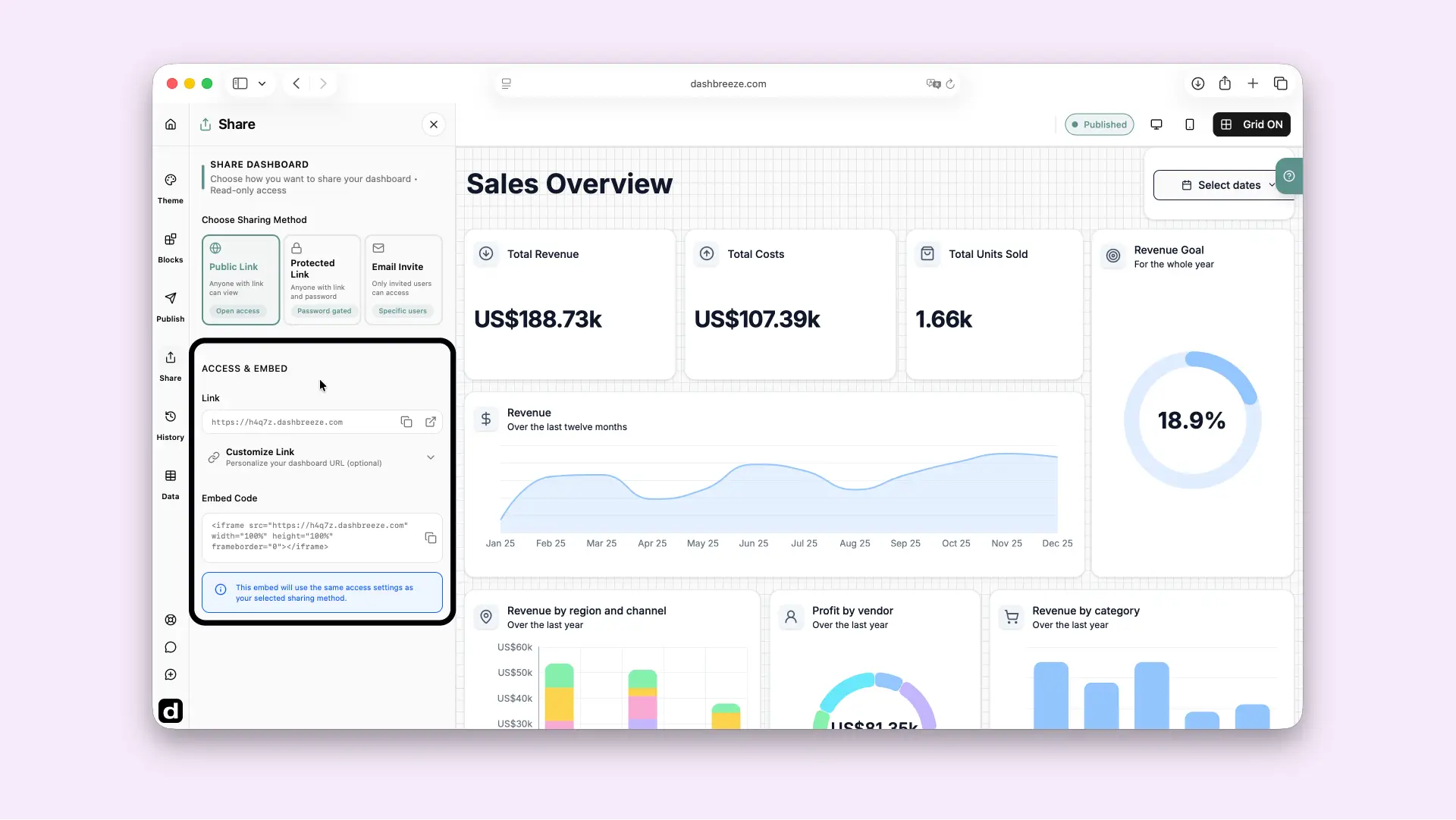
Every published dashboard has a Dashbreeze link. Open Customize Link to choose a more memorable address, such as my-dashboard.dashbreeze.com. A custom name must start with a letter and can use lowercase letters, numbers, and hyphens. You can use the custom link only if it is available and not already being used by another dashboard.
To show the dashboard inside another website or app, copy the iframe code from Embed Code and paste it into the page. The embed uses the sharing method you chose: a protected embed asks for the password, and an email-only embed still requires an invited account.
Good to know:Anyone you share a dashboard with can only view it. They cannot edit it — only workspace members can make changes.