
Viewing Dashboard Data
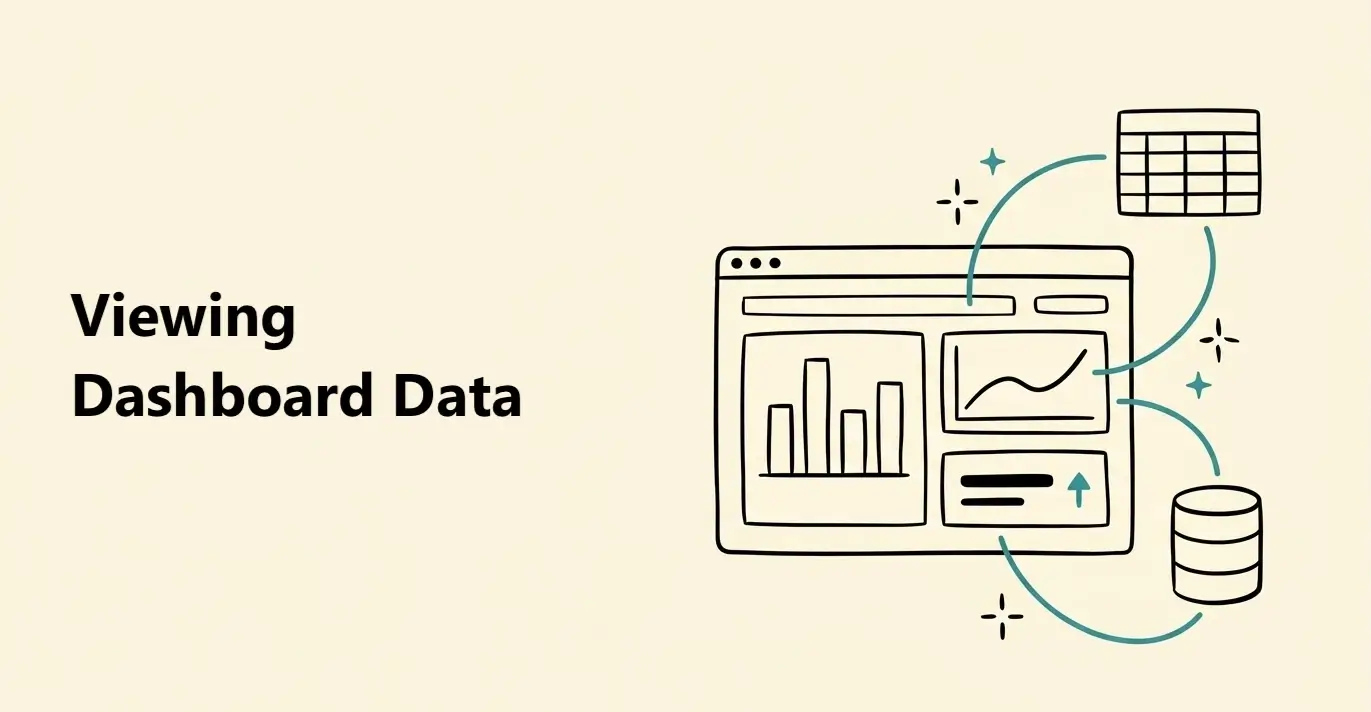
Use the Data panel to see connected tables, inspect their columns, check which blocks use them, and open the source data.

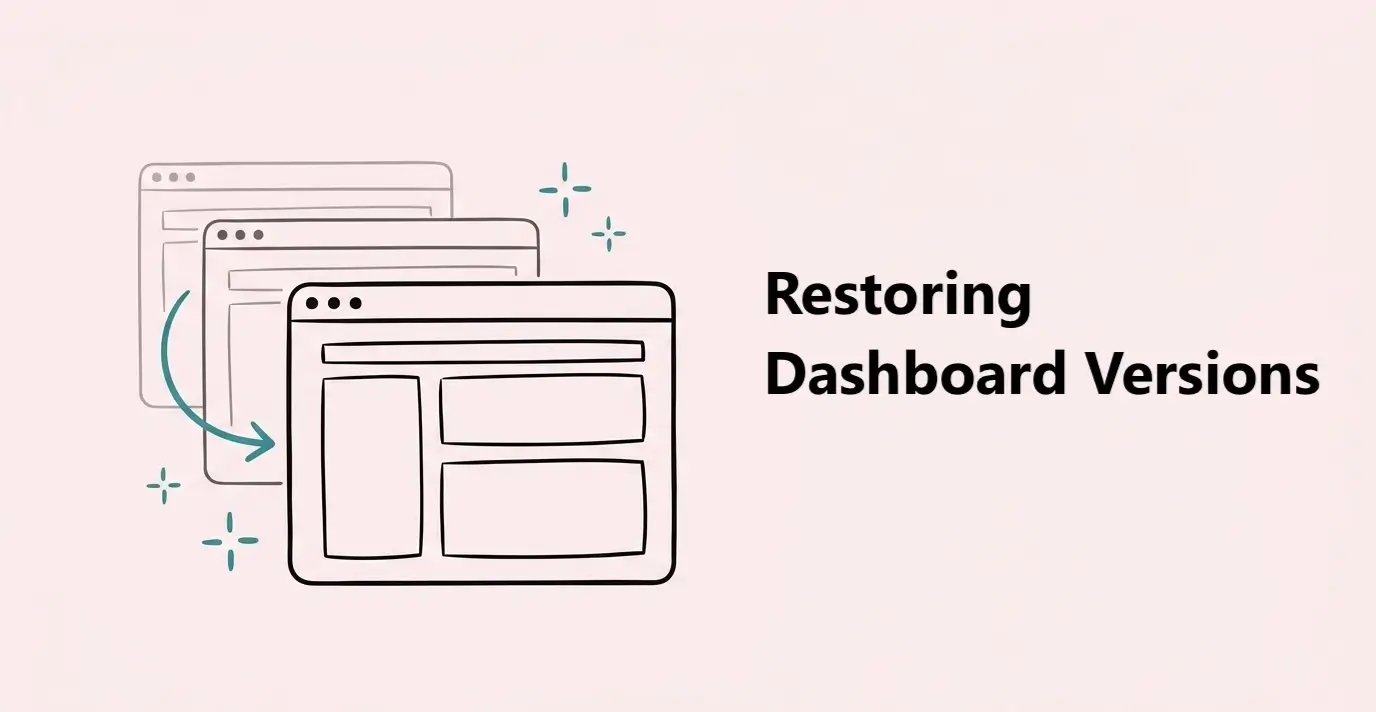
Use version history to return a dashboard to an earlier published version. Each time you publish, Dashbreeze saves the blocks and their positions so you can restore them later.
Versions are created when you publish:Editing a dashboard does not create a version. A new version is added to History only when you publish the dashboard.
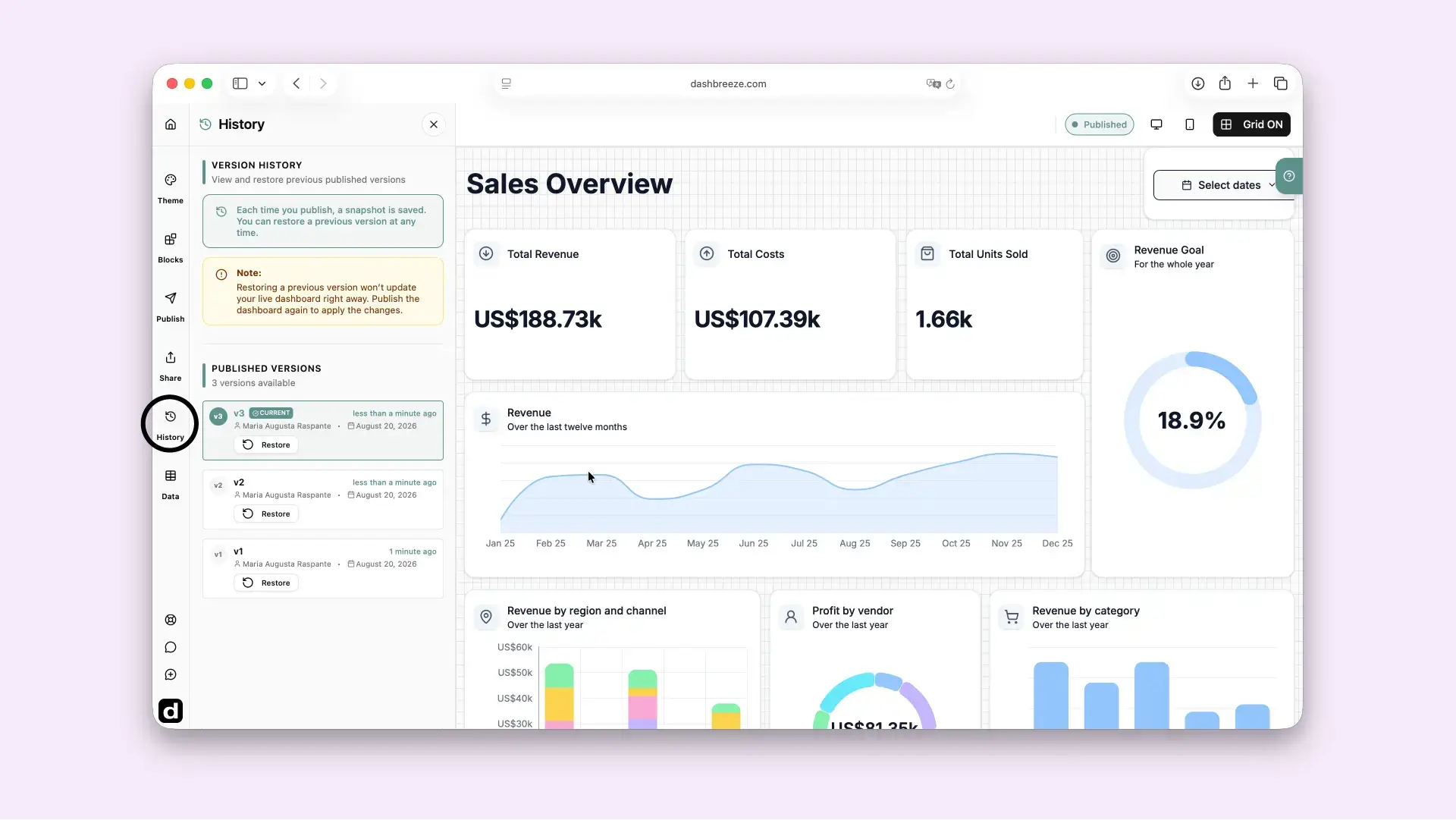
Open History in the left sidebar while editing a dashboard. Published versions appear from newest to oldest.
1. Publish
Make the current dashboard live.
2. Version saved
Blocks and their positions are stored.
3. Restore later
Return to that saved version when needed.
Use these details to identify the version you want before restoring it.
Version
Versions are numbered v1, v2, v3, and so on. The newest one is marked Current.
Published by
Shows the workspace member who published that version.
Published on
Shows the publication date and how long ago it was published.
What changes after you restore?
Workspace members see the restored blocks and layout in the editor. The dashboard you were editing is replaced, so any unpublished changes are permanently lost.
Dashboard viewers continue to see the last published version. Publish again to make the restored version live.
Check your unpublished changes first:Unpublished work is not saved in History and is lost when you restore. If you may need your latest work later, publish it to create a version before restoring an older one.
A new dashboard has no saved versions until you publish it for the first time. Click Publish Dashboard to create your first version. After that, each publish adds a new version to the top of the list.