Dashbreeze logo

Editing Account Information

Editing Account Information - Update your profile and account details.

Update your profile and account details.

Your personal account information — your name, avatar, password, and appearance settings — is separate from any single workspace. You manage all of it from one place: Account Settings.
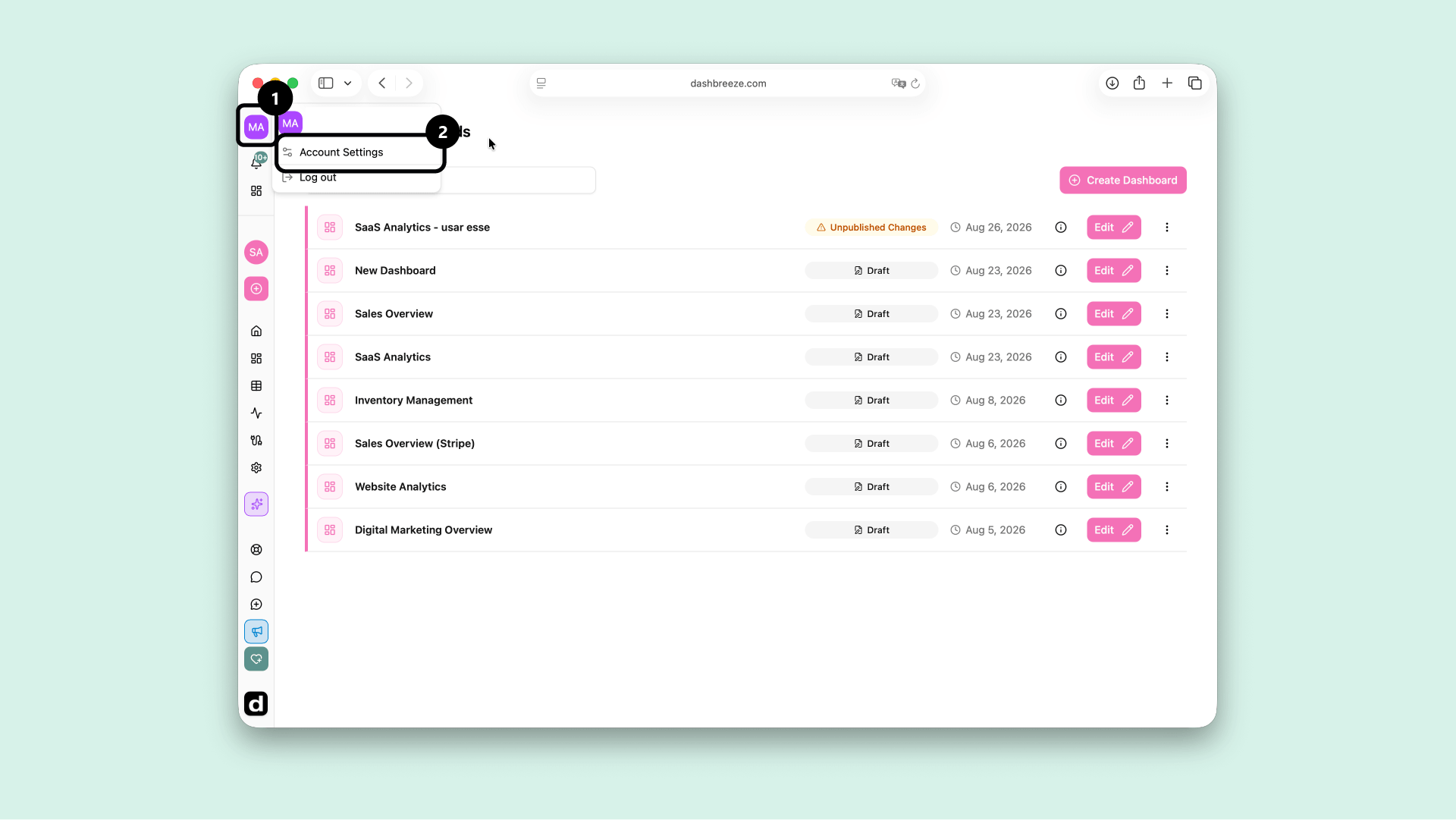
  1. Open it from the user menu in the top of the left sidebar, then stay on the General tab.
    User menu open in the left sidebar with Account Settings highlighted

Your account details

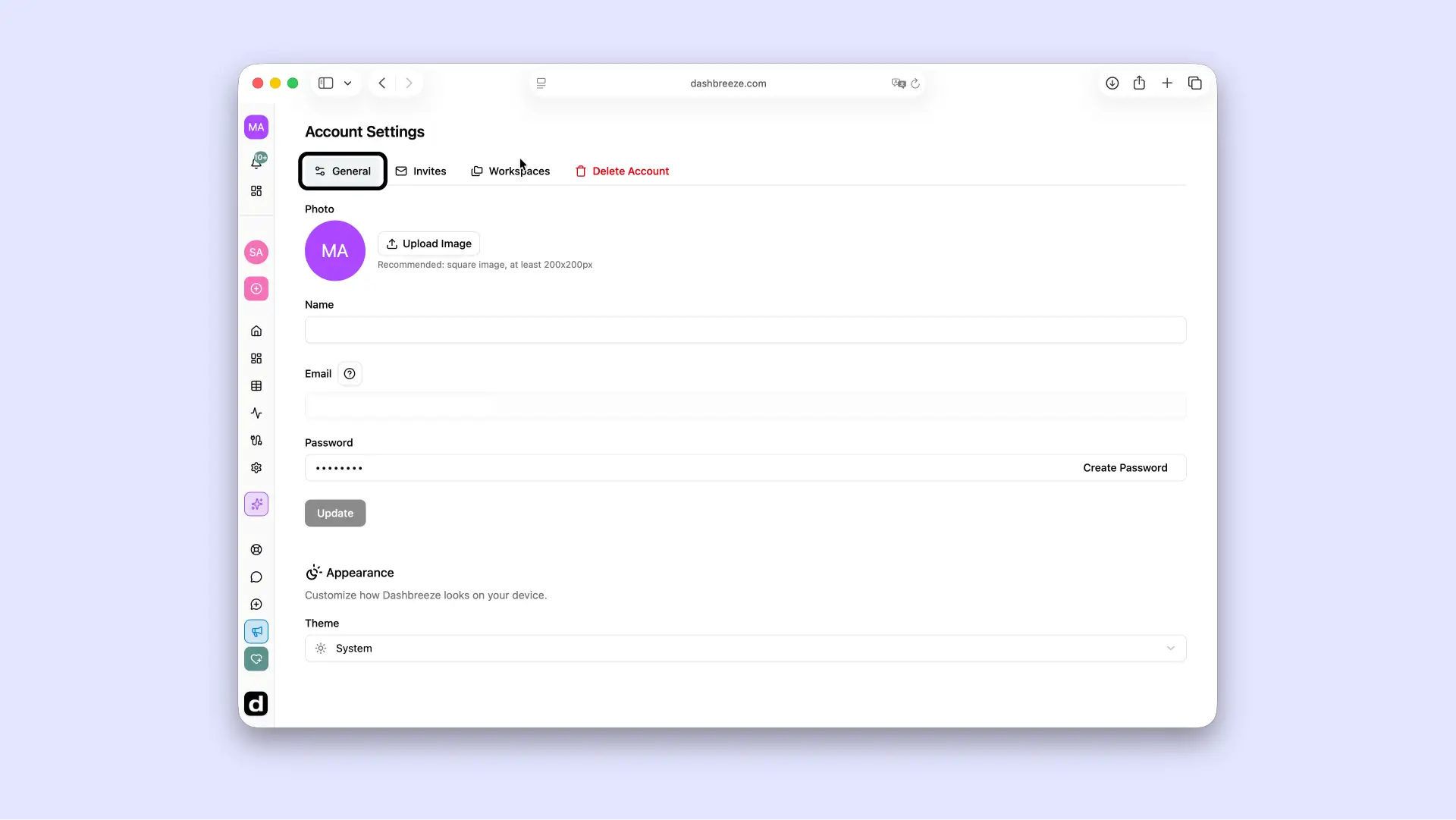
Dashbreeze Account Settings General tab showing the Photo, Name, Email, and Password fields, plus the Appearance section with the Theme selector.

From here, you can:

  • Update your name — click into the name field, type your new name, and save your changes. This name is shown to teammates across every workspace you belong to.
  • Change your avatar — click your current avatar to choose a new image from your device. It updates as soon as you save.
  • Change or create your password — if you signed up with an email and password, click Change Password and enter your current password along with the new one. If you signed up using a social login (like Google) and don't have a password yet, you'll see a Create Password option instead, which emails you a link to set one up.
  • Choose a theme — under Appearance, pick Light, Dark, or System to control how Dashbreeze looks. System follows your device's own appearance setting automatically.

Your email address is shown here too, but can't be changed directly, since it's tied to your login and to workspace invitations sent to you.

Need to change your email?:Contact our support team using the chat icon in the Help Center sidebar, and we'll help update it for you.

Up Next