

Publishing & Sharing a Dashboard
Publish your dashboard and share it using a public link, protected link, email invite, or embed code.

A theme controls the shared look of a dashboard. It brings the background, fonts, charts, tables, and cards together in one style. Apply one theme to update the whole dashboard instead of styling every block one by one.
Dashboard
Set the foundation
Choose the main font, background, and text color.
Blocks
Unify your data
Give charts and tables a consistent visual style.
Cards
Frame each block
Match card styles, backgrounds, icons, and text.
While editing a dashboard, open Theme in the left sidebar. You can start in one of two places:
Build your own look
Change the theme that is already on this dashboard, then apply your changes to every block.
Start with a finished theme
Browse themes from your dashboards or choose a built-in Dashbreeze theme.
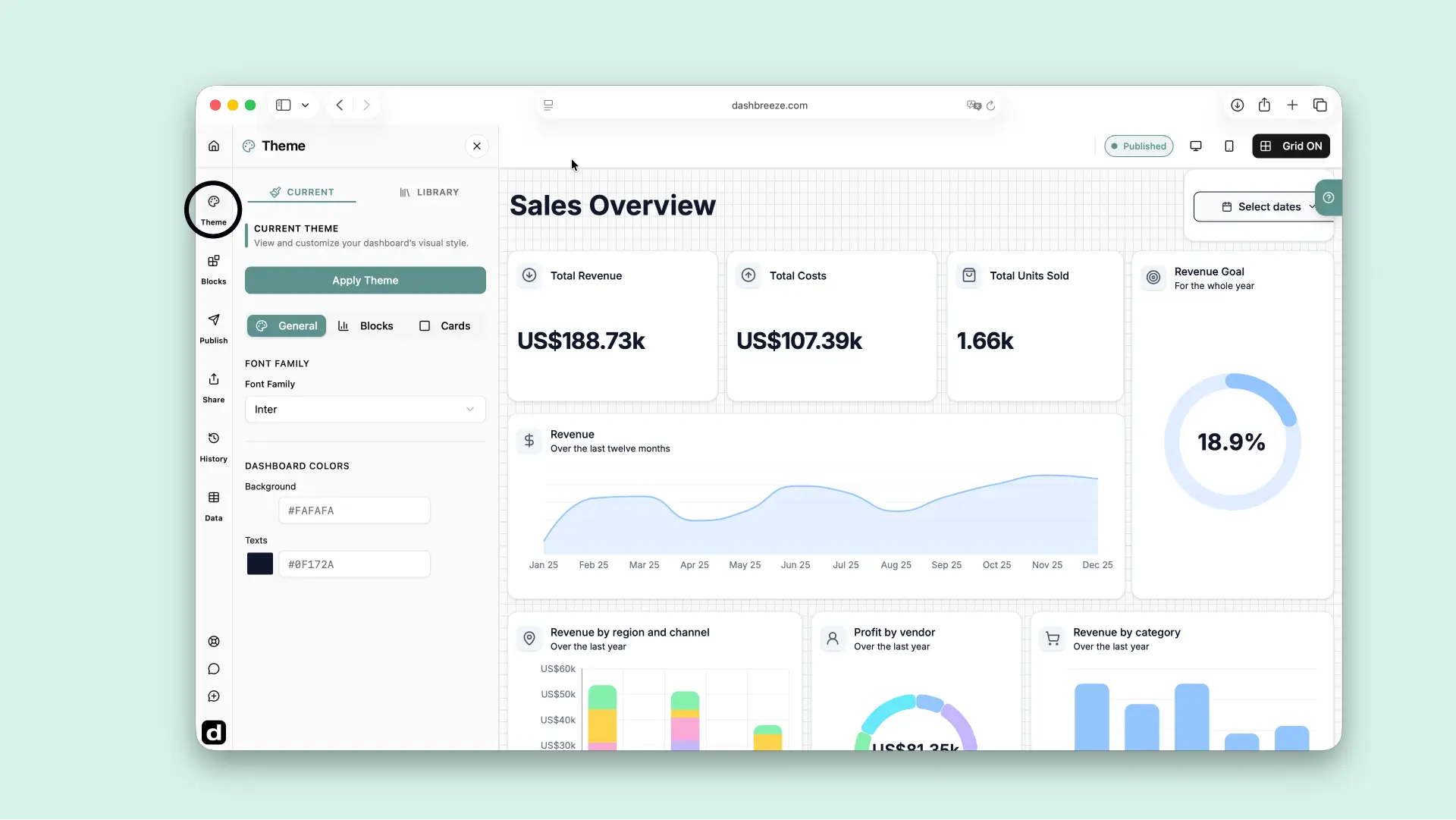
The selected theme becomes the dashboard's current theme. You can still adjust it afterward from the Current tab.
Open Current when you want more control. Work through the three sections, then click Apply Theme when the dashboard looks right.
Set the overall mood
Choose the font and the main background and text colors.
Style visualizations
Choose chart styles and colors, then make charts and tables easy to read.
Bring blocks together
Choose the shared card style, background, icon colors, and text style.
The design changes
Dashboard colors and fonts, chart and table styling, and the shared appearance of cards update together.
Your content stays
Data connections, filters, block positions and sizes, and text content do not change. Block choices such as showing a legend, title, or icon also stay the same.
Theme or block settings?:Use Theme when you want a consistent look across the dashboard. Select one block and use its Block or Card tab when you only want to change that block.
A theme is not permanent. Return to Theme at any time to update the current style or apply another theme from the Library.