Publishing & Sharing a Dashboard
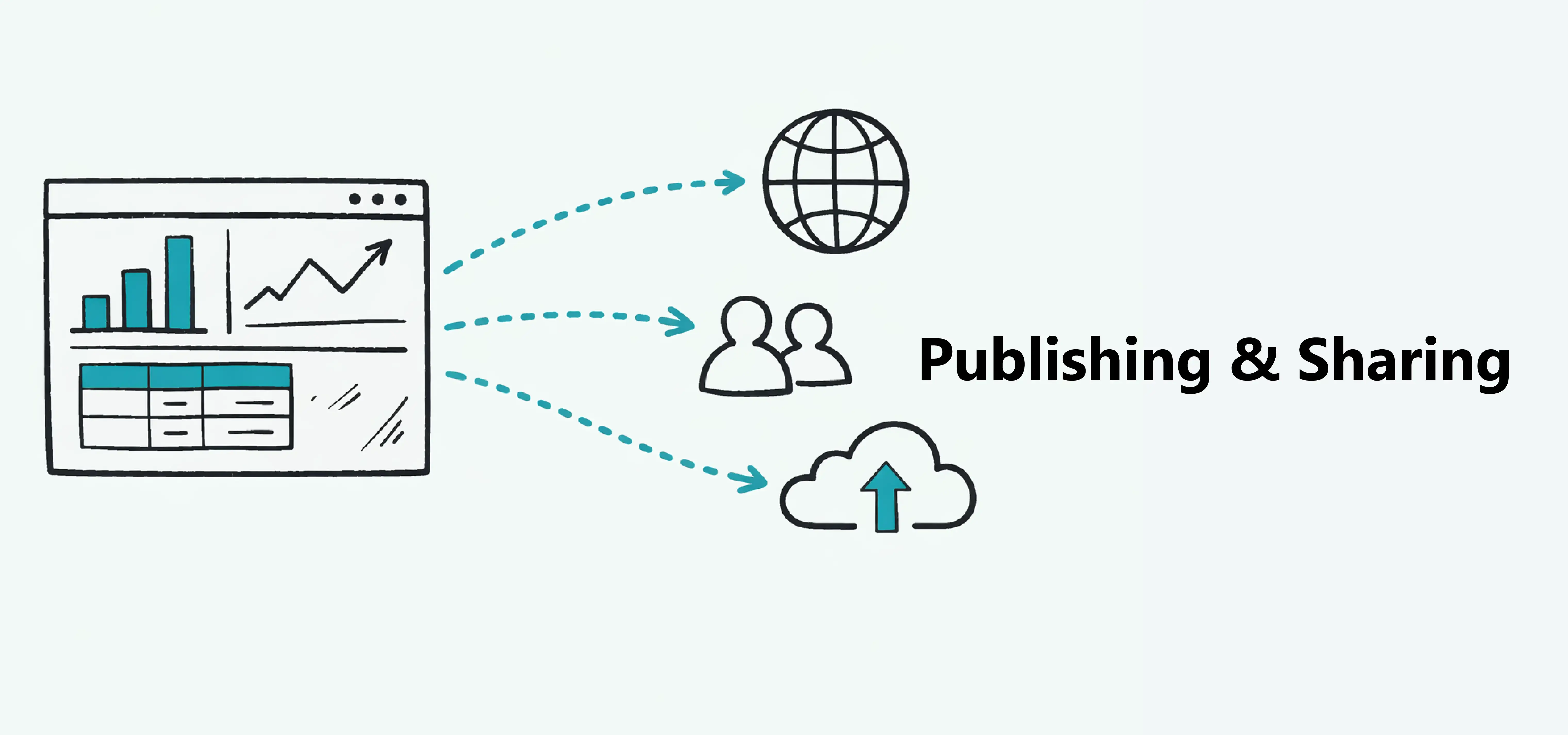
Publish your dashboard and share it using a public link, protected link, email invite, or embed code.

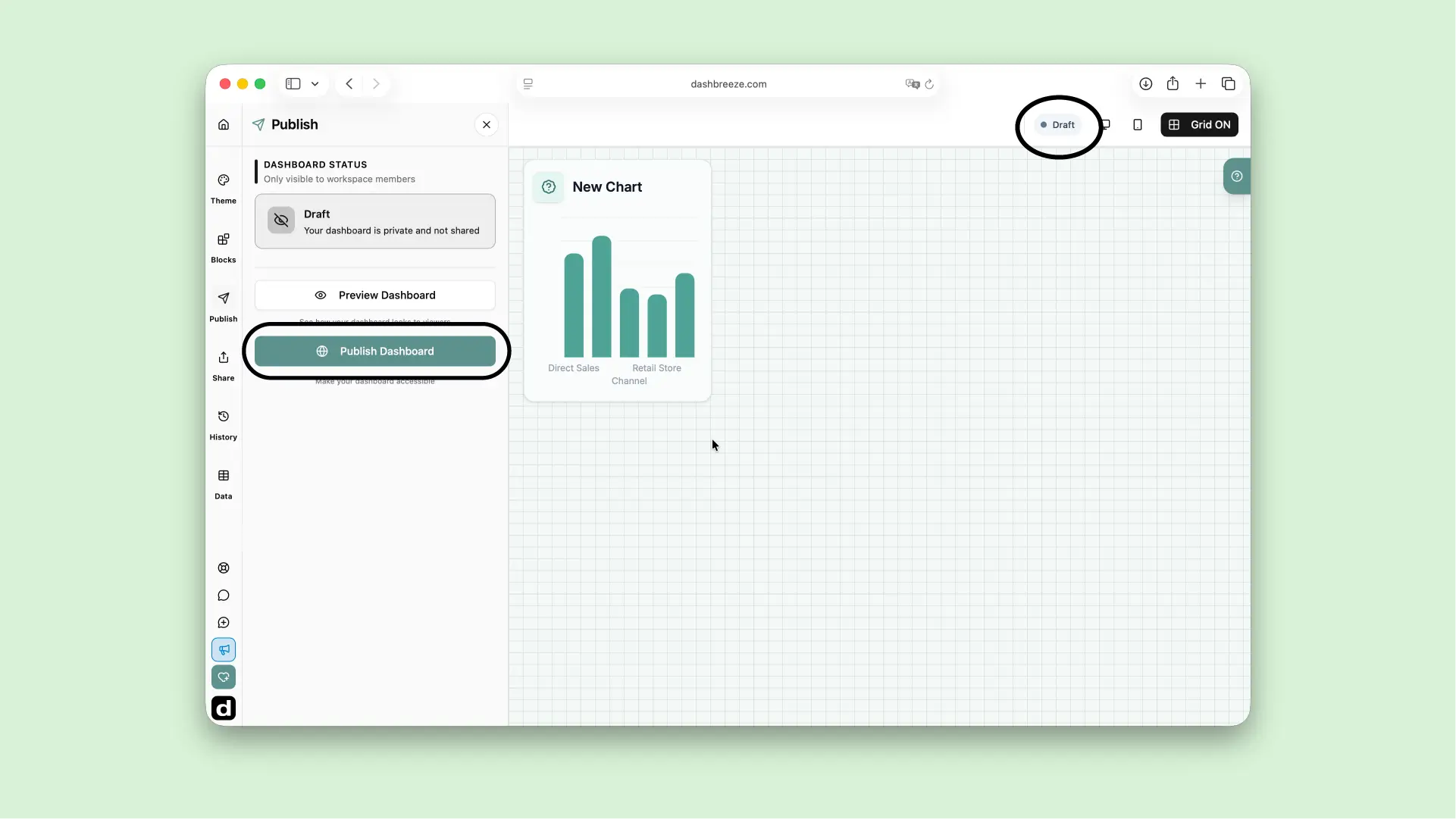
When you create a dashboard, it starts in Draft mode. Draft dashboards can only be viewed by you and the members of your workspace.
To share a dashboard with people outside your workspace, you first need to publish it.
Publishing creates the viewer-ready version of your dashboard. Sharing controls who can open that version and how they reach it. Treat these as two separate steps: publish the content you want people to see, then choose an access method for the audience.
To publish a dashboard, click the Publish button in the left sidebar. This opens the publish panel.
Then click Publish dashboard to make the dashboard available online.
Before publishing, check the dashboard in display mode. Confirm that titles are clear, values and dates are formatted correctly, blocks do not overlap, and the most important information appears first. Also verify that connected tables contain the latest data.
Good to know:If you make changes after publishing a dashboard, its status changes to Unpublished changes. To make those changes visible to everyone viewing the dashboard, publish it again.
Note:If a dashboard is not published, only members of your workspace can view it.
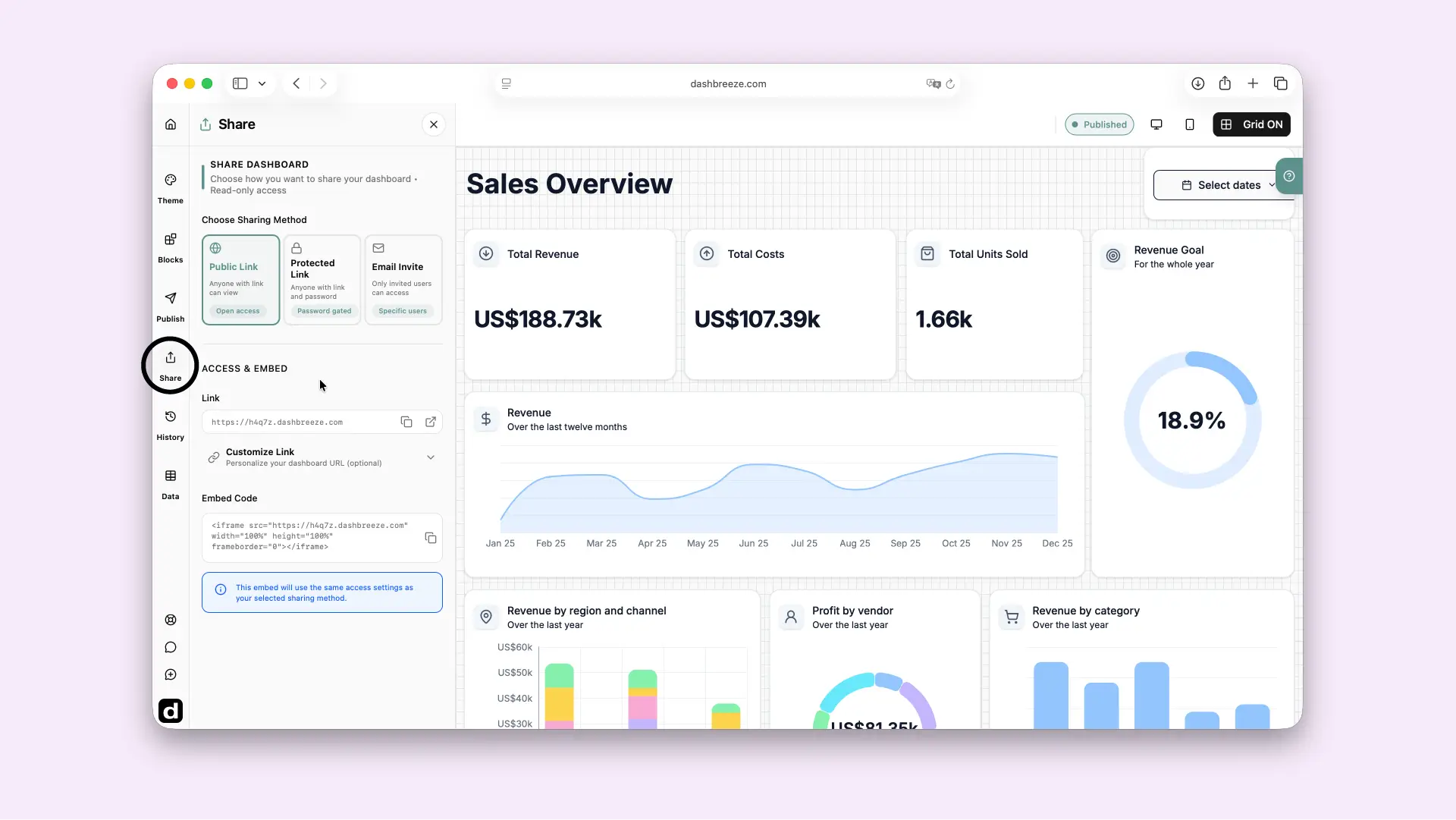
To share your dashboard, click the Share button in the left sidebar.
Dashbreeze provides three ways to share a dashboard:
You can also embed your dashboard into a website or application. The embedded dashboard follows the same sharing option you selected (Public link, Protected link, or Email invitation).
Choose a public link for information intended for a broad audience. Use a protected link when the audience is known but does not need a Dashbreeze account. Use email invitations when access should be limited to named recipients. Before embedding, test the selected access method in a private browser window to see the same experience as an external viewer.
Good to know:People you share the dashboard with can only view it. They cannot edit the dashboard. Only workspace members can make changes.
Need more detail about publishing states, access options, or embed codes? Read the complete dashboard publishing and sharing guide.