
Workspace Data & Ownership
Understand how data and dashboards belong to a workspace.


You can invite people to a workspace by email, right from the sidebar. This article covers sending an invite, what the invitee sees, and how to manage invites once they're sent. Not sure which role to give someone? Check out:
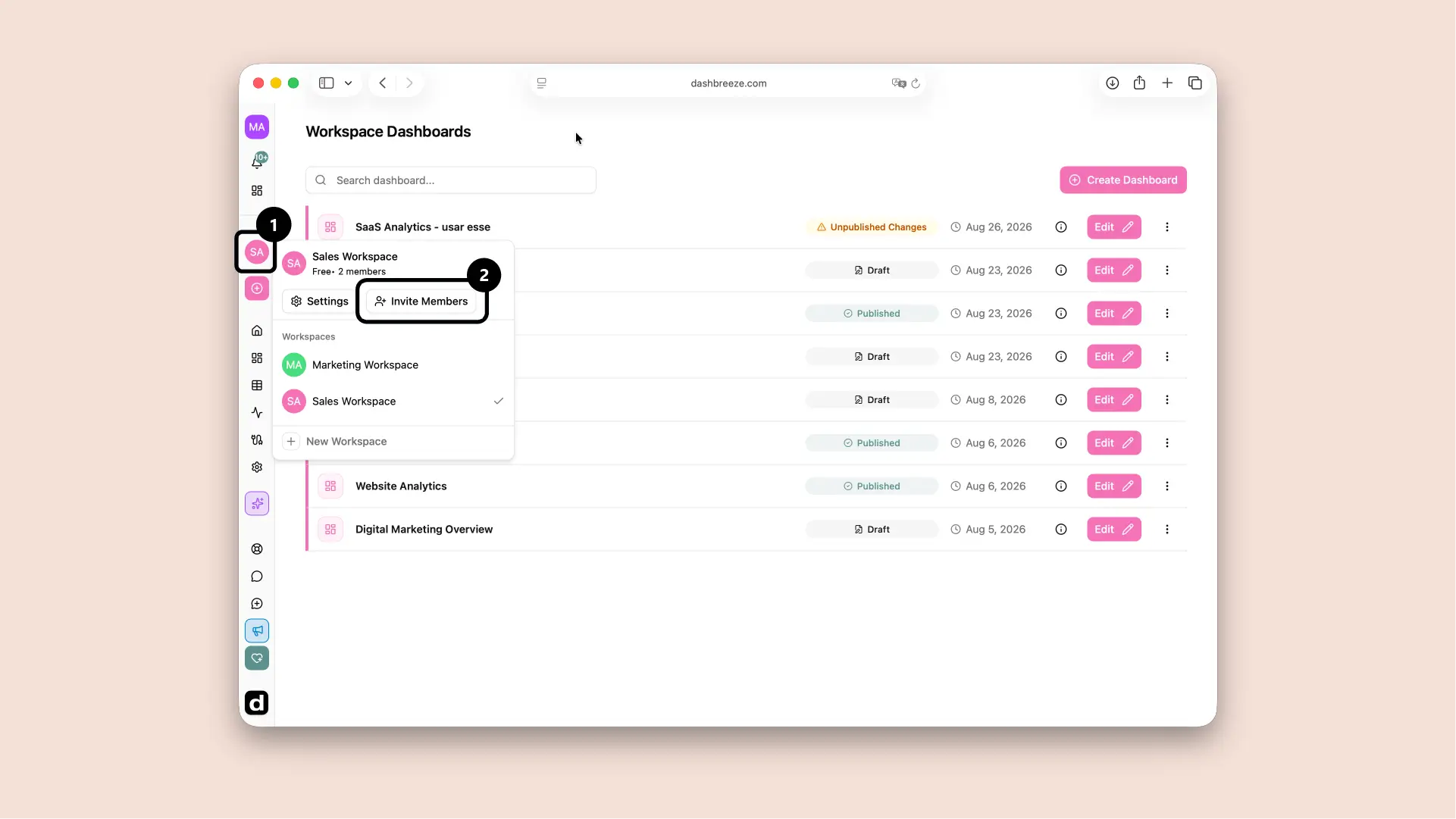
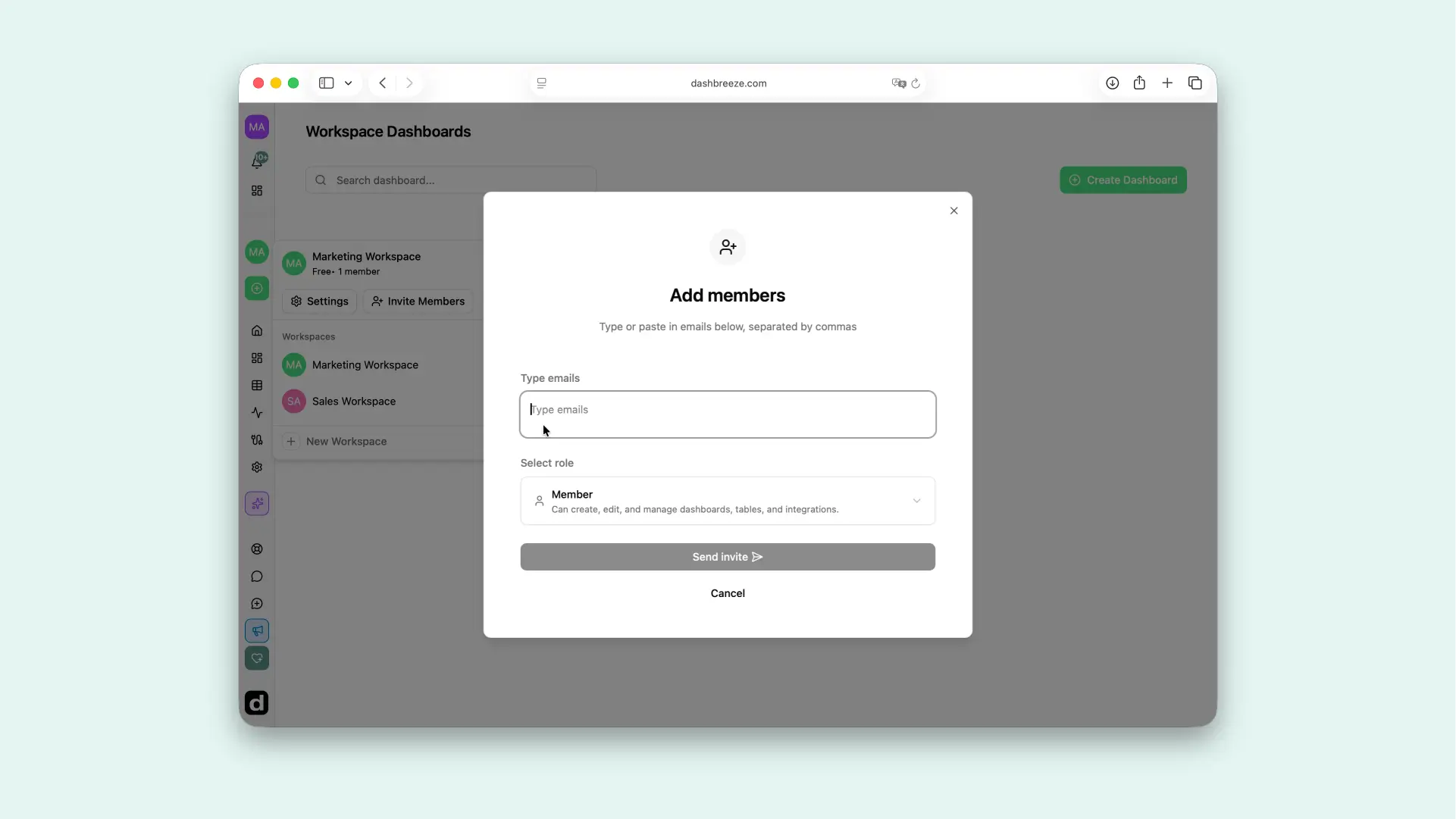
Each person gets their own invitation, sent to the email address you entered.
Seat limits:If your workspace has reached its plan's member limit, the invite button is disabled until you upgrade or free up a seat.
The invite arrives as an email with a link. What happens next depends on whether they're already signed in:
Already signed in
Joins automatically
The invitation is accepted automatically and they're taken straight into Dashbreeze.
Not signed in yet
Sign in, then respond
They're sent to log in or create an account first. Once signed in, any pending invitations sent to their email show up as cards they can Accept or Decline, along with the workspace's name and who invited them.
Invitations expire after 48 hours:If an invite isn't accepted in time, resend it from the Invites tab to give the person a new link and expiration.
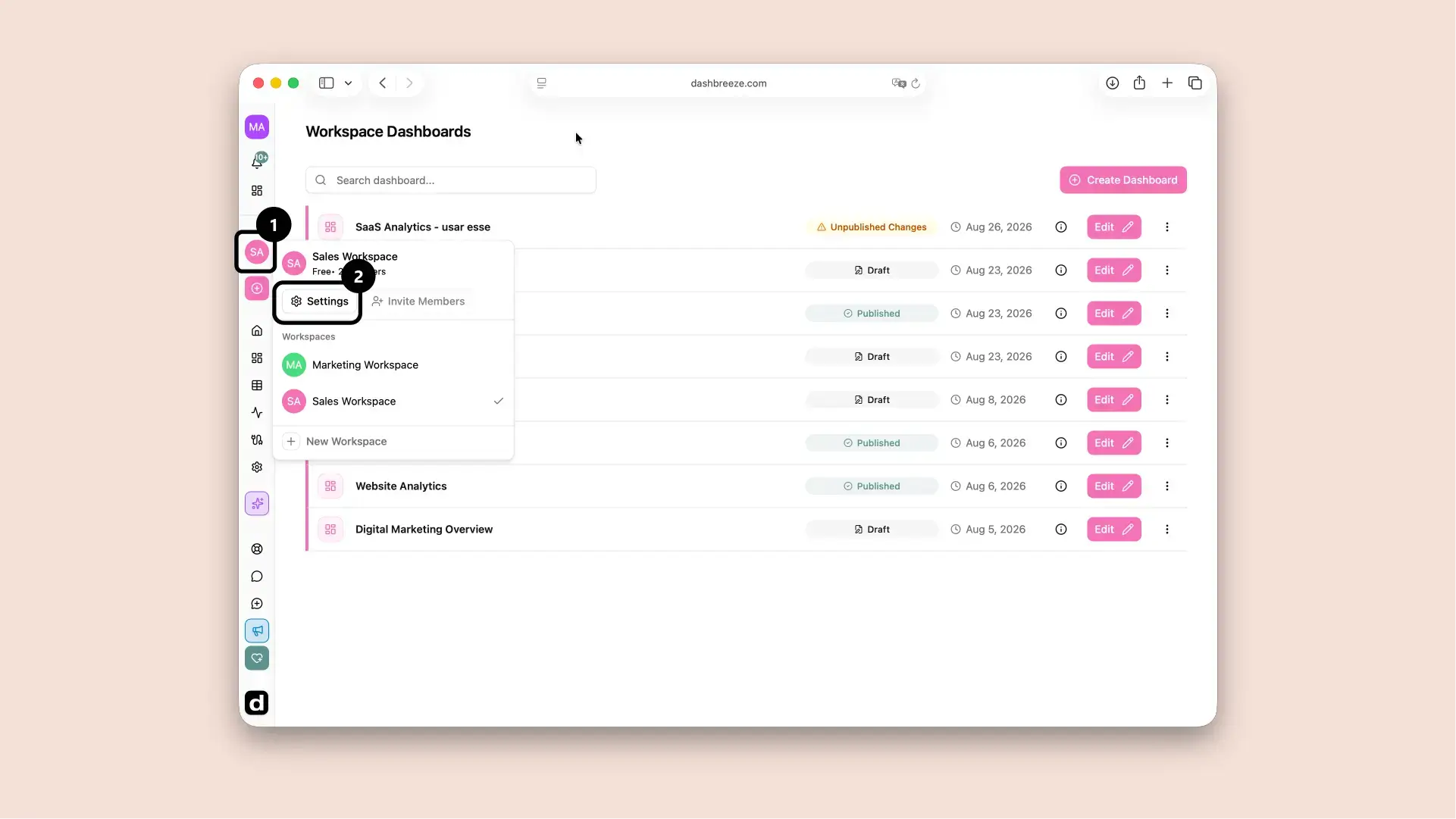
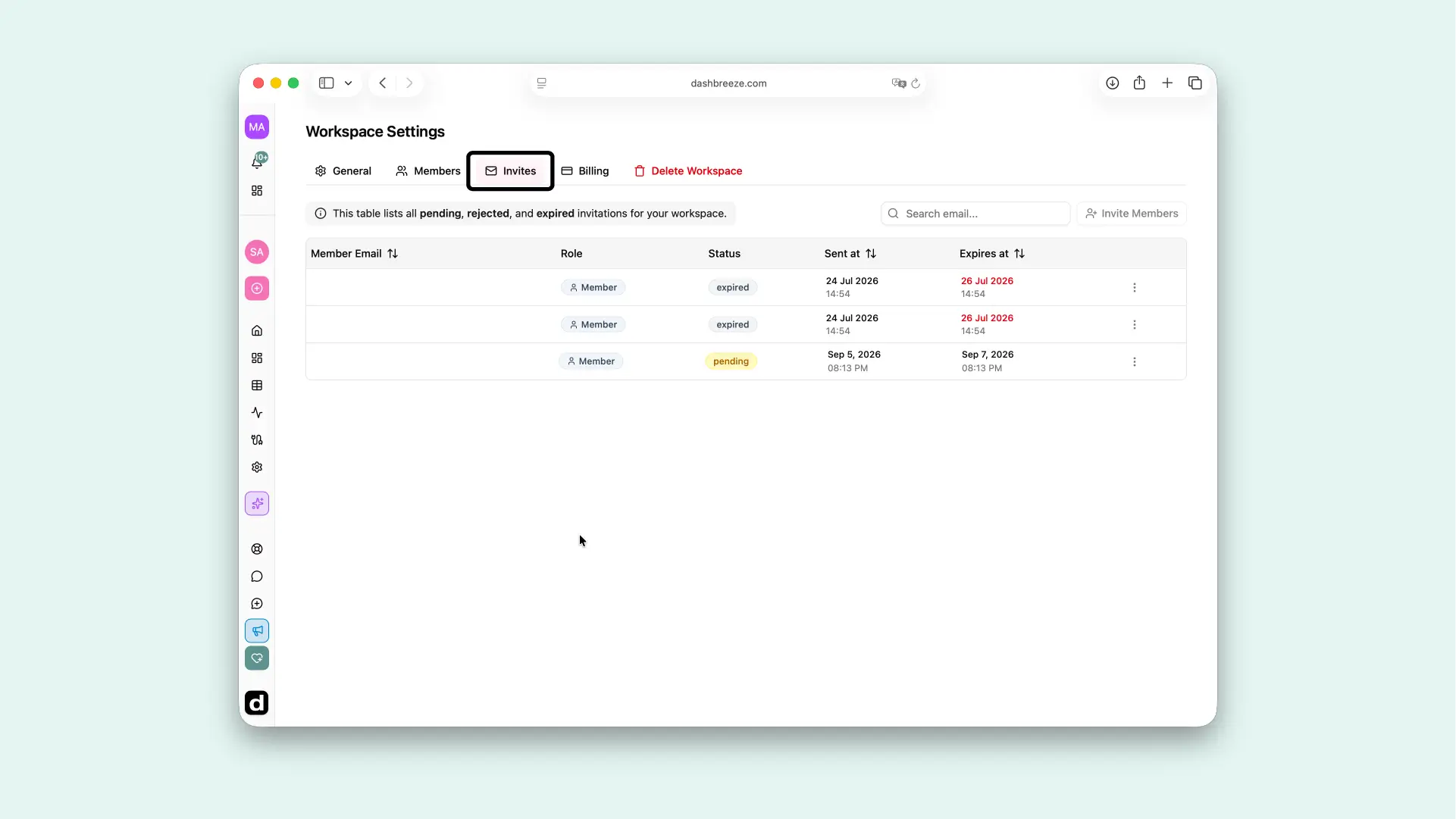
You'll see every invite that's still pending, was rejected, or has expired, along with when it was sent and when it expires. From each invite's menu you can: