Dashbreeze logo

Deleting a Workspace

Deleting a Workspace - Permanently delete a workspace you no longer need.

Permanently delete a workspace you no longer need.

Deleting a workspace permanently removes it along with every dashboard, table, and data source it contains. Because this can't be undone, it isn't a self-serve action inside the app — it's handled by our support team.

Before you delete a workspace

Every member loses access to the workspace's dashboards, tables, and data sources as soon as it's deleted. Make sure no one still needs it, and consider exporting or sharing anything important first.
How to request workspace deletion

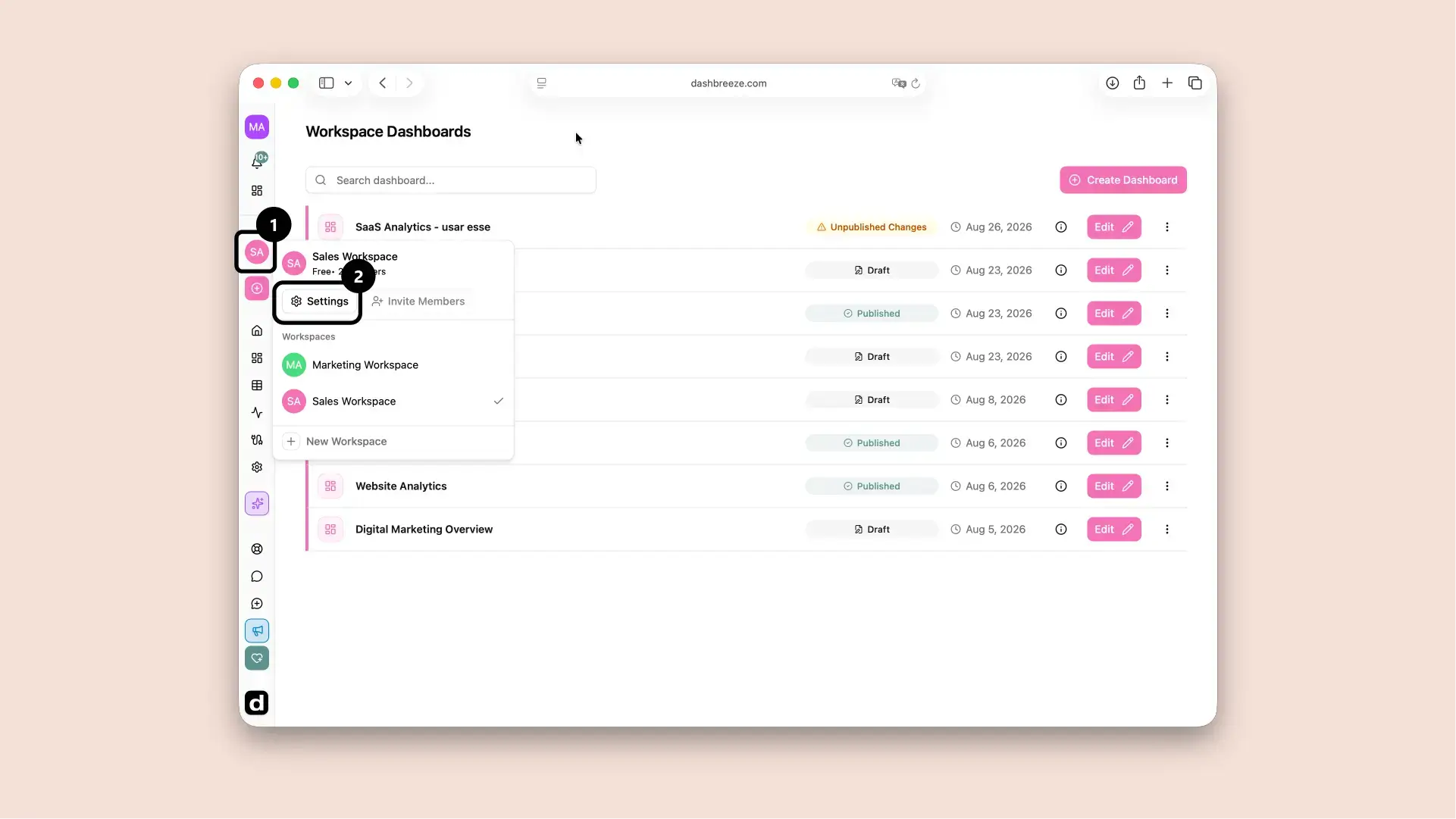
  1. Open the workspace selector in the left sidebar and select Settings.
    Workspace selector open in the left sidebar with Settings highlighted.
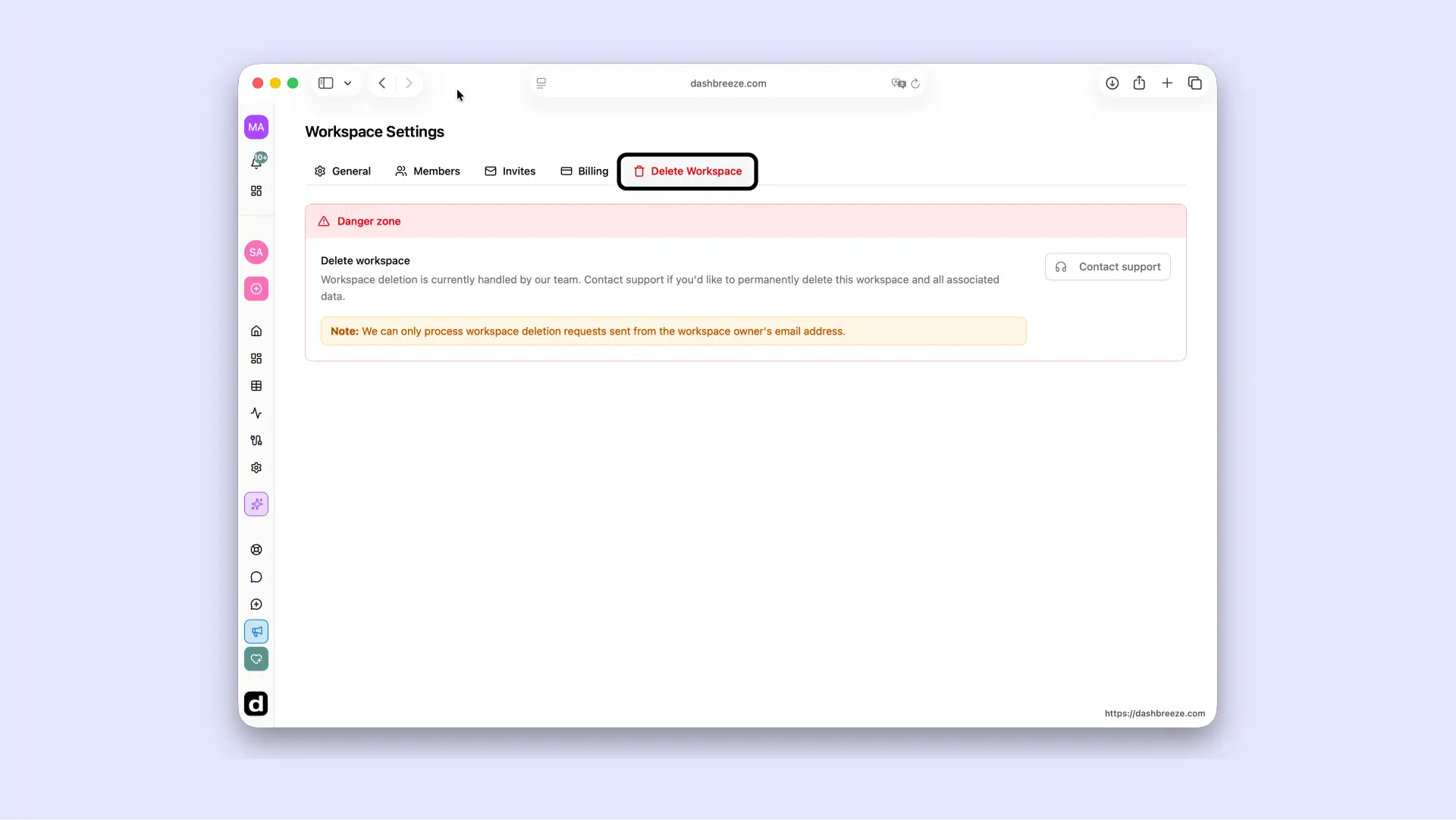
  2. Go to the Delete Workspace tab.
  3. Click Contact support. This opens a pre-filled email to our support team asking us to delete the workspace.
    Workspace Settings Delete Workspace tab showing the Danger zone with a Delete workspace explanation and the Contact support button.
  4. Send the email, and our team will take it from there.

Owner-only, and from the owner's email:Only the workspace's Owner can request deletion, and for security we only process requests sent from the Owner's email address.

Up Next