


What is a Data Source?
Understand how your data is imported into Dashbreeze.

Open Metrics in the left sidebar to see every metric saved in your workspace. From this page, you can find a metric, edit it, duplicate it, or delete it.
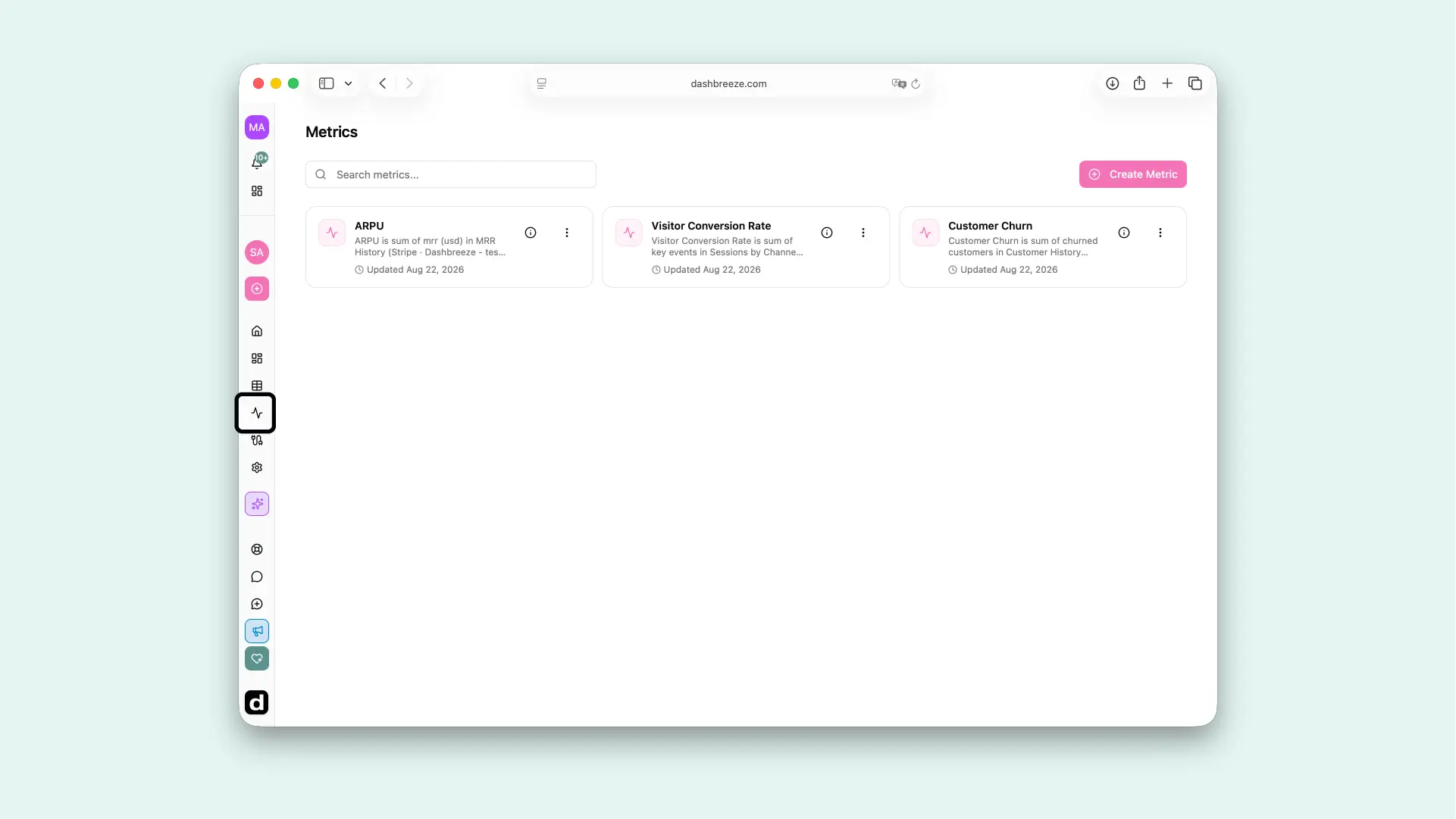
Each card gives you a quick summary of one metric:
Name
The name used to identify the metric across your workspace.
Formula summary
A plain-English description of what the metric calculates, such as Sum of Revenue divided by Count of Orders.
Updated
How long ago the metric's formula or format was last changed.
Created
The creation date and who created it, shown in the info popover on the card.
Enter part of a metric name in Search metrics to filter the list down to matching cards.
Changes apply everywhere the metric is used:Editing a saved metric updates every KPI or Gauge block connected to it, on every dashboard in the workspace.
Open the ⋮ menu on a metric card and select Duplicate to create a copy you can adjust independently — useful when a new metric is close to an existing one, such as a regional version of a metric you already built.
Deletion is permanent:You cannot restore a deleted metric. Any KPI or Gauge block using it will stop showing a value. Custom metrics that reference it may also stop calculating. Review where the metric is used before you confirm the deletion.