Connecting Your Data
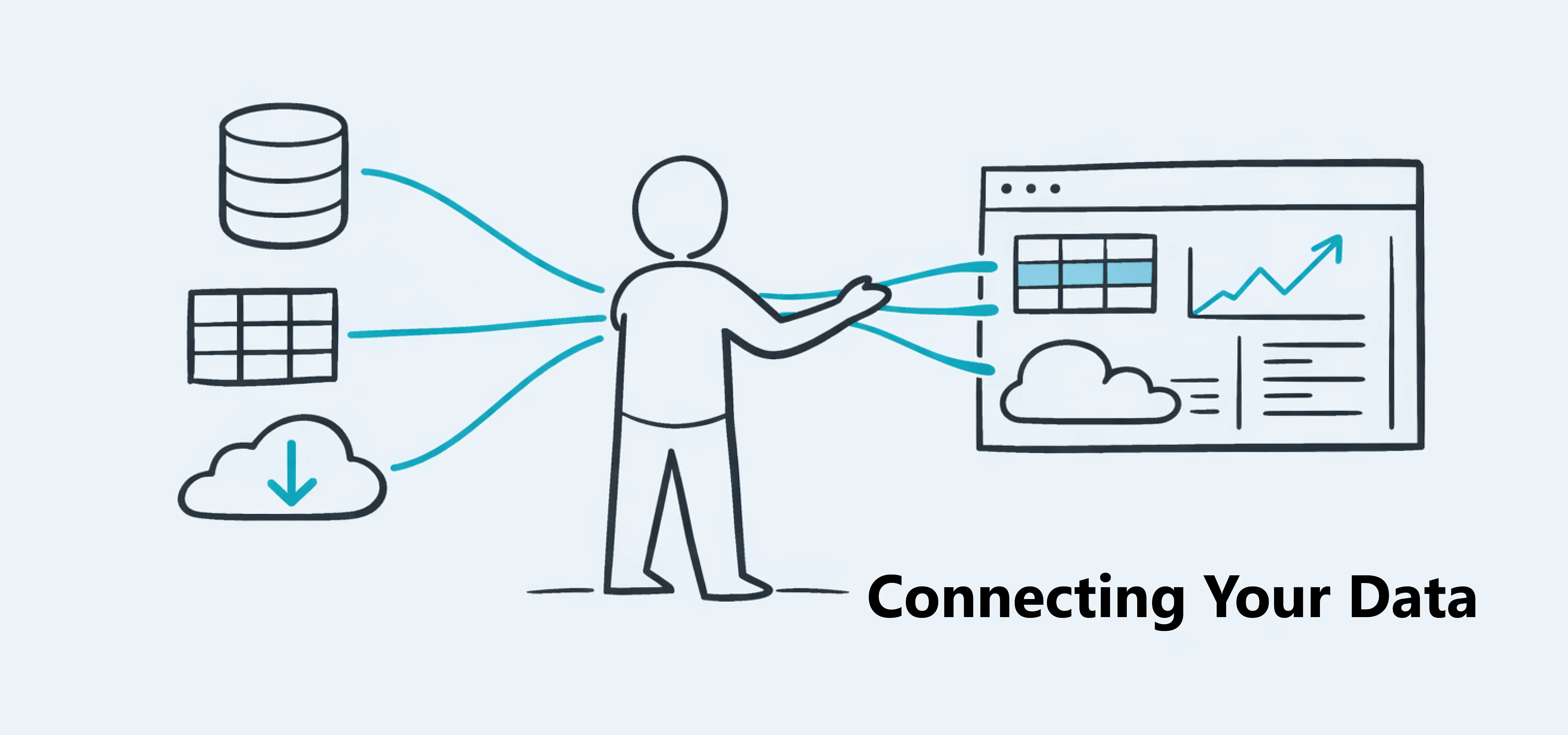
Learn how to import data and connect it to your data blocks.

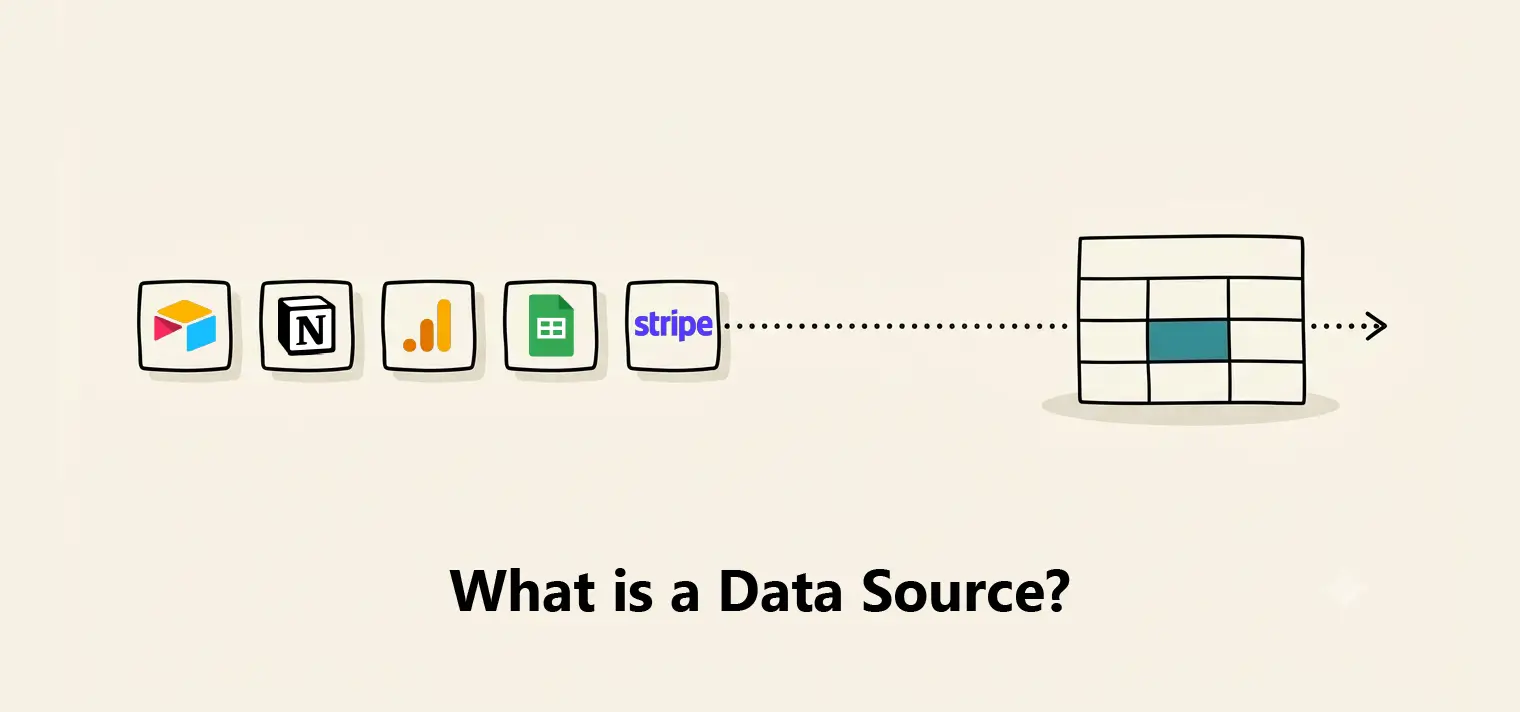
A data source is simply where your information already lives — a spreadsheet, a file on your computer, or an app you use every day, like Notion or Stripe. It's the starting point for everything you build in Dashbreeze.
When you connect a data source, Dashbreeze reads the data inside it and brings a copy into your workspace. That copy is what powers your dashboards.
Your original app or file stays the same. In Dashbreeze, you can organize the copied data and use it in charts without changing where your team enters or stores information.
Important:Connecting a data source never changes your original data. Dashbreeze only reads it — your spreadsheet, file, or app stays exactly as it was.
There are two kinds of data sources you can connect, depending on where your data lives.
Integrations
Connect Dashbreeze to an app, such as Google Sheets or Stripe. You can update the data yourself or ask Dashbreeze to update it automatically on a schedule.
Files
Upload a file from your device, such as an XLSX file. Dashbreeze imports the data that is in the file at that time. Upload the file again when you want to replace it with a newer version.
Right now, Dashbreeze supports the following data sources:
| Source | Type |
|---|---|
| Google Sheets | Integration |
| Google Analytics | Integration |
| Airtable | Integration |
| Notion | Integration |
| Stripe | Integration |
| PostgreSQL, MySQL, Microsoft SQL Server | Integration |
| CSV, XLSX, XLS, JSON, Parquet | File |
If your data changes often, use an integration when one is available. It is easier to update than uploading a new file each time. Use a file when you only need the data once or when Dashbreeze cannot connect directly to the app you use.
Both options bring data into Dashbreeze. The main difference is how you update that data later:
| Integration | File | |
|---|---|---|
| How you connect | Connect the app where your data lives | Upload a file directly from your device |
| Staying up to date | Update it yourself or set an automatic update schedule | Upload the file again whenever it changes |
| Best for | Data that changes often | Data you only need to import once |
The steps are simple for both options. Choose a source, follow the instructions, and Dashbreeze creates a table that you can use in a dashboard.
For an integration, use an account that will continue to have access to the data. If the account loses access, Dashbreeze will not be able to update the table.
A data source does not appear directly on a dashboard. Dashbreeze first turns the data into a table. You then connect that table to a chart, Highlight, or Details block.
One data source can be used to create more than one table. For example, you can use one Google Sheets connection to create tables from several spreadsheets or sheets.
Give each table a clear name that describes its data, such as “Monthly Sales” or “Website Visitors.” Clear names make it easier to choose the right table when you build a dashboard.
Ready to bring in your own data? Check out this guide for a step-by-step walkthrough of creating a table from a data source.