01
Source data changes
Your team continues working in the connected tool they already know.
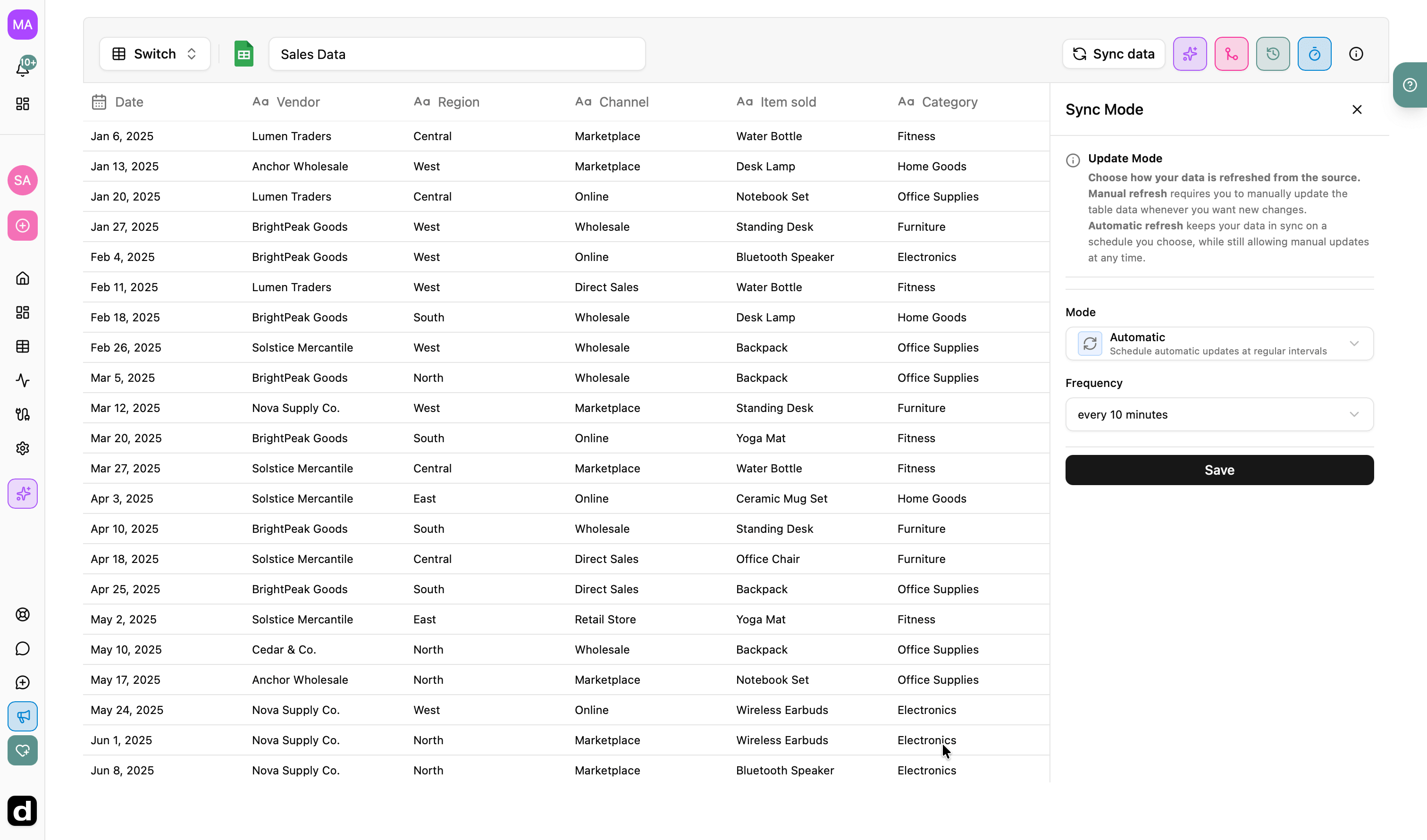
Schedule connected data to refresh in the background. Your tables, charts, and KPIs stay current while you focus on decisions—not repetitive imports.
Fresh data without the busywork
Manually re-importing data creates a quiet gap between what happened in your source and what stakeholders see in a dashboard. It also turns every recurring report into another item on your calendar.
Automatic updates pull new values from supported connections on your chosen schedule. The data changes; the dashboard, calculations, filters, and share link stay in place.
Scheduled dashboard refreshes
Connect a live source once, choose the right cadence, and let Dashbreeze keep the report moving.
Bring in data from a supported live integration such as Google Sheets.
Select the data you need and use it across charts, metrics, gauges, and filters.
Turn on automatic updates and select how often the connection should refresh.
New source values flow into the dashboards and reports that use the table.
A dependable reporting rhythm
Turn a recurring manual workflow into a dashboard that is ready when your team opens it.
Your team continues working in the connected tool they already know.
The scheduled update imports the latest available rows from the source.
Dashboard blocks calculate and display the refreshed values in the existing report.
Made for recurring reports
Everything you need to keep connected reporting useful after the dashboard is published.
Set a refresh schedule once instead of returning to every table to pull new data by hand.
New source values flow into the tables, charts, KPIs, and gauges that already use them.
Check when a source last refreshed and confirm that your dashboard is working with current information.
Match the update schedule to how quickly your source changes and how often the report is viewed.
Keep the option to refresh manually whenever you need fresh data before the next scheduled update.
Create the dashboard once and let each successful refresh update the same polished report.
Manual when needed, automatic by default
Fast-moving operational reports and slower monthly scorecards do not need the same cadence. Choose an available frequency for each supported connection, then trigger a manual refresh whenever timing matters.
Sales pipeline
Google Sheets
Update mode
Automatic
Refresh on a regular schedule
Frequency
Frequently asked questions
Answers about supported sources, schedules, manual refreshes, and what happens to your dashboards.
Automatic data updates refresh a connected Dashbreeze table from its original source on a schedule. Dashboards using that table then display the newly imported values without requiring you to rebuild them.
Automatic updates are available for supported connected sources such as Google Sheets and other live integrations. Uploaded file sources are refreshed manually because Dashbreeze cannot detect a newer local file until you upload it.
Yes. You can select from the refresh frequencies available for your connected source and plan. This makes it possible to balance freshness with the update cadence your report actually needs.
Yes. A scheduled connection can still be refreshed manually when you need the latest values before its next automatic update.
No. Existing charts, KPIs, gauges, tables, and filters continue to use the connected table, so refreshed values appear in the dashboard you already built.
The previous imported data remains available, and the update status helps you identify that the latest refresh did not complete. You can correct the source connection and try again.