Dashbreeze logo

Image Block

Image Block - Upload an image or reuse one from your workspace gallery.

Upload an image or reuse one from your workspace gallery.

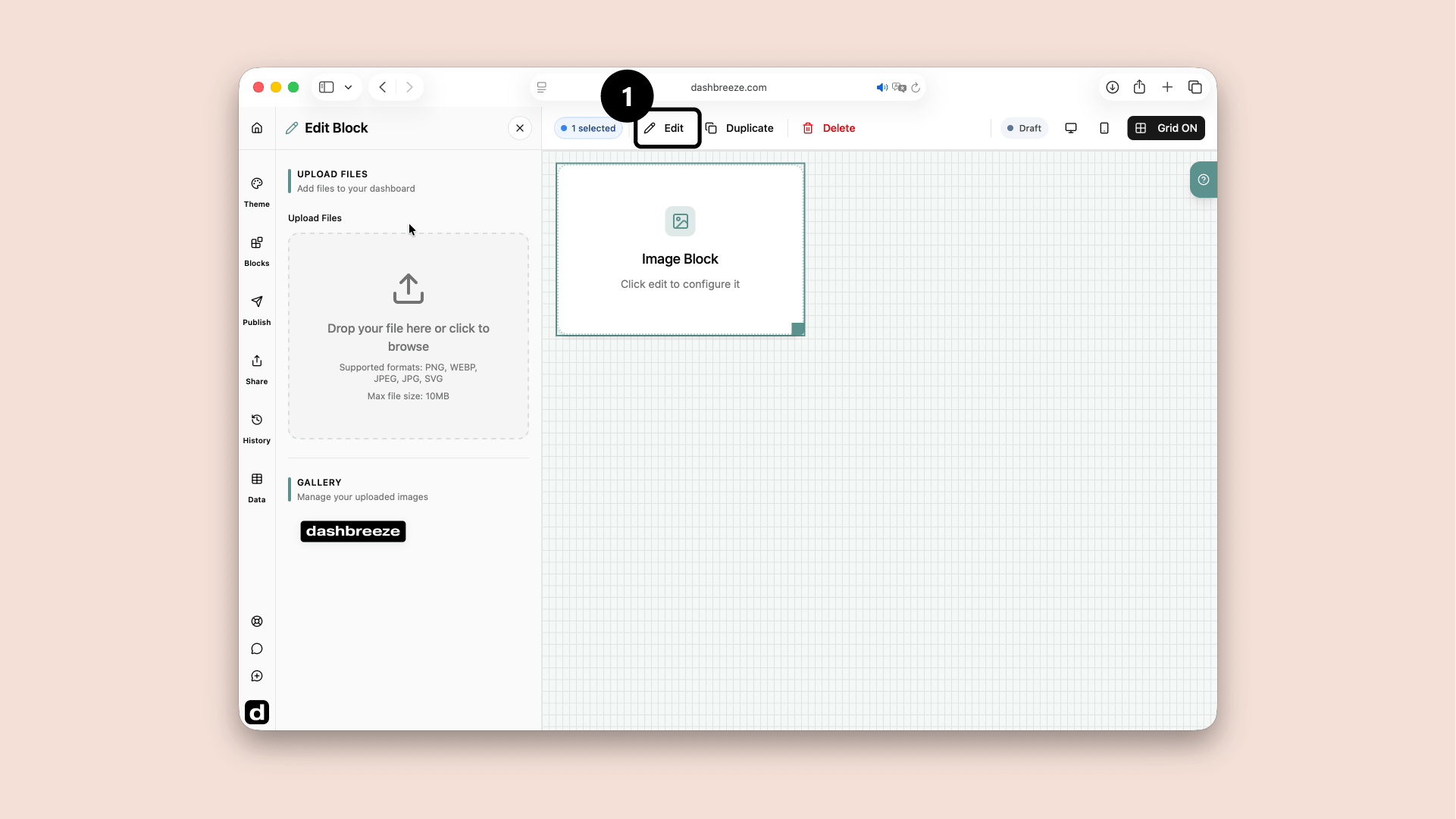
A Image block selected in the dashboard editor, with the Edit button highlighted
Select the Image block and click Edit (1). The settings panel opens on the left.

An Image block displays a logo, photo, diagram, or other visual on the dashboard. Use it to add branding, explain information, or make the dashboard easier to understand.

Add an image

An image is required before this block can display anything. Choose one of these methods:

Image

Required
Choose one of the two ways to select the image shown by the block.

Upload Files

Drag an image into the upload area or choose it from your device. PNG, WebP, JPEG/JPG, and SVG files are supported. After the upload finishes, the block displays that image.

Gallery

Choose an image that has already been uploaded to the workspace. Selecting another image replaces the one currently shown in this block.

Manage the gallery

Gallery actions

Optional
The Gallery contains images previously uploaded to the workspace. Select an image to show it in this block. Open an image to preview it, or use Remove image when it is no longer needed.

Up Next