
Dashbreeze logo

Typography Blocks

Typography Blocks - Add titles, subtitles, and text, and turn a text block into a link.

Add titles, subtitles, and text, and turn a text block into a link.

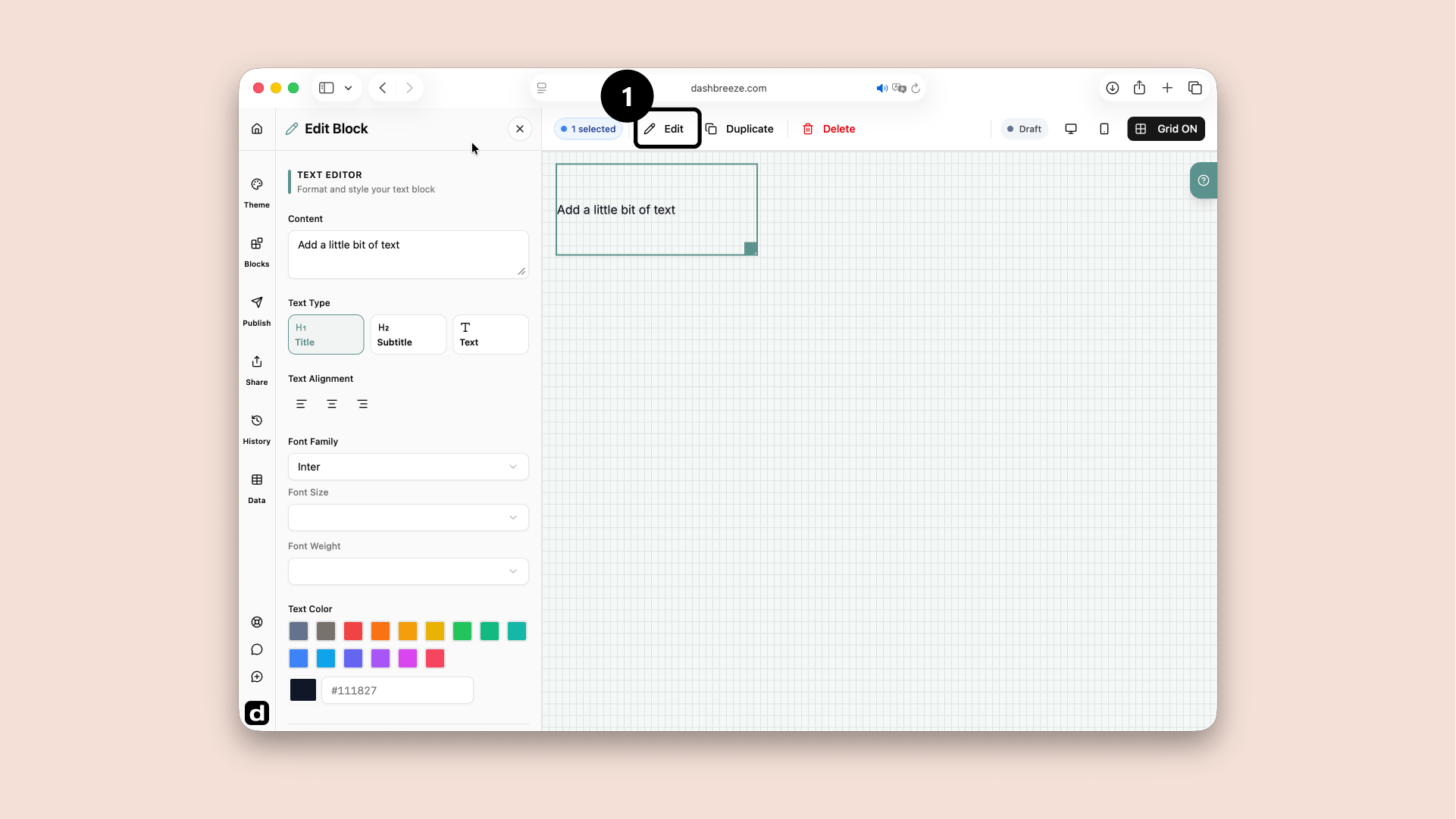
A Text block selected in the dashboard editor, with the Edit button highlighted
Select the Text block and click Edit (1). The settings panel opens on the left.

A Text block adds written information to a dashboard. Use it for a page title, section heading, explanation, instruction, or note. The text appears directly on the dashboard without a card around it.

Write and format the text

1. Content

Required
Type or paste the words that should appear on the dashboard.

2. Text Type

Optional
Choose the role of the text. This applies a matching default Font Size and Font Weight.
Title
Use for the main heading. It starts with the largest and boldest text.
Subtitle
Use for a section heading. It starts smaller than Title.
Text
Use for sentences, instructions, descriptions, or notes.

Changing Text Type resets Font Size and Font Weight to that type's defaults. You can change them again afterward.

Text Alignment

Optional
Place the text on the left, in the center, or on the right side of the block.

Typography

Optional
Control the appearance of the words.
Font Family
Choose the typeface.
Font Size
Choose how large the text appears.
Font Weight
Choose how light or bold the text appears.
Text Color
Choose a color swatch or select an exact color.

Link

Optional
Turn this on to make the entire Text block clickable.
URL
Enter the address that should open when someone clicks the text.
Open in new tab
Turn this on to keep the dashboard open. Leave it off to open the address in the same tab.

A quick example:Use a Title text block above a group of charts, and a smaller Text block below it as a caption explaining what the numbers mean.

Up Next