Dashbreeze logo

Embed Block

Embed Block - Show content from another website using a URL or a pasted embed code.

Show content from another website using a URL or a pasted embed code.

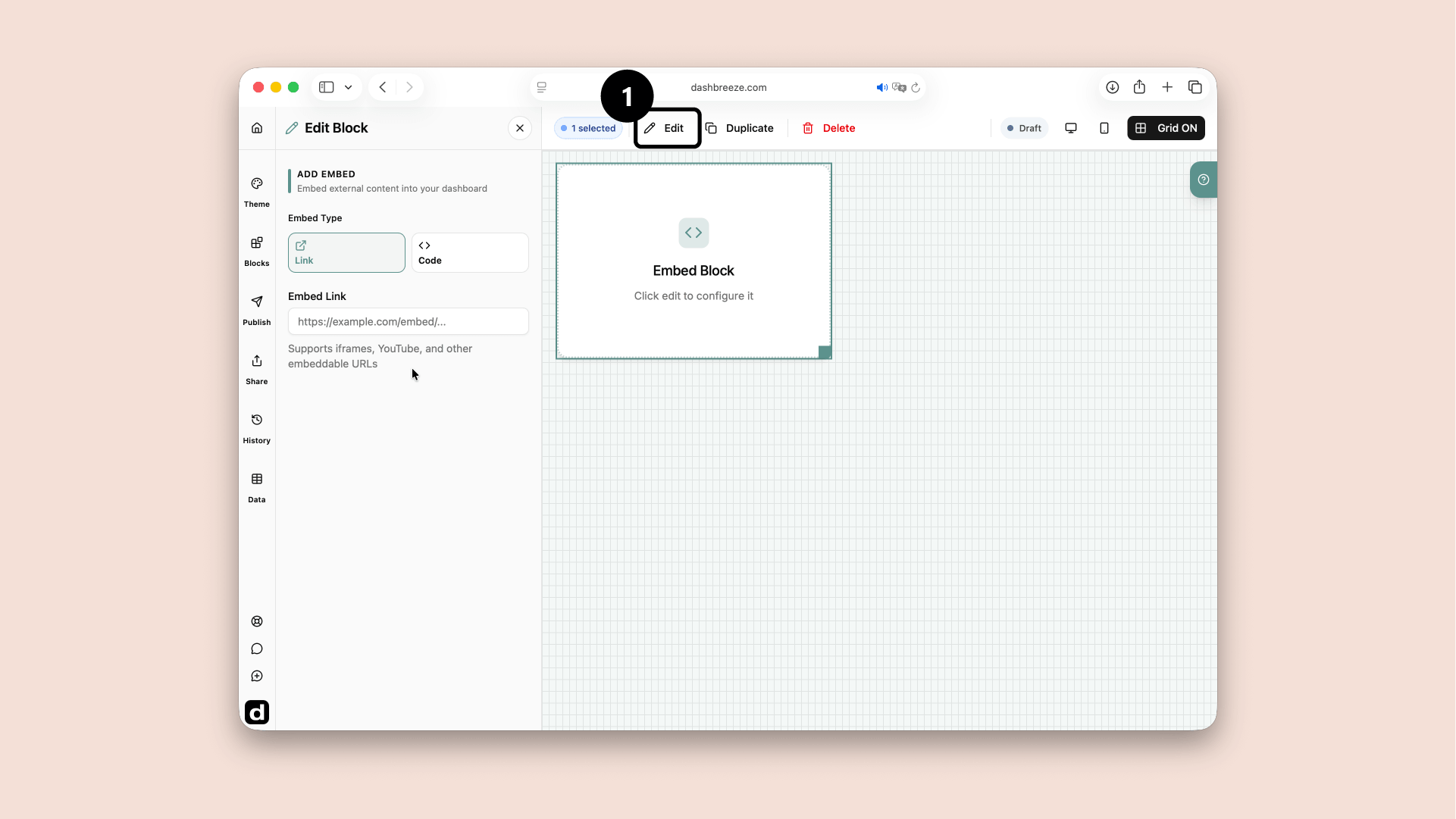
A Embed block selected in the dashboard editor, with the Edit button highlighted
Select the Embed block and click Edit (1). The settings panel opens on the left.

An Embed block displays content from another website inside the dashboard. For example, it can show a video, form, document, or another page without making viewers leave the dashboard.

Choose Link or Code

Choose one way to provide the external content.

1. Embed Type

Required
Choose Link or Code. Only the field for the selected type needs to be completed.

Link

Choose this when the service gives you an embeddable URL. Paste the address into Embed Link, such as a YouTube or iframe URL.

Code

Choose this when the service gives you a complete iframe code snippet. Paste it into Embed Code.

Changing Embed Type:Switching between Link and Code clears the previous configuration. Copy anything you may need before changing the type.

2. Embed Link or Embed Code

Required
Paste the Embed Link or Embed Code provided by the external service. When it is accepted, the external content appears inside the block. If you see an error, check that you copied the complete link or iframe code and try again.

The external website must allow embeds:Some websites block their pages from appearing inside another site. If a valid link or iframe still shows nothing, the external website may not allow embedding.

Up Next