Dashbreeze logo

Airtable

Airtable - Import Airtable bases and sync records for dashboard reporting.

Import Airtable bases and sync records for dashboard reporting.

The Airtable integration imports records from an Airtable base into Dashbreeze. Each Airtable table you select becomes a separate Dashbreeze table for charts, metrics, and other dashboard blocks.

Important:Dashbreeze reads data from the bases and tables you authorize. It does not edit or delete Airtable records.
What do you need to connect Airtable?

  • An Airtable account
  • Access to the base and tables you want to import
  • Permission to authorize Dashbreeze access for that Airtable bases

How do you connect an Airtable account?

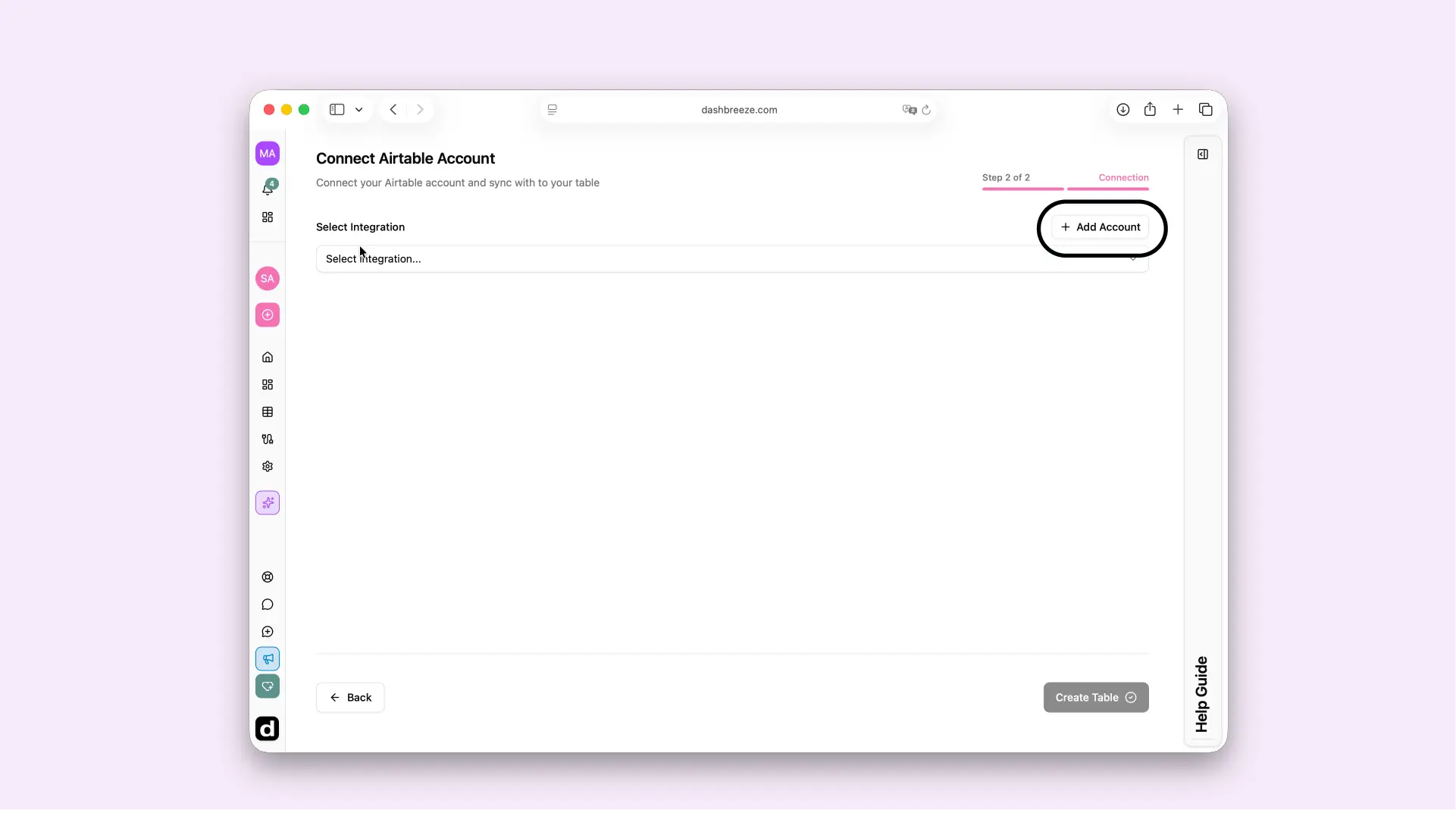
  1. Select Add Account.
  2. Give the connection a recognizable name and description.
  3. Sign in to Airtable and approve access to the bases you need.
Dashbreeze screen for creating an Airtable integration and connecting your account.

How do you select Airtable bases and tables?

An Airtable base is a container for related tables. Select a base first, then choose one or more tables inside it. Every selected Airtable table becomes a separate Dashbreeze table.
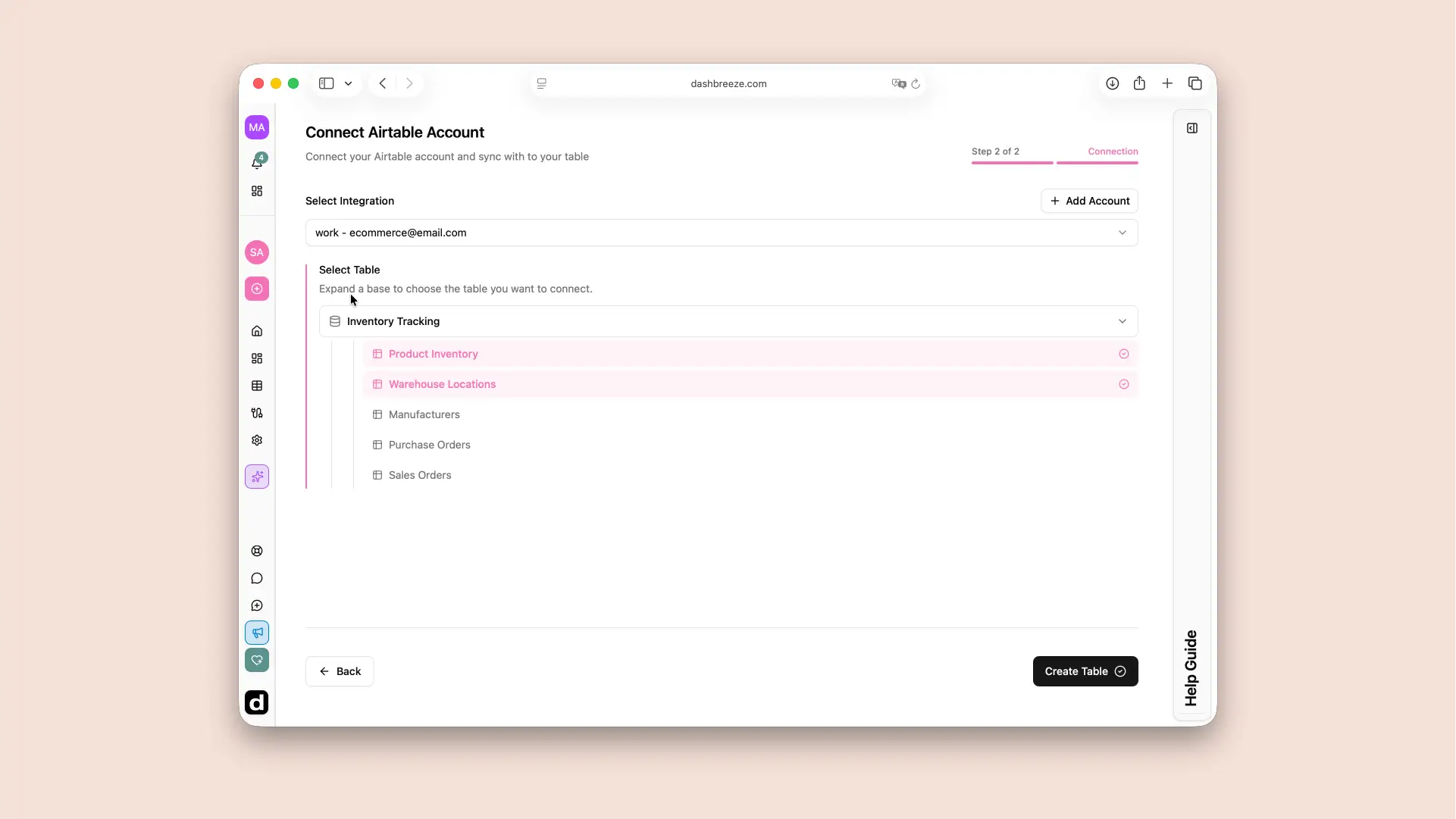
  1. Select the connected Airtable account.
  2. Choose the base that contains your data.
  3. Select one or more tables from that base.
  4. Select Create Table to begin the import.
Dashbreeze Airtable table creation screen for selecting an Airtable base and choosing tables to import.

How should you prepare Airtable data?

Use descriptive base, table, and columns names so they are easy to recognize in Dashbreeze. Keep one kind of value in each field. Linked records, formulas, and other Airtable field types are imported as values available through Airtable’s API.

How does Airtable data stay updated?

Airtable is a live connection. Open the imported table and use Sync Data for an immediate refresh, or enable automatic updates and choose a schedule.
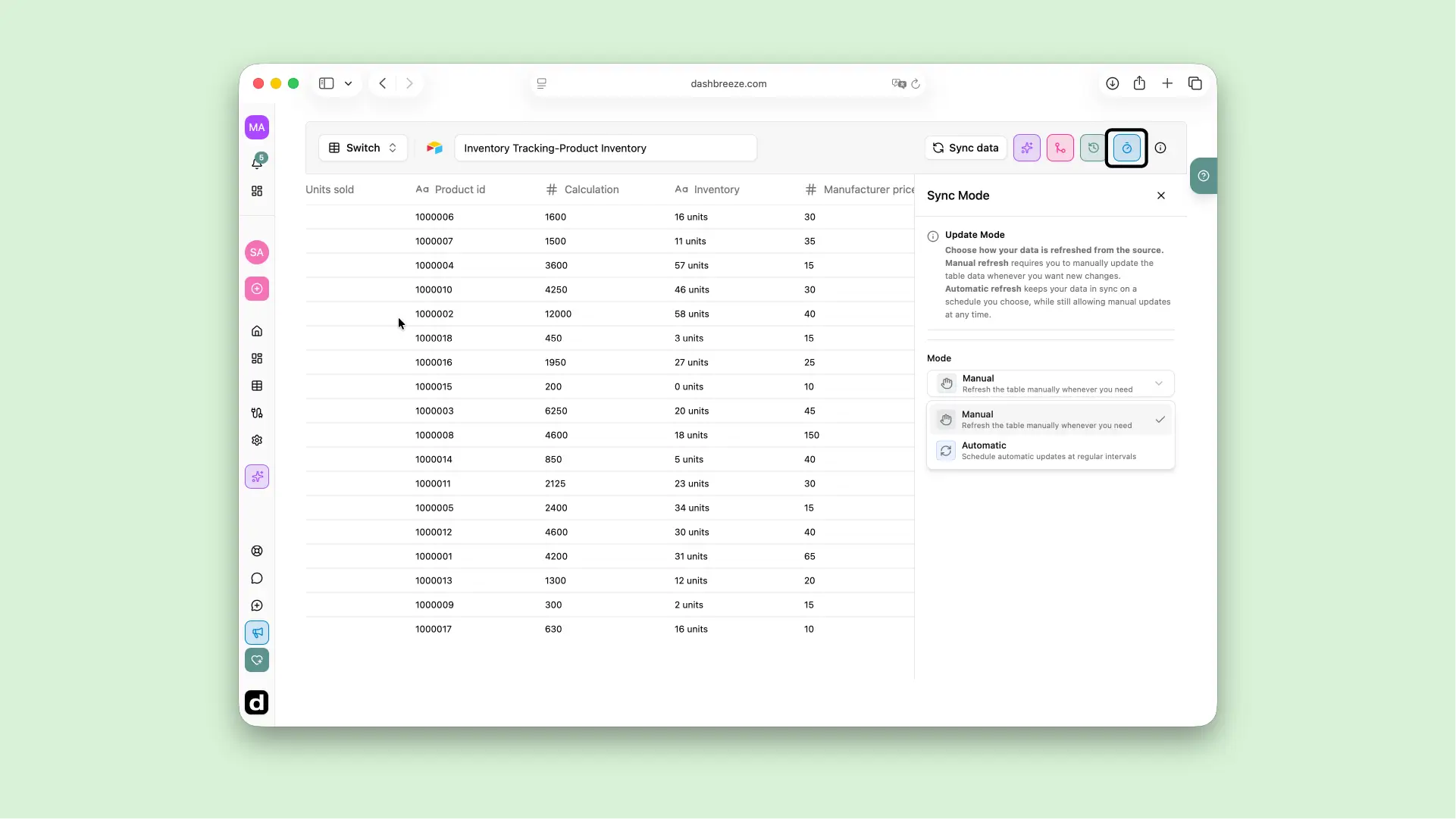
Dashbreeze Airtable table settings showing manual sync and automatic update options.

Common issues and how to fix them

Up Next