

Google Analytics
Connect a GA4 property and import metrics, dimensions, and report presets into tables.

To connect Google Sheets to Dashbreeze, authorize a Google account, paste a spreadsheet URL, and select the sheets you want to import. Dashbreeze turns each selected sheet into a separate table for charts, metrics, filters, and other dashboard blocks.
Important:Dashbreeze only reads your spreadsheet. It never edits, deletes, or changes anything in it.
This creates an integration. You only do this once per Google account.
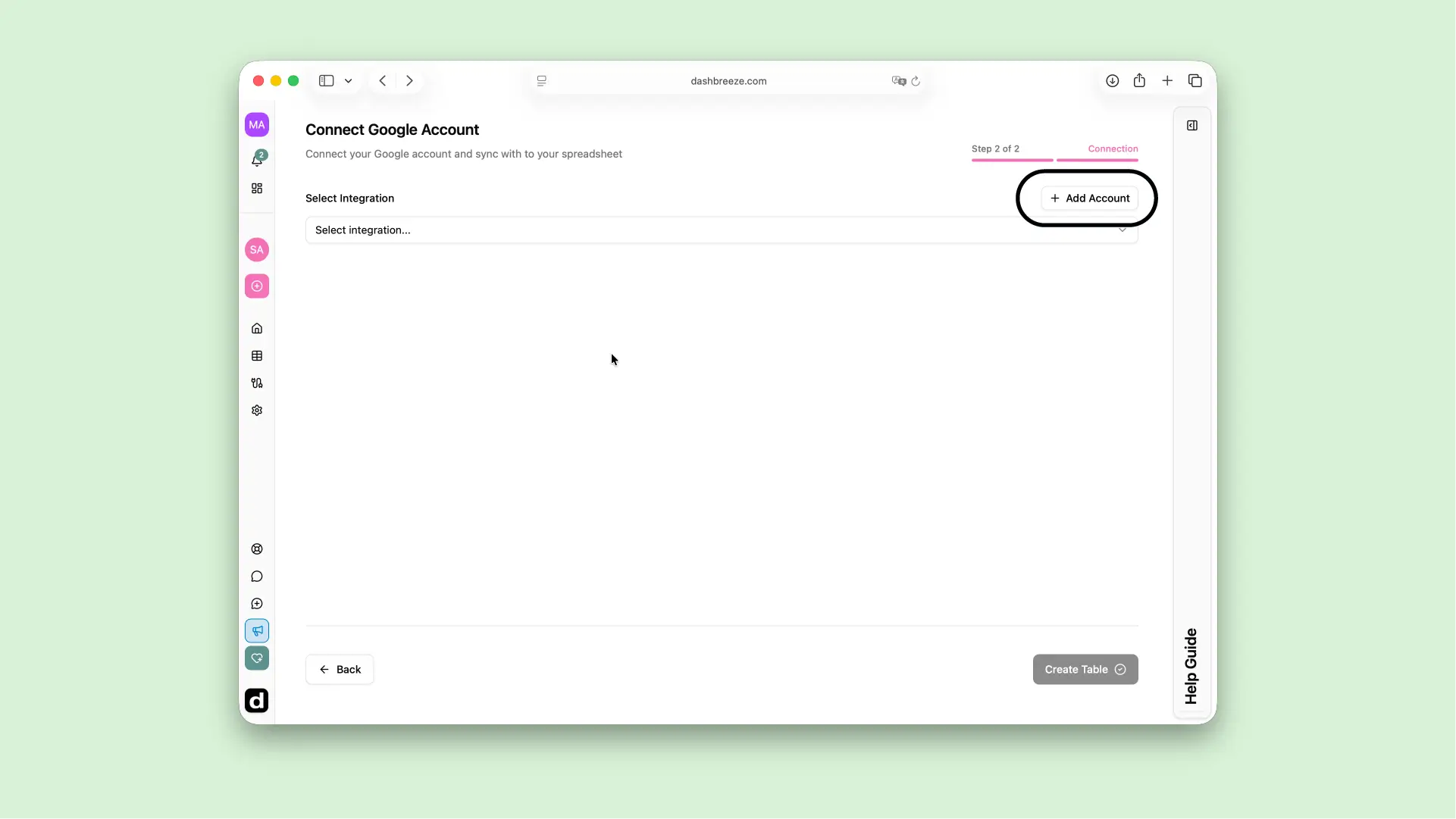
Need to import spreadsheets from another Google account? Connect that account too. You can choose which connected account to use whenever you create a new table.
For team-owned reporting, use a Google account whose spreadsheet access will remain stable. If the connected account loses access, Dashbreeze cannot refresh tables created from that spreadsheet until the permission or integration is restored.
Row-oriented (avoid this)
| Metric | Jan 3 | Jan 4 |
|---|---|---|
| Revenue | $120 | $45 |
| Orders | 3 | 1 |
Column-oriented (do this)
| Date | Revenue | Orders |
|---|---|---|
| Jan 3 | $120 | 3 |
| Jan 4 | $45 | 1 |
Dashbreeze expects each row to represent one piece of data. Instead of creating a new column every day, keep all dates in a single Date column and add a new row for each new entry.
You can repeat this process for as many spreadsheets as the connected Google account has access to, without creating another integration.
Before importing, make the first row a unique header for every column, remove decorative title rows, and avoid merged cells inside the dataset. Keep dates in one consistent format and store numeric values as numbers rather than including currency symbols or notes in the same cells.
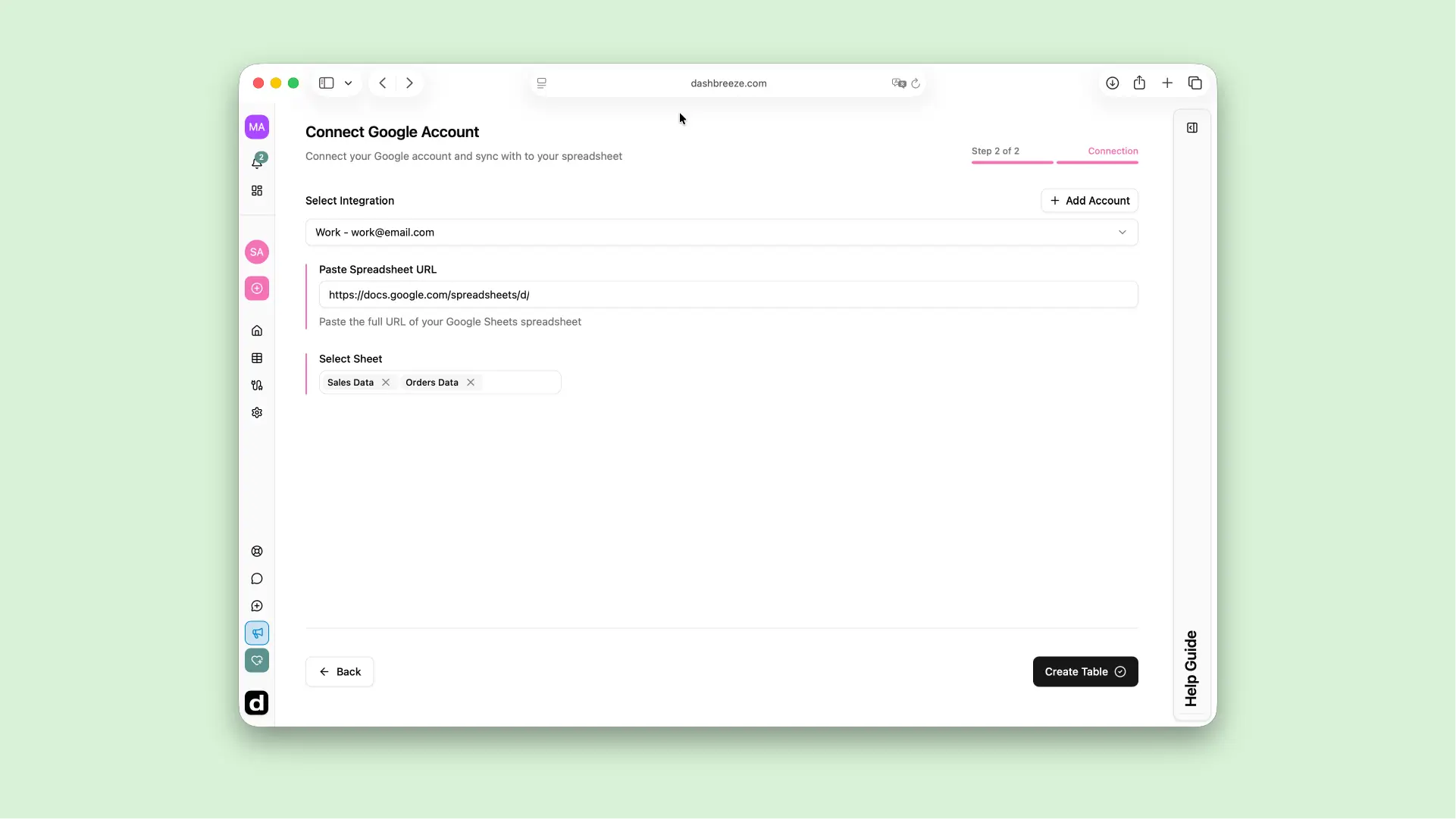
Important:Dashbreeze only reads the exact spreadsheet you give it a link to — nothing else in your Google account.
A refresh reads the current structure as well as the current values. Renaming or removing a spreadsheet column can affect blocks that rely on it, so review connected dashboards after making structural changes. Adding new rows with the existing columns is the safest routine update.
Google Sheets is a live data source in Dashbreeze. You do not need to reconnect the spreadsheet when its rows or cells change.
Open your table and choose how your data should be updated. You can sync it manually whenever you want, or enable Automatic updates and choose how often Dashbreeze should check for new data.
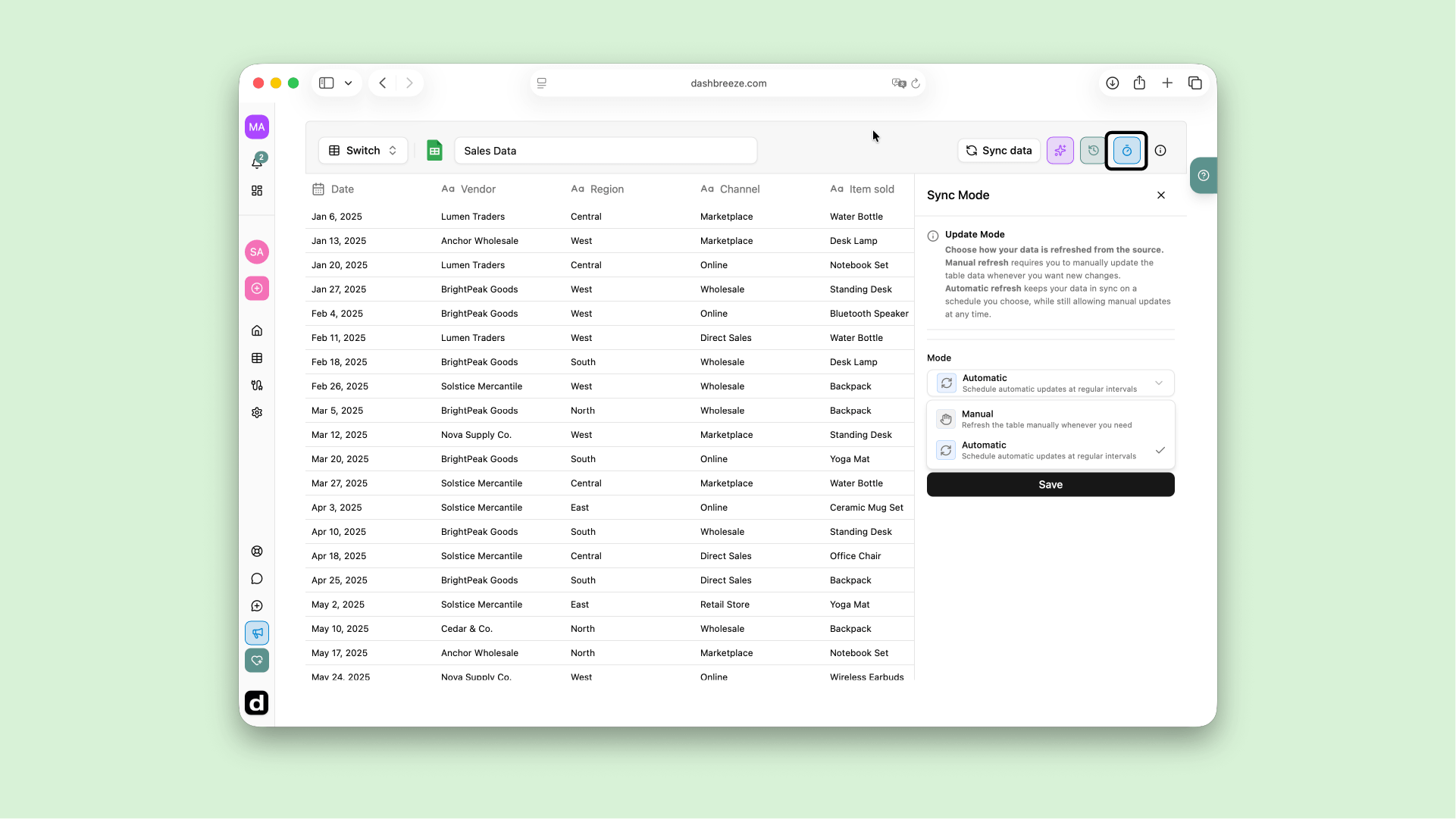
Tip:Automatic updates run on the schedule you choose. If you update your spreadsheet and want those changes to appear immediately, click **Sync Data** on your table instead of waiting for the next scheduled update.