
Microsoft SQL Server
Connect a Microsoft SQL Server database and import tables or results from custom queries.

Connect a MySQL database and choose the data you want to use in Dashbreeze. You can import complete database tables or use a read-only query to create a table with only the results you need.
Important:Dashbreeze reads data from your MySQL database but does not change or delete it. Your connection details are encrypted and are not stored in the browser.
mysql://username:password@hostname:3306/databaseIf the database is protected by a firewall or security group, it must allow Dashbreeze to reach the database port. If you do not manage the database yourself, ask its administrator or hosting provider for the connection details and required network access.
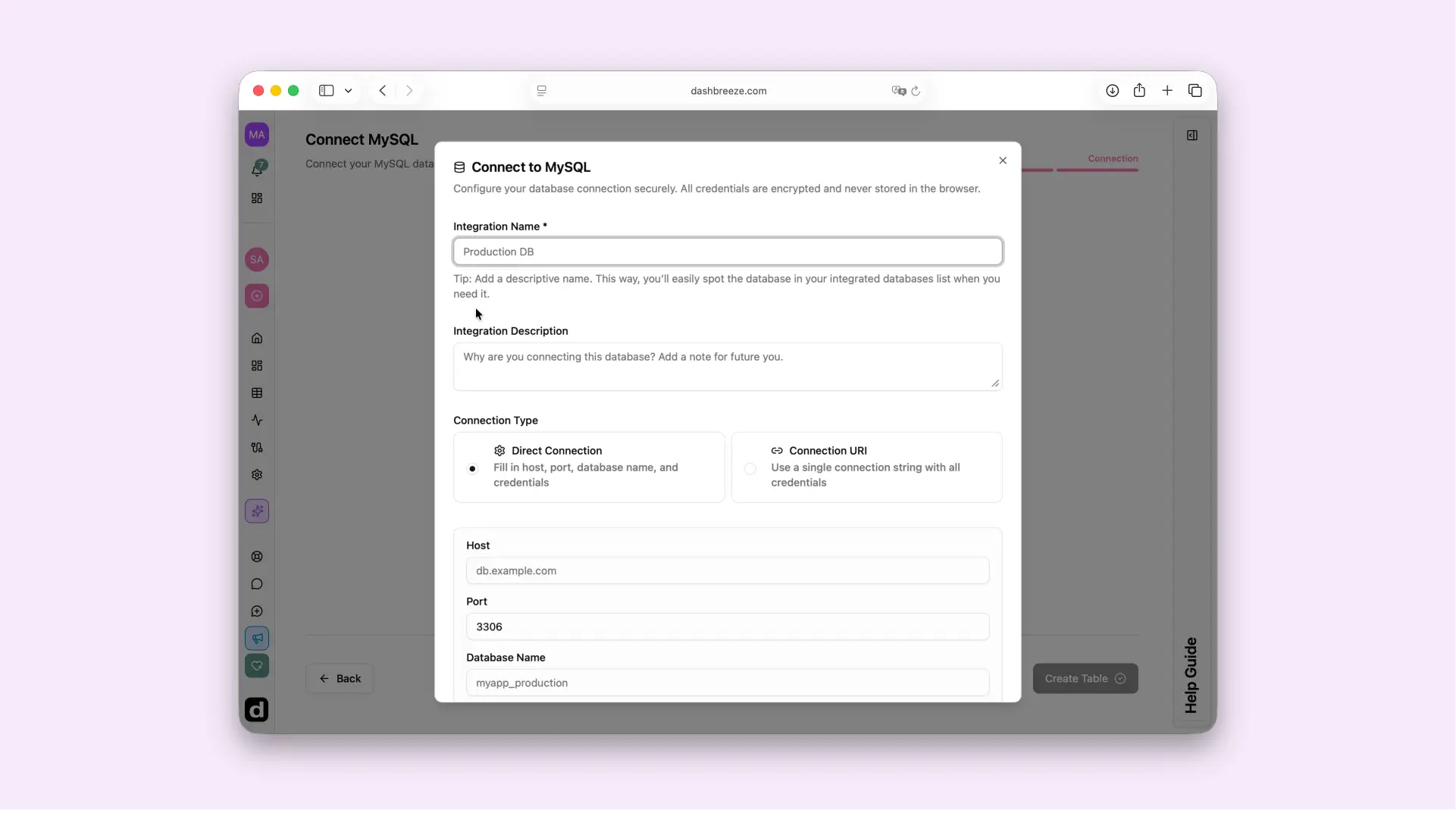
SELECT or WITH statement.Direct Connection
Use separate fields for the host, port, database name, username, and password.
Connection URI
Paste one complete connection string from your database provider.
What Test Connection checks:It confirms that the database address and credentials work. Table access still depends on the permissions given to the connected user.
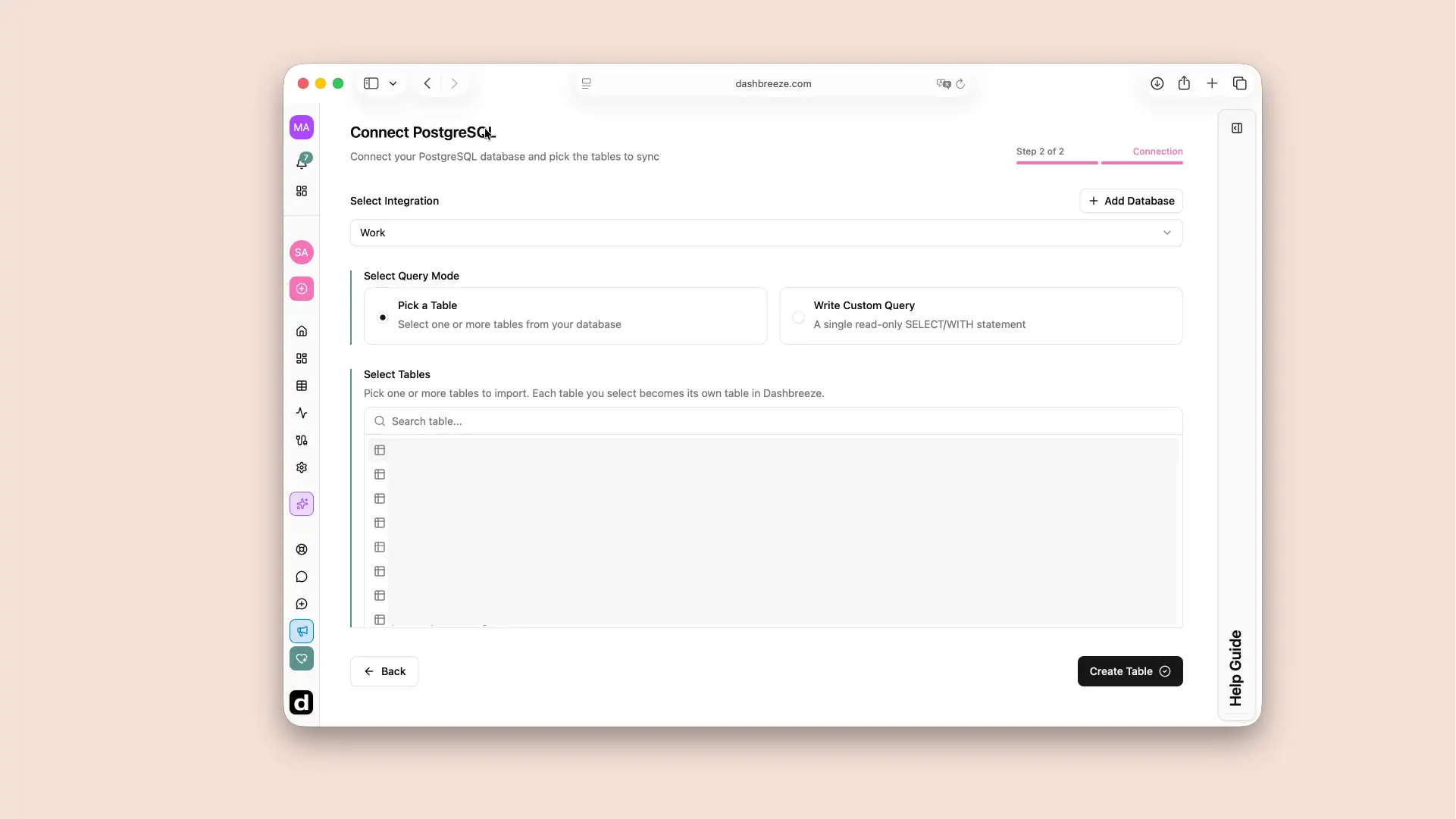
Select your saved database connection, then choose one of these options:
Pick a Table
Choose one or more existing tables. Each one becomes a separate table in Dashbreeze.
Best when the source table already contains what you need.
Write Custom Query
Join tables, filter rows, rename fields, or calculate values with one read-only query.
Best when you need a more focused result.
Previewing a query:Execute Query displays up to 50 rows so you can check the result. Creating or syncing the table runs the complete query.
Use Connect through an SSH tunnel only if your database is reached through a bastion or jump host. Keep the main host and port fields set to the database address, then enter the SSH server details and authenticate with a password or private key.
The SSH host is not the MySQL host. It is the server Dashbreeze connects through to reach MySQL. Your database administrator can tell you whether a tunnel is required and provide the SSH host, port, username, and authentication method.
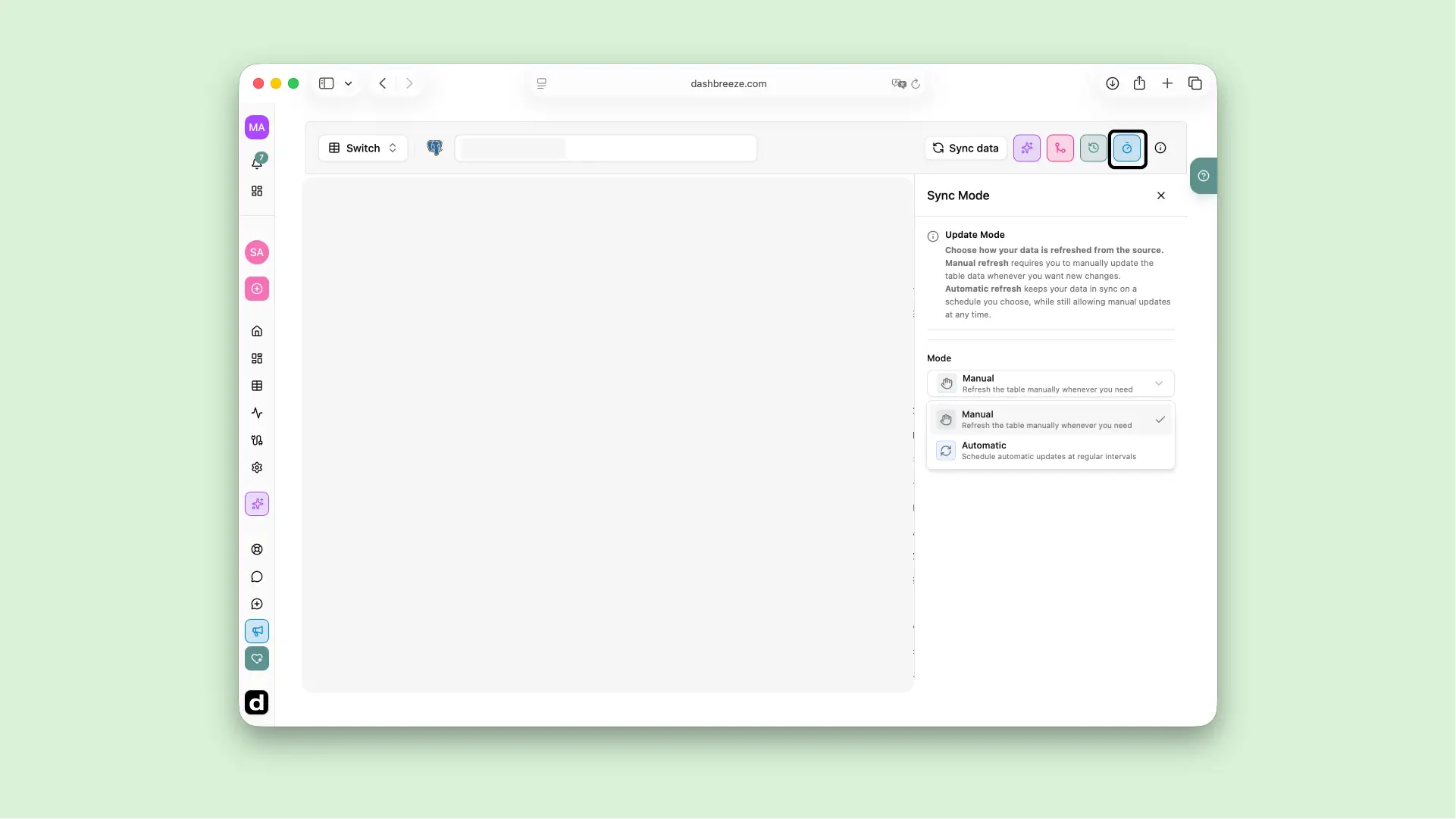
A MySQL connection is live. Open the imported table and use Sync data for an immediate refresh, or enable automatic updates and choose a schedule.
Each refresh runs the selected table import or saved custom query again and replaces the previous imported copy with the latest result. It does not change the source database.
Before changing the source:Renaming or removing source tables and columns can stop a refresh or affect transformations, charts, and metrics that use them. Keep names stable when possible, and review dependent dashboard content after a schema change.