
Troubleshooting
Common issues with your data sources and how to fix them.

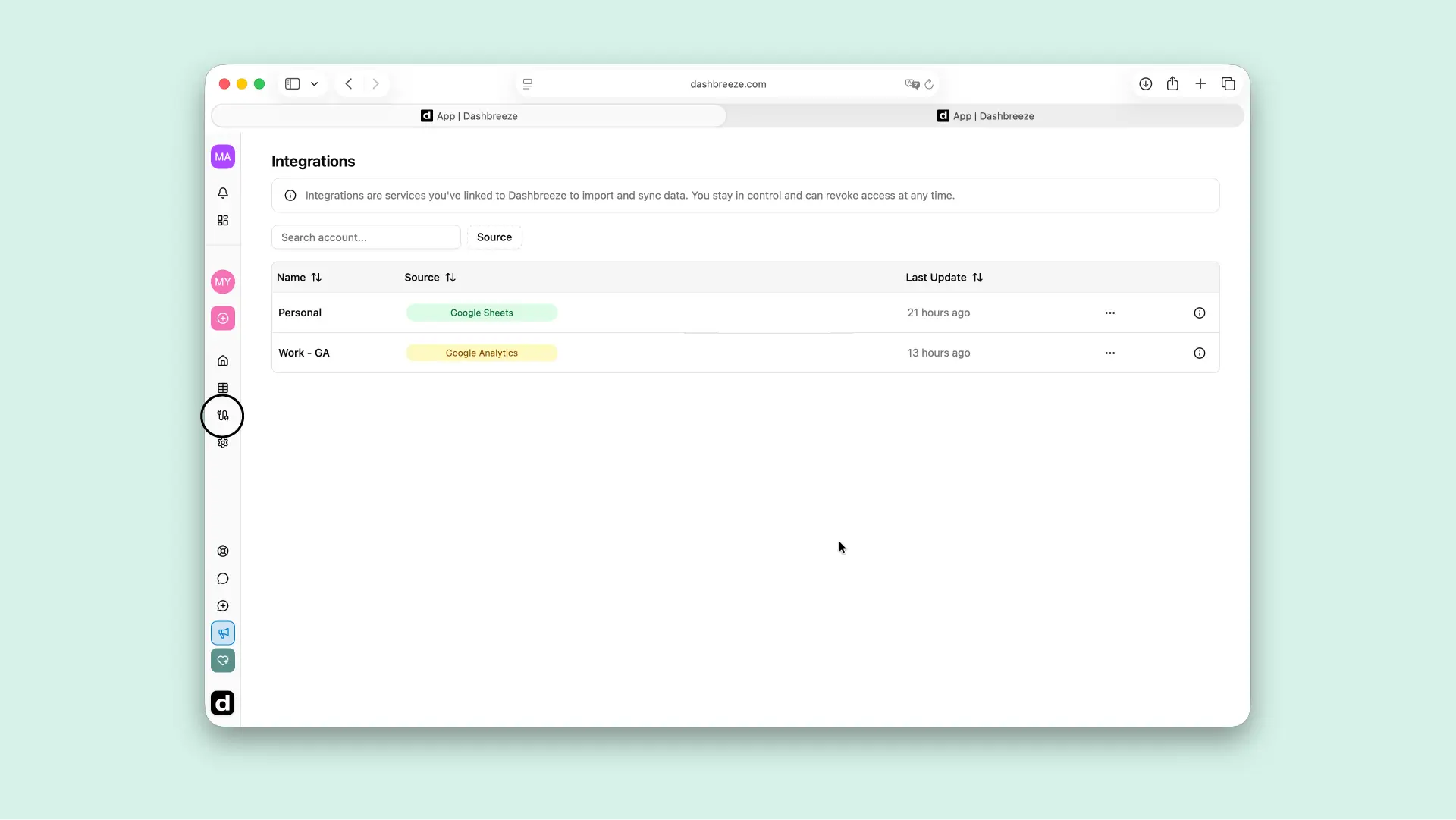
An integration is an account or database connection you have saved in Dashbreeze. It lets you create tables without entering the same connection details every time. On the Integrations page, you can find saved connections, see when they were last updated, and manage them.
Important:Each integration belongs to one workspace. Changes to a connection can affect every table that uses it.
Open Integrations from the workspace sidebar. You can search by connection name or filter the list by data source. If a connection is missing, check that you are in the workspace where it was added.
Follow the setup guide for the data source you want to connect:
 Google SheetsSetup guide
 Google AnalyticsSetup guide
 StripeSetup guide
 AirtableSetup guide
 NotionSetup guide
 PostgreSQLSetup guide
 MySQLSetup guide
 Microsoft SQL ServerSetup guide
After you complete the connection process, the saved integration appears on the Integrations page.
Tables that use the integration can continue updating after the connection is restored.
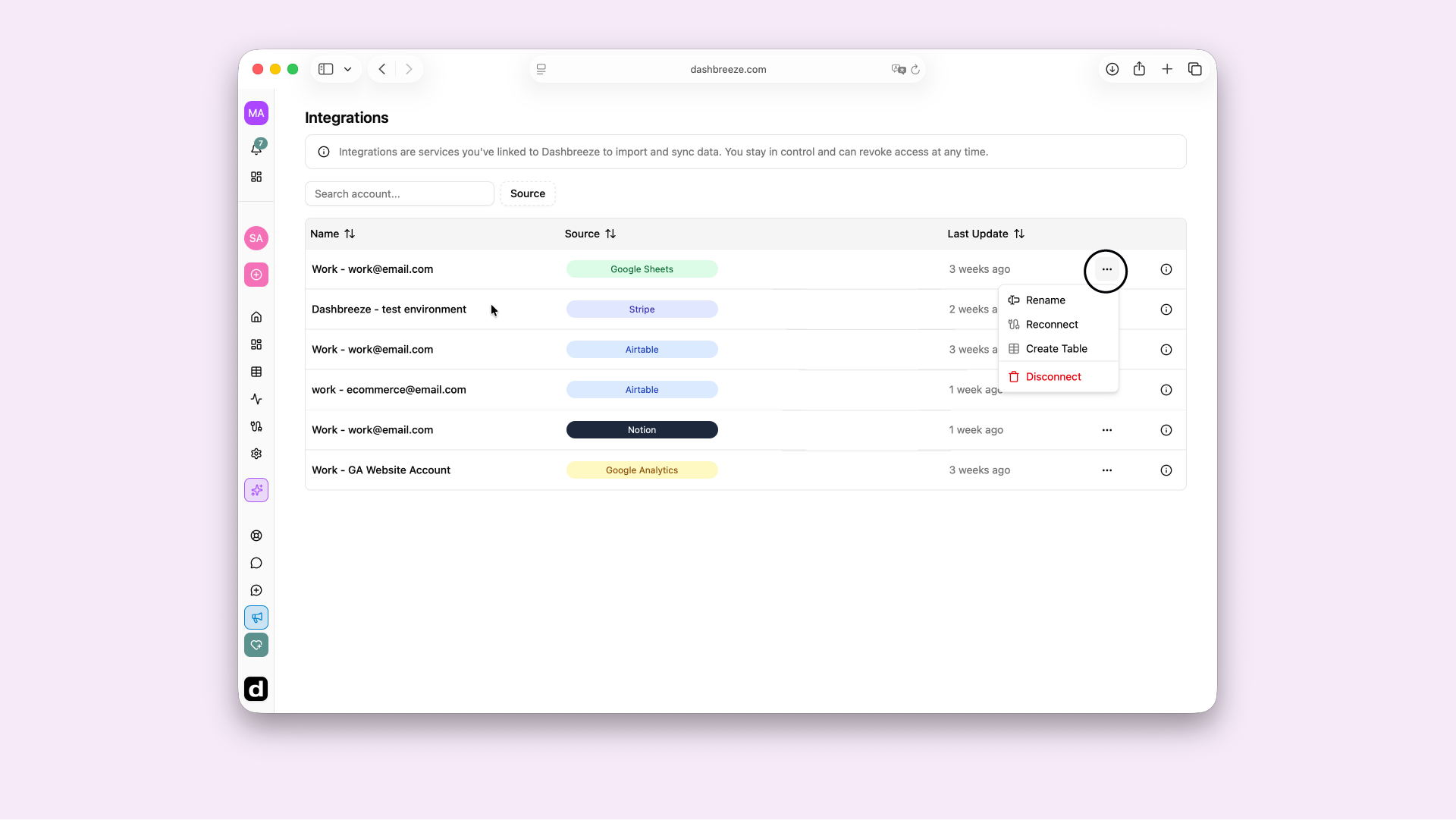
Before you disconnect:Your existing tables will stay in Dashbreeze, but they will stop receiving new data from this connection.