
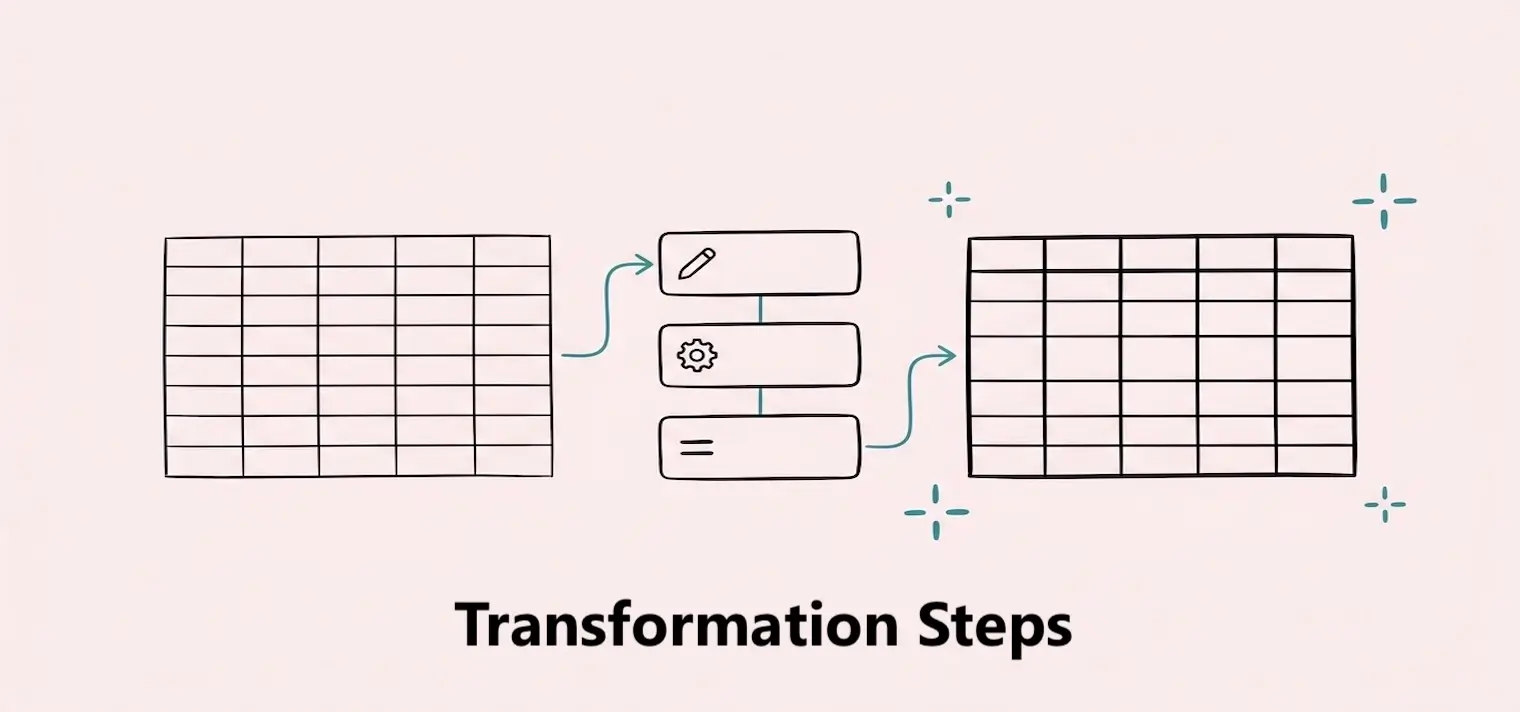
Managing Transformation Steps
Review transformation steps in order and remove steps you no longer need.

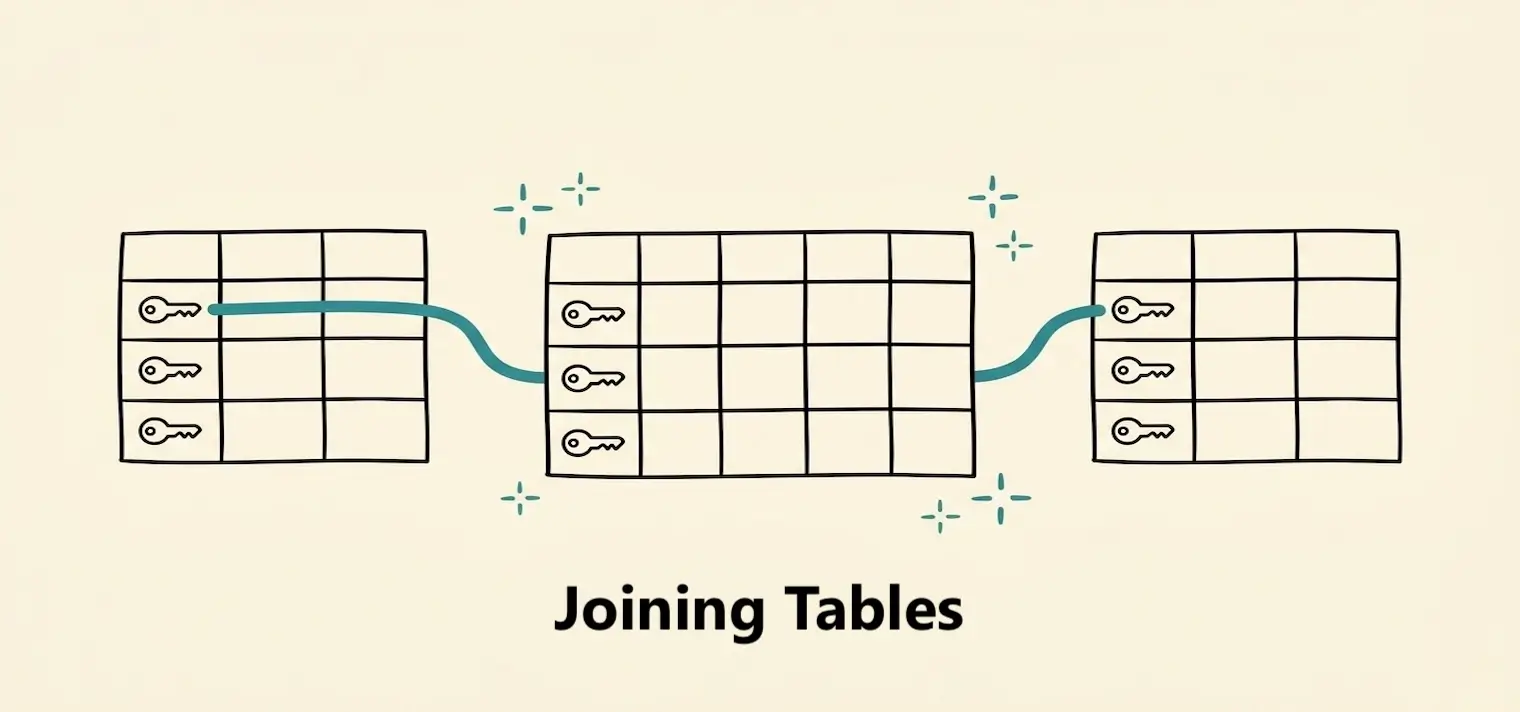
A join adds columns from another table by matching values in columns the two tables have in common. Use a join when the information you need is spread across two tables, like orders in one table and customers in another.
The table you open is the main table. It determines which rows appear in the result. The table you select in the join is the joined table. It contributes additional columns to matching rows.
Imagine the main table contains orders with a Customer ID, while the joined table contains each customer's name and region. When the Customer ID is the same in both tables, Dashbreeze places that customer's information beside the order.
1. Main table
Orders
Order 104 has Customer ID C-28.
2. Joined table
Customers
Customer ID C-28 belongs to Ana in Brazil.
3. Joined result
Order 104 + Ana + Brazil
The order row now includes columns from Customers.
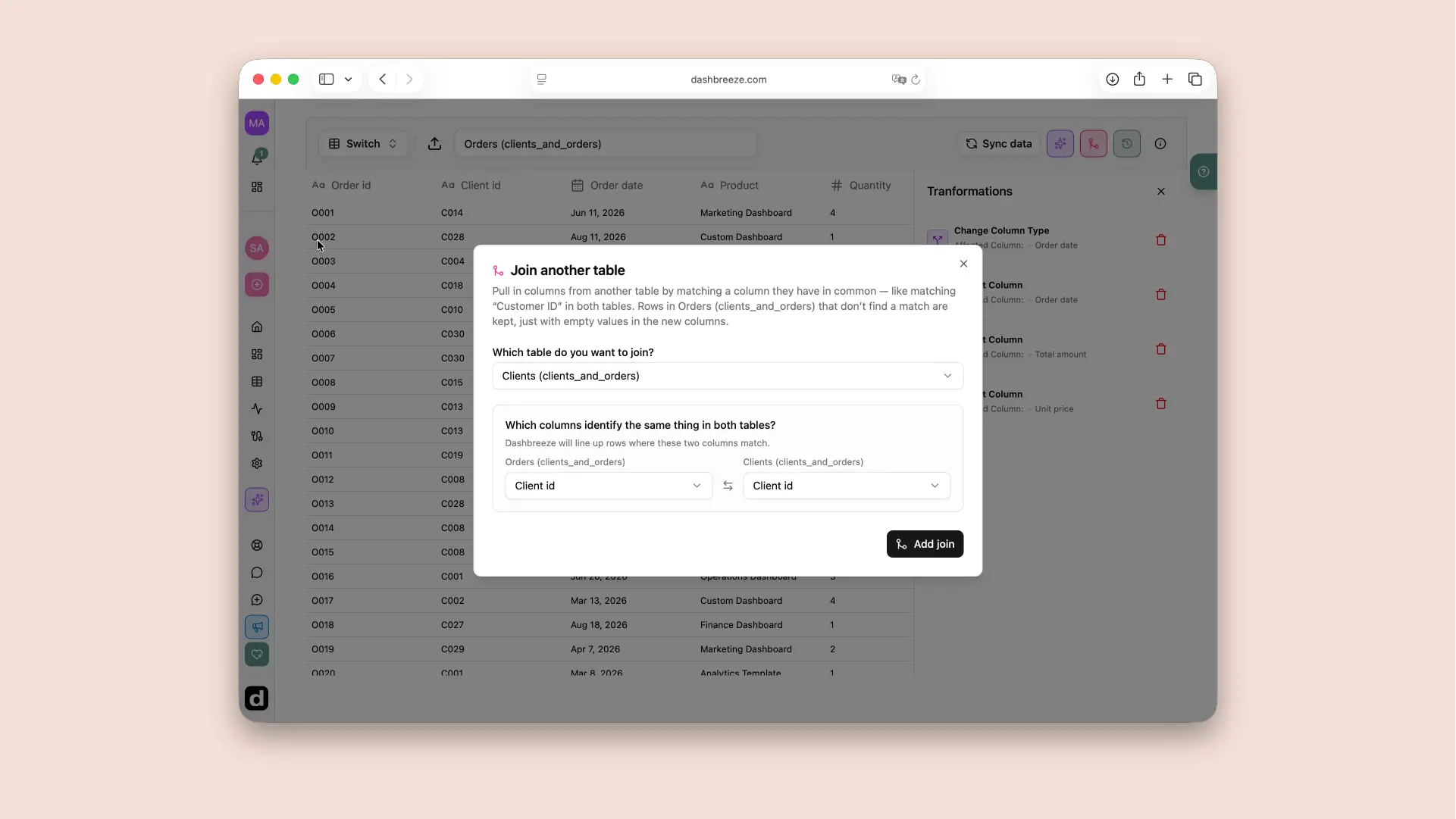
Start with one row in the main table: Order 104 has Customer ID C-28. Dashbreeze searches the joined Customers table for C-28. The order row is always kept; what gets added depends on what the search finds.
If C-28 appears once in Customers
Dashbreeze finds Ana, who lives in Brazil. The result contains one row: Order 104 · C-28 · Ana · Brazil. The order is not duplicated; it simply gains the customer columns.
If C-28 does not appear in Customers
The result still contains Order 104, but the added Customer Name and Region cells are empty. A missing match never removes the original order row.
If C-28 appears twice in Customers
Dashbreeze produces two result rows—one for each matching customer row. Order 104 is therefore repeated twice. If its value is $100, a KPI that sums order value may now count $200.
One matching value should identify one row:For the usual one-order-to-one-customer result, each Customer ID should appear only once in the Customers table. Repeated IDs create repeated order rows and can increase counts, sums, and other calculations.
The selected columns should identify the same kind of value on both sides. A Customer ID should match another Customer ID—not an order number or customer name.
All columns from the joined table are added after the main table's columns. Dashbreeze prefixes their labels with the joined table's name so you can distinguish similarly named columns. For example, joining Customers can produce Customers Region beside an existing Region column.
You can use the added columns in later transformations and in connected charts, KPIs, gauges, and table blocks just like other table columns.
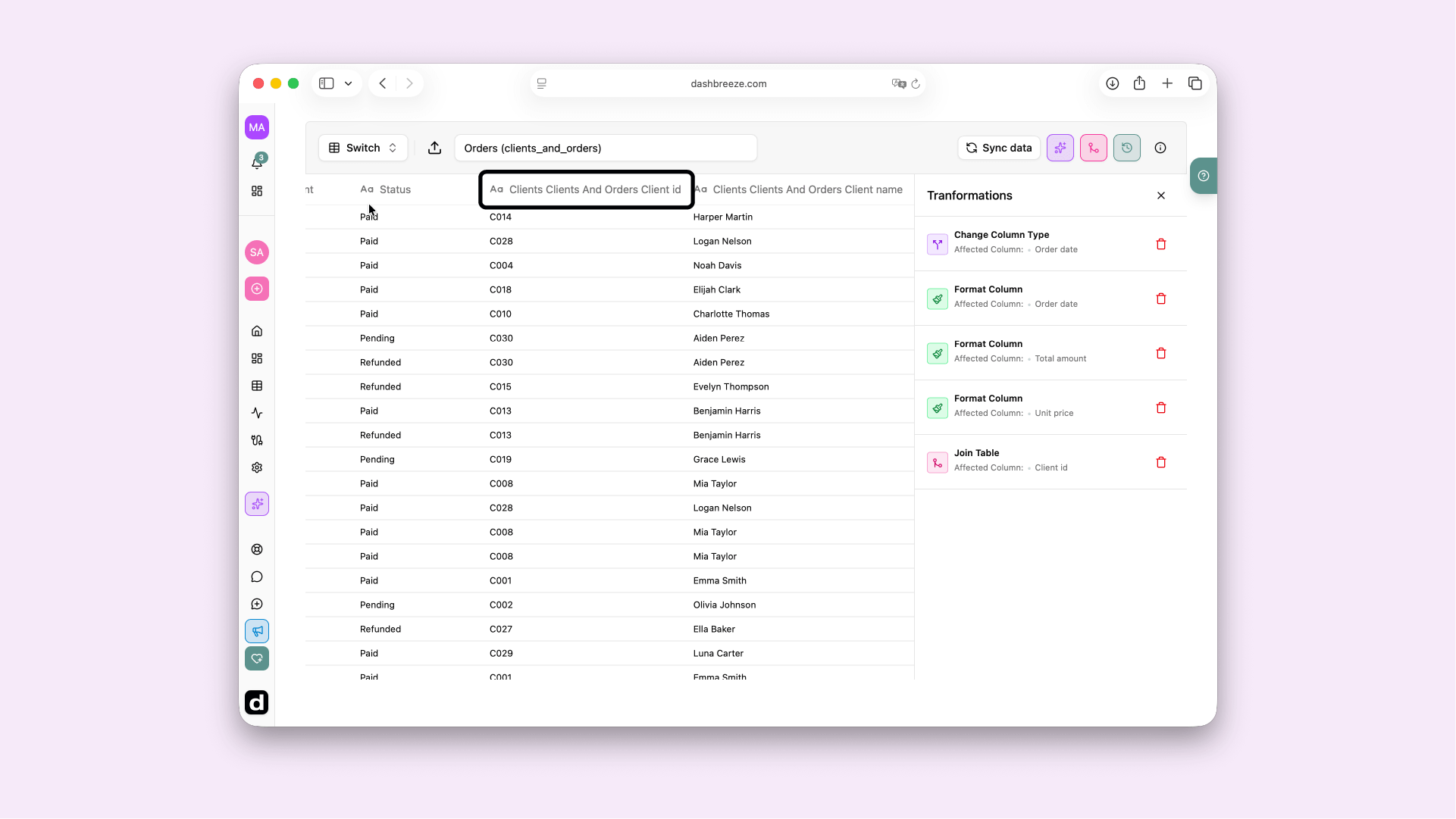
A join becomes a step in the table's transformation pipeline. Dashbreeze runs the list from top to bottom. Each step receives the result produced by the step immediately above it, so the position of the join determines which columns are available.
Example pipeline: prepare, join, then filter
Before the join: prepare the main table
Change Orders Customer ID to Text and remove unwanted rows. The join receives this cleaned version of Orders, which helps values such as C-28 match correctly. At this point, only Orders columns are available.
Join: add the matching customer data
Join Orders to Customers using Customer ID. The result now contains the Orders columns plus added columns such as Customers Name and Customers Region.
After the join: transform the combined result
Filter Customers Region to Brazil, calculate a new value, or format an added column. These steps must come after the join because Customers Region does not exist in the result until step 2 has run.
Correct order
Correct Customer ID → Join Customers → Filter Customers Region
Wrong order
Filter Customers Region → Join Customers. The filter cannot use a column that the join has not added yet.
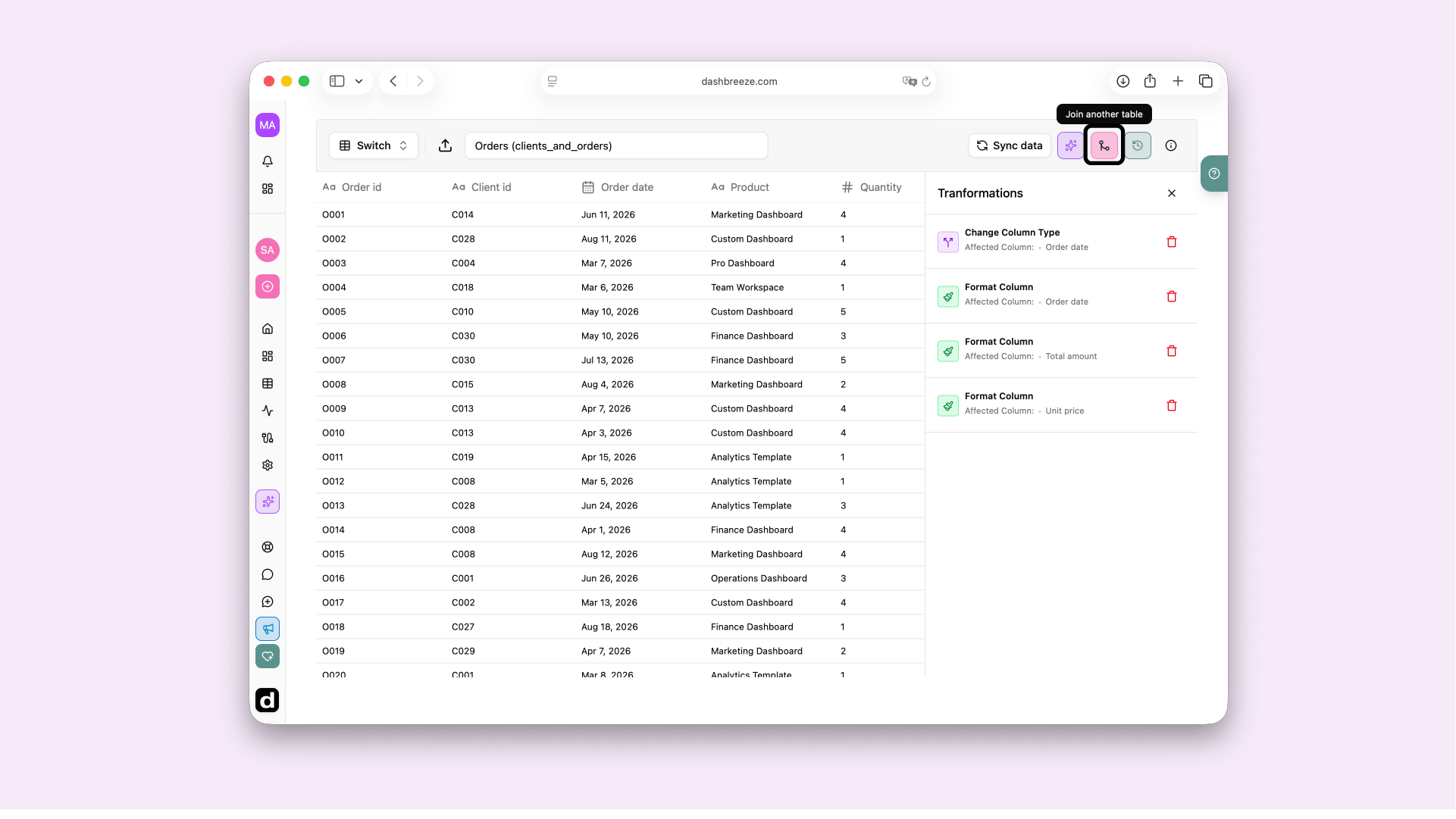
Use the Transformations panel to check the sequence:Read the steps from top to bottom. Put preparation of the main table above the join, and put any step that uses an added column below the join. If a step cannot find a joined column, check its position first.
The joined result is not a permanent copy of the two tables. Dashbreeze rebuilds it whenever the main table or the joined table receives refreshed data. You do not need to add the join again.
1. Source changes
Orders or Customers refreshes
Rows can be added, removed, or updated in either table.
2. Join rebuilds
Matching runs again
Dashbreeze reapplies the join and every other transformation in order.
3. Blocks update
Dashboards use the new result
Tables, charts, KPIs, gauges, and filters receive the rebuilt data.
What can change after a refresh?
A match is added
Customer C-28 was missing but now exists. Its order rows now receive the customer's name and region.
A match is removed
Customer C-28 disappears. Its order rows remain, but the added customer fields become empty.
A duplicate is added
C-28 now appears twice in Customers. Matching order rows are repeated, which can increase counts and totals.
A refresh can change dashboard results:The join itself remains configured, but its result changes with the source data. If a KPI, chart, or gauge changes unexpectedly after a refresh, check for missing or repeated matching values in the joined table.
The join appears in the Transformations panel. To use a different table or matching column, remove the current join and create a new one. Removing it keeps the main table's original columns and rows, but removes every column added by that join.
Before removing a join, check later transformations and connected blocks. Anything that uses an added column must be removed or reconfigured, or it may show an error after that column disappears.
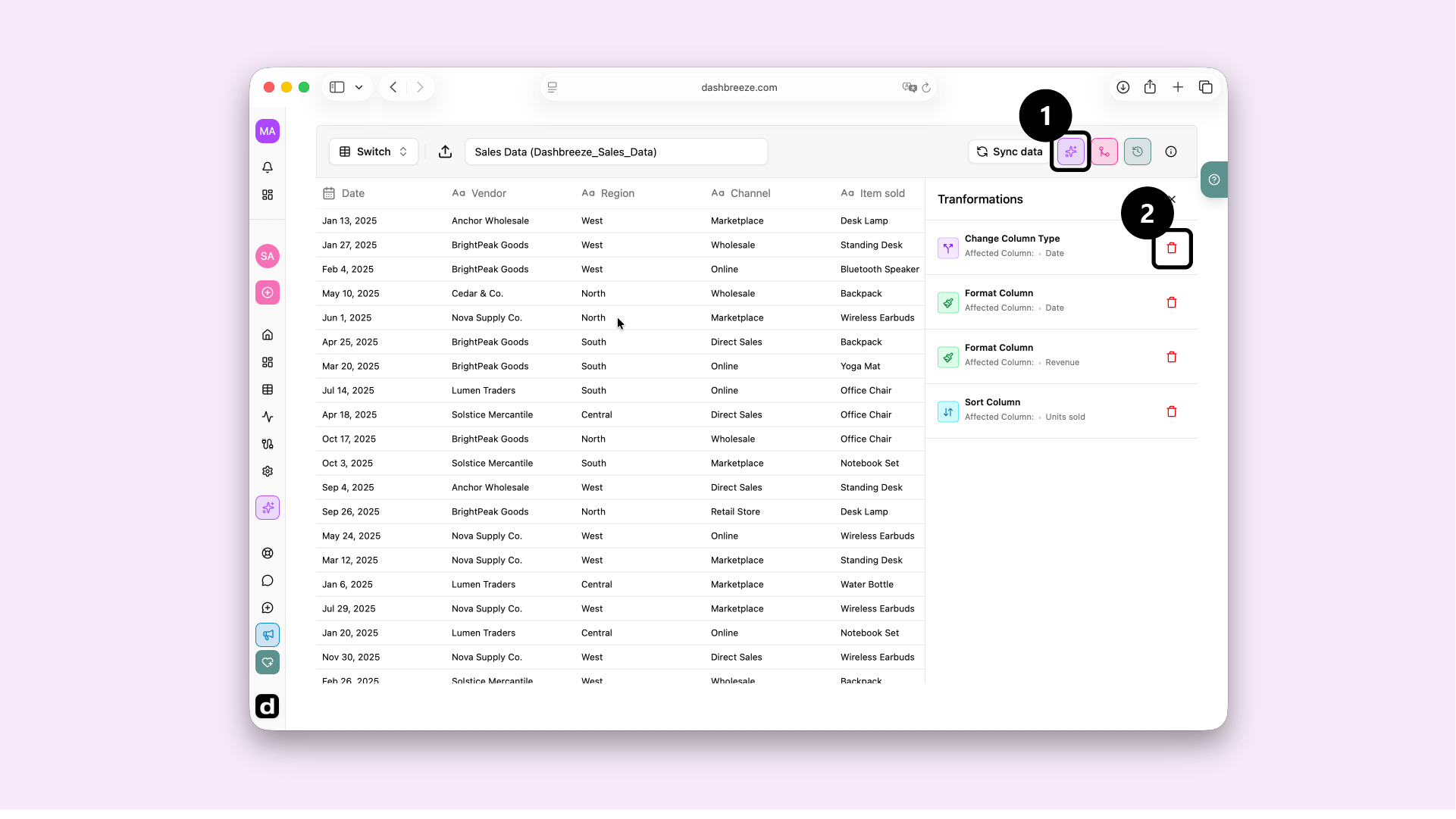
Your source tables stay unchanged:A join creates a combined result inside Dashbreeze. It does not copy values back to either source or edit, delete, or reorder their original records.