Transforming Table Data
Clean and reshape data with column changes, filters, sorting, formulas, and joins.


Open Tables in the left sidebar and select Create Table. Then choose where your data comes from: a file on your computer, a connected app, or a database.
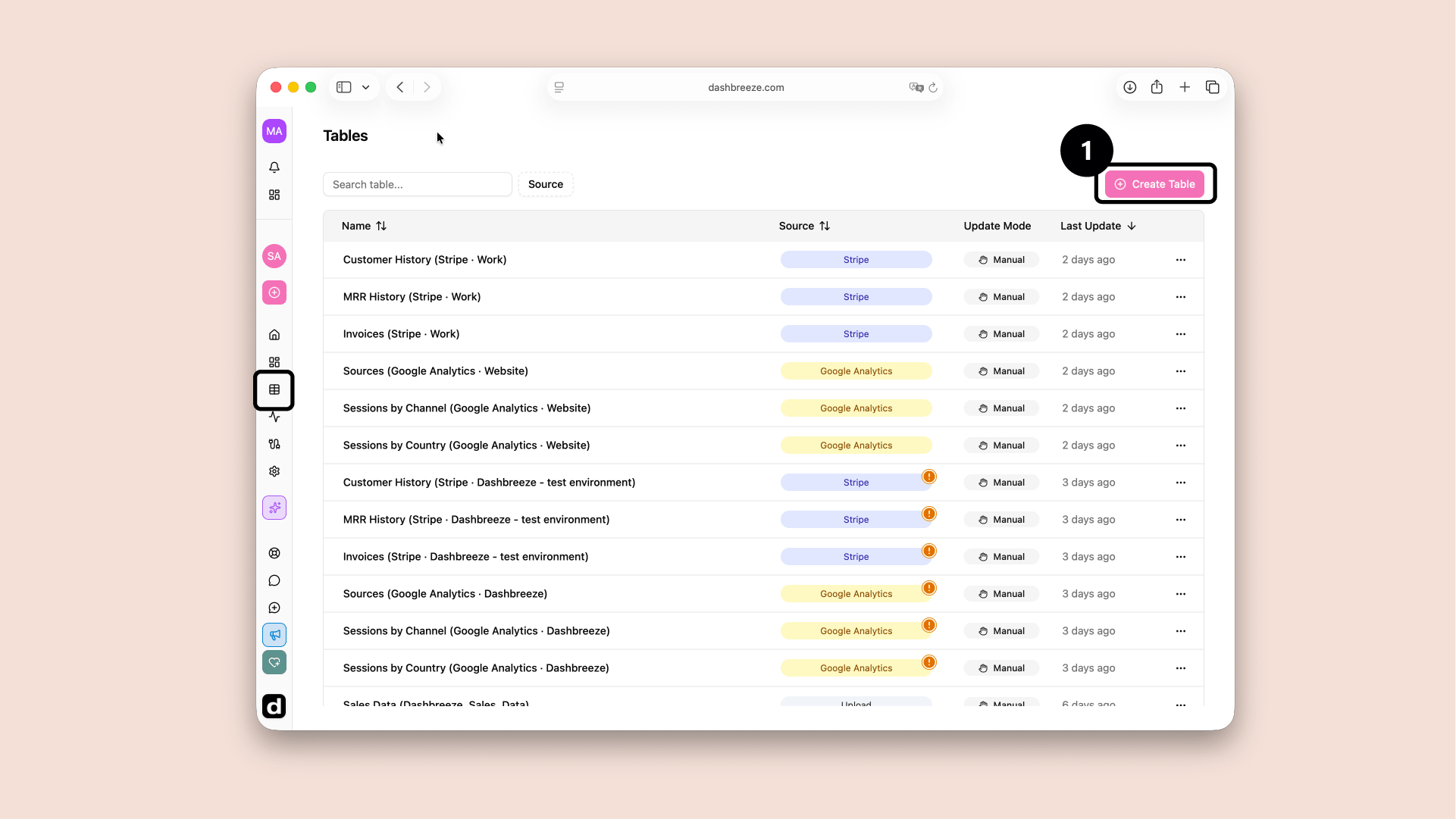
Every source Dashbreeze supports falls into one of three categories. The category decides how you connect — after that, the steps to create the table are almost the same.
A file
Upload it from your computer. No account or connection needed.
A connected app
Sign in once, then choose what to import. Reuse that connection for other tables later.
A database
Enter your connection details and test the connection before importing.
Connecting works a little differently for each source — some ask you to sign in, others ask for a connection string. Pick your source below for the exact, step-by-step guide.
Spreadsheets & files
Connect a spreadsheet or upload a file from your device.
Once you select Create Table, the table's status shows as In Progress — Dashbreeze is pulling in and preparing your data behind the scenes.
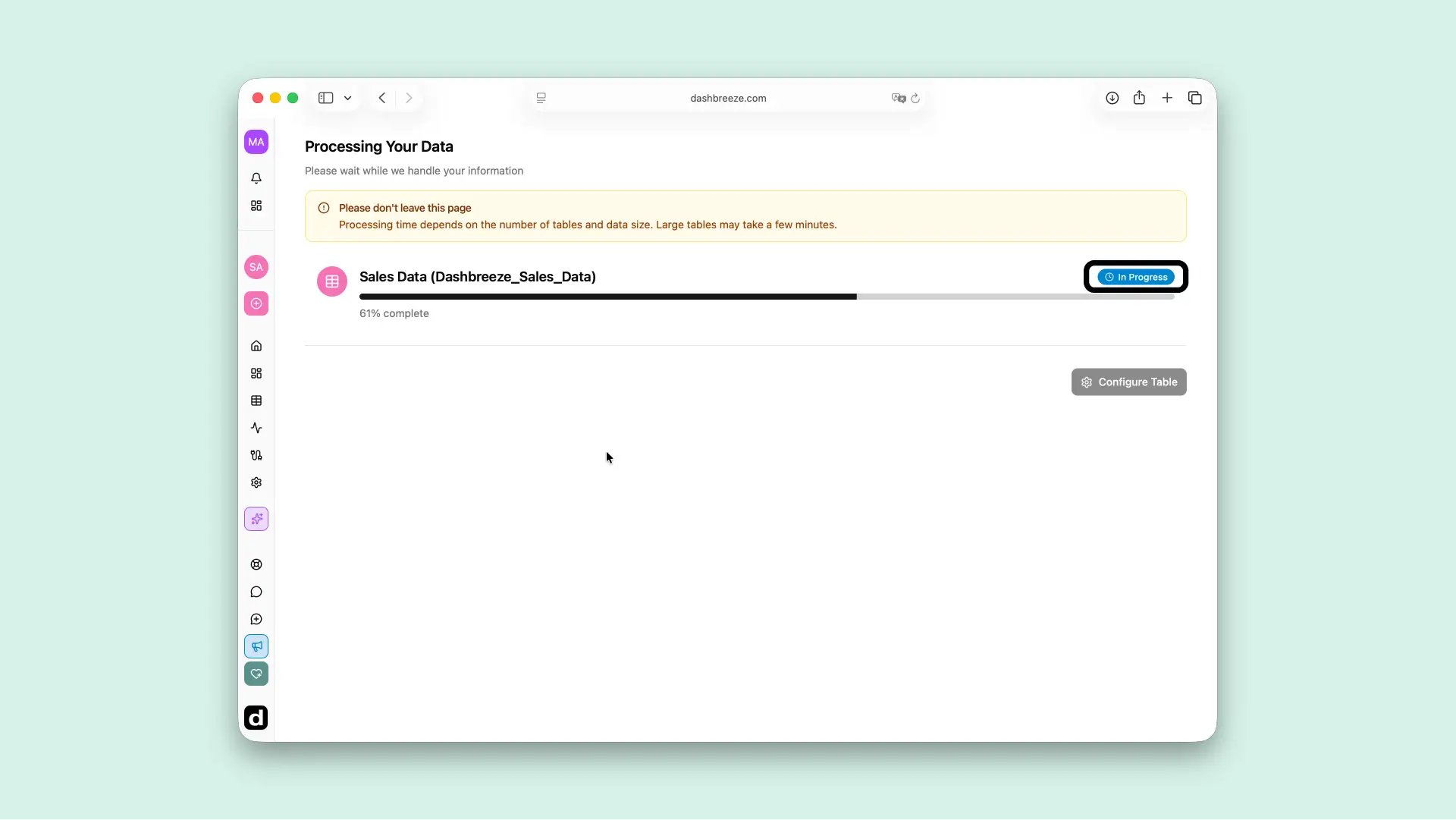
You'll see this status next to the table's name on the Processing your Data page.
How long processing takes depends on the data source and the amount of data you're importing. A small file is usually ready in a few seconds, while a large database table or a wide Google Analytics date range may take a few minutes.
When processing is complete, the table's status changes to Created and it's ready to use. Select Configure Table to open the table, transform its data, or connect it to a dashboard block.
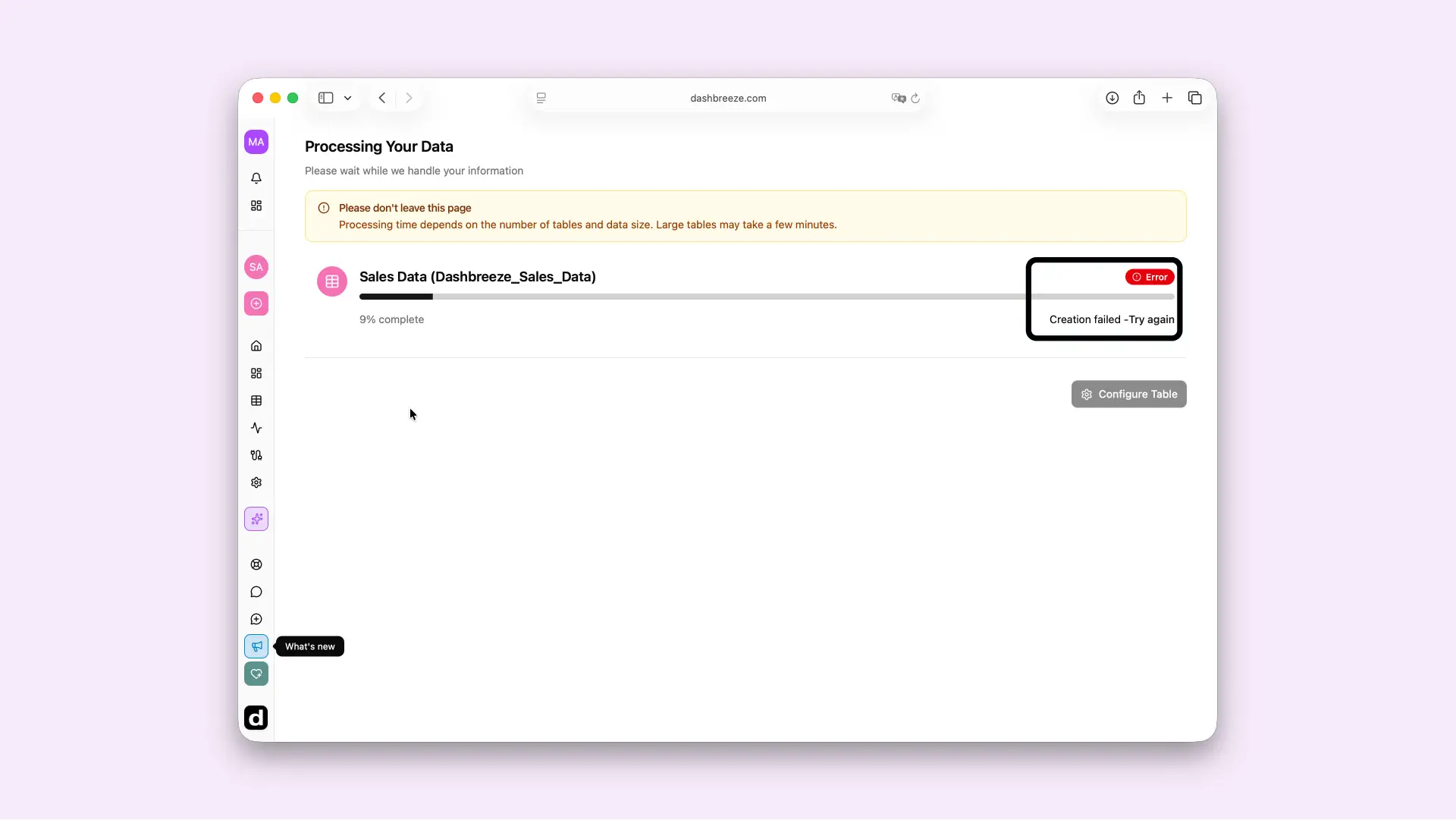
If the import fails, the table's status changes to Error. Select Try Again to restart the import.