
Joining Tables
Add columns from another table by matching related rows.

Sorting and filtering help you focus a table before using it in a dashboard. Sorting changes the order of the rows, while filtering keeps only the rows that match your rules.
Sorting
Puts rows in order using the values in a column. Every row stays in the table; only its position changes.
Filtering
Keeps the rows that match your conditions and hides the rest from the table and its connected blocks.
| Change | Effect on connected blocks |
|---|---|
| Sort | Table blocks use the new row order. KPIs and other totals do not change because all rows remain available. |
| Filter | Every connected block uses only the remaining rows. Charts and table blocks may show fewer records, while KPIs and gauges recalculate their values. |
Filters apply to every connected dashboard:A table filter becomes part of the table's transformed result. Every dashboard that uses the table receives the filtered rows. Review connected dashboards after adding, changing, or removing a filter.
Your source data stays unchanged:Sorting and filtering only change the table inside Dashbreeze. They never reorder or delete rows in the original file, spreadsheet, connected app, or database.
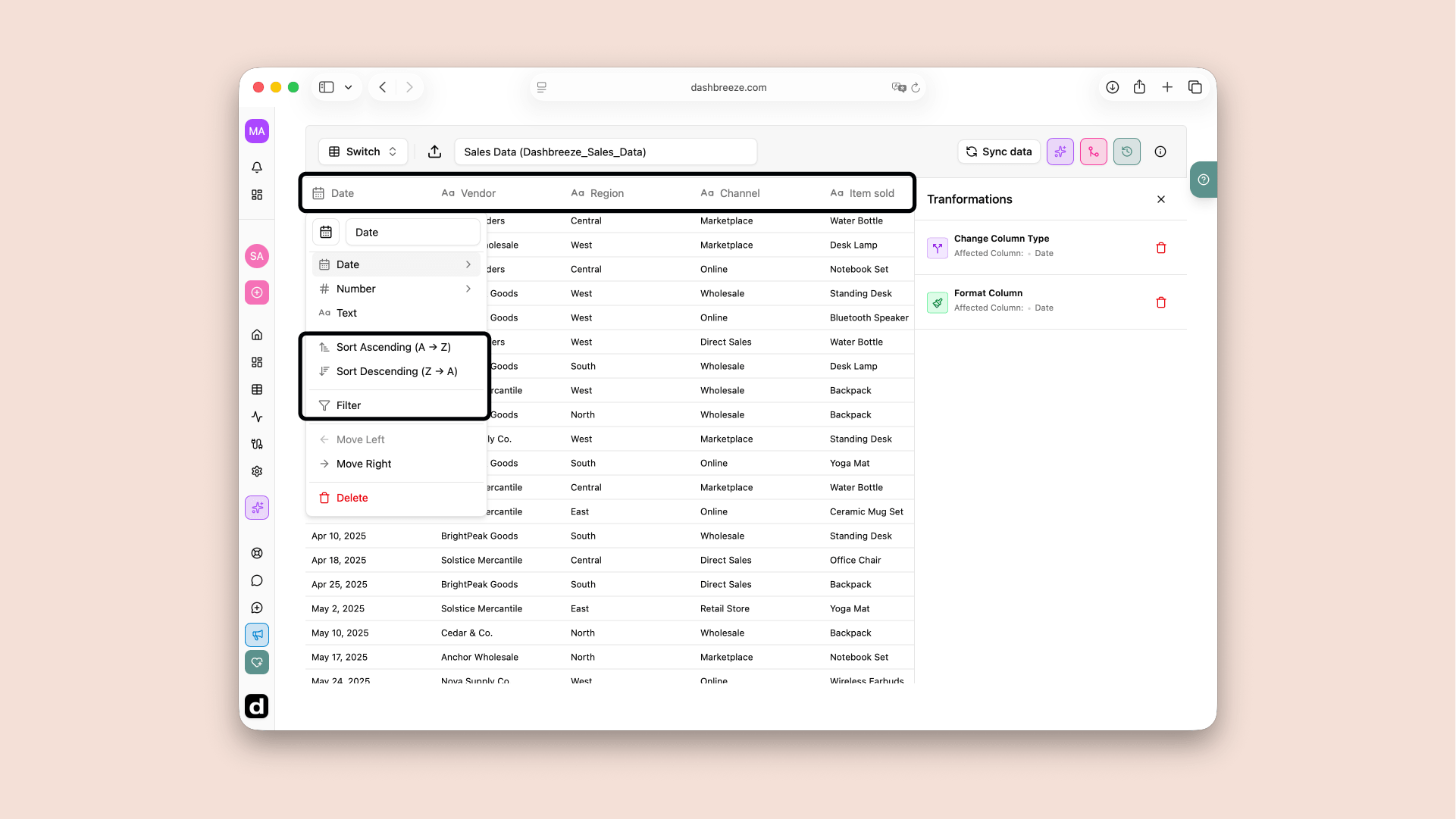
Select the column that should control the order, then choose one of the two sorting directions.
Sort Ascending (A → Z)
Sort Descending (Z → A)
The column type controls the sort order:Dashbreeze sorts Text alphabetically, Number by numeric value, and Date chronologically. If values appear in an unexpected order, check the column's type first.
A filter compares each row with a condition. A row remains in the table only when it satisfies the filter rules you create.
Each row in the filter builder is one rule. A rule has an operation and a value, and it always applies to the column whose menu you opened.
Operation
How should Dashbreeze compare the value?
Examples include Contains for Text, Greater than for Number, and On or after for Date.
Value
What should the column be compared with?
Enter text, a number, or a date. The Between operation asks for a starting and ending value.
+ Rule
Add another condition for the same column
Select Rule, configure the new condition, then choose whether it connects to the previous rule with AND or OR.
Remove rule
Delete a condition before applying
Use the trash button beside an additional rule if you no longer want it. The first rule always remains.
Filtering more than one column:Rules created together apply to the column you opened. To filter another column, apply the first filter, open the other column's menu, and create another filter. Dashbreeze runs both filter transformations in sequence, so rows must pass both.
The available operations depend on the column type. The value you enter must match that type: text for a Text column, a valid number for a Number column, and a calendar date for a Date column.
Enter at least one character. Text matching is not case-sensitive, so South, SOUTH, and south are treated as the same text.
| Condition | What to enter | Rows it keeps |
|---|---|---|
| Contains | A word, phrase, or part of a word. | Keeps a row when the value appears anywhere in the column text. Region contains “south” matches “South”, “Southwest”, and “Upper South”. |
| Does not contain | A word, phrase, or part of a word. | Keeps a row when the column text does not include the entered value. Region does not contain “south” excludes “South” and “Southwest”. |
| Starts with | The characters that must appear at the beginning. | Keeps a row only when its text begins with the entered value. Customer starts with “Jo” matches “Jo”, “John”, and “Jordan”, but not “Major”. |
| Ends with | The characters that must appear at the end. | Keeps a row only when its text ends with the entered value. Email ends with “@example.com” matches addresses using that domain. |
Enter a number, not a formatted label. For example, enter 1000 for one thousand. Between requires a lower and an upper number.
| Condition | What to enter | Rows it keeps |
|---|---|---|
| Equal to | One exact number. | Keeps values exactly equal to that number. Quantity equal to 10 keeps 10, but not 9 or 10.5. |
| Not equal to | One exact number to exclude. | Keeps every numeric value except that number. Quantity not equal to 10 excludes only 10. |
| Greater than | One comparison number. | Keeps values strictly above the number. Revenue greater than 1,000 does not include 1,000. |
| Less than | One comparison number. | Keeps values strictly below the number. Revenue less than 1,000 does not include 1,000. |
| Greater than or equal to | One minimum number. | Keeps the minimum itself and every larger value. Revenue greater than or equal to 1,000 includes 1,000. |
| Less than or equal to | One maximum number. | Keeps the maximum itself and every smaller value. Revenue less than or equal to 1,000 includes 1,000. |
| Between | A lower number and an upper number. | Keeps values inside the range, including both endpoints. Between 1,000 and 5,000 includes 1,000 and 5,000. |
Choose a complete calendar date. Between requires a start date and an end date. These conditions compare dates, not relative periods such as “the last 30 days.”
| Condition | What to enter | Rows it keeps |
|---|---|---|
| After | One cutoff date. | Keeps dates later than the cutoff. After January 1 does not include January 1. |
| Before | One cutoff date. | Keeps dates earlier than the cutoff. Before January 1 does not include January 1. |
| On or after | One starting date. | Keeps the selected date and every later date. On or after January 1 includes January 1. |
| On or before | One ending date. | Keeps the selected date and every earlier date. On or before January 31 includes January 31. |
| Between | A start date and an end date. | Keeps dates in the range, including both the start and end dates. |
The column type must match the condition:If a numeric or date condition is unavailable—or the results look wrong—check the column type. A number stored as Text uses text matching, and a date stored as Text is not compared chronologically. Change the column type before creating the filter.
AND narrows the result
Revenue greater than or equal to 1,000 AND Revenue less than or equal to 5,000
A row must satisfy both rules to remain in the table.
OR broadens the result
Region contains "North" OR Region contains "South"
A row can satisfy either rule to remain in the table.
The first rule has no connector because there is nothing before it. For every additional rule, the AND or OR selector tells Dashbreeze how to combine that new rule with the result of all the rules above it. Review the resulting rows before selecting Apply.
When AND and OR are mixed, order matters
Suppose the rules are Revenue greater than 1,000, AND Revenue less than 5,000, then OR Region contains “Priority”. Dashbreeze first finds rows with revenue between those limits, then also keeps any Priority row. In logical form, this is (Revenue > 1,000 AND Revenue < 5,000) OR Priority. A Priority row can therefore remain even when its revenue is outside the range.
A quick way to choose AND or OR:Use AND when every connected requirement must be true for the same row. Use OR when any one of the connected alternatives is enough. If you mix them, read the rules from top to bottom and remember that each new rule combines with the result built above it.
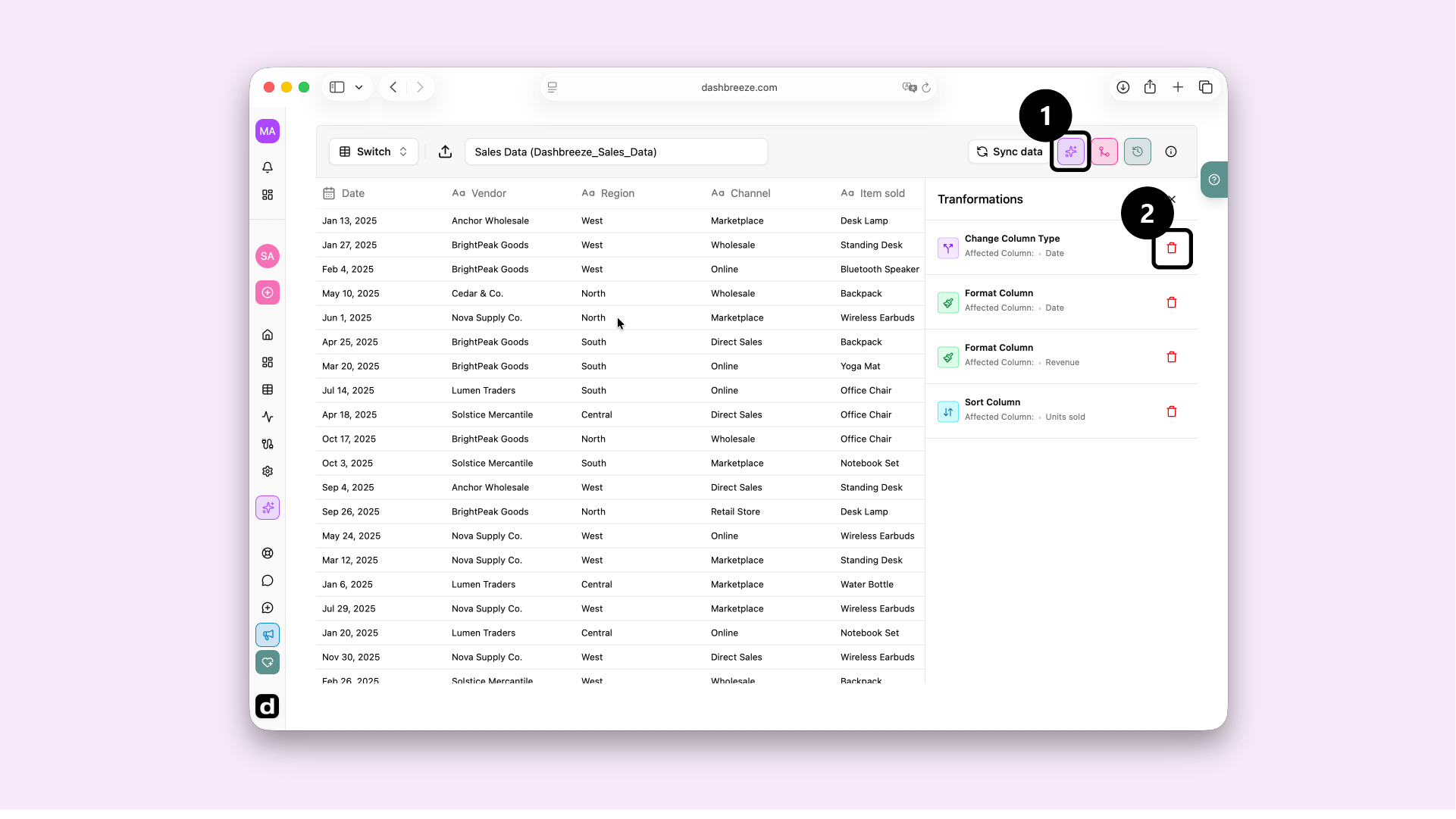
Applied filters and sorting options appear as steps in the Transformations panel. Filters and sorts are separate transformation steps, and removing them has different effects.
Changing or removing a filter
To change a filter, delete its current step, open the column header again, and create the replacement filter. Deleting the step restores the rows that filter excluded, unless a different filter later in the transformation pipeline also excludes those rows.
Changing or removing a sort
To reverse or change the sorting direction, delete the current sort step, open the column header again, and apply the new direction. Deleting the step does not remove any rows; it only stops that step from controlling their order. Another sort step still in the pipeline may continue to determine the order.