
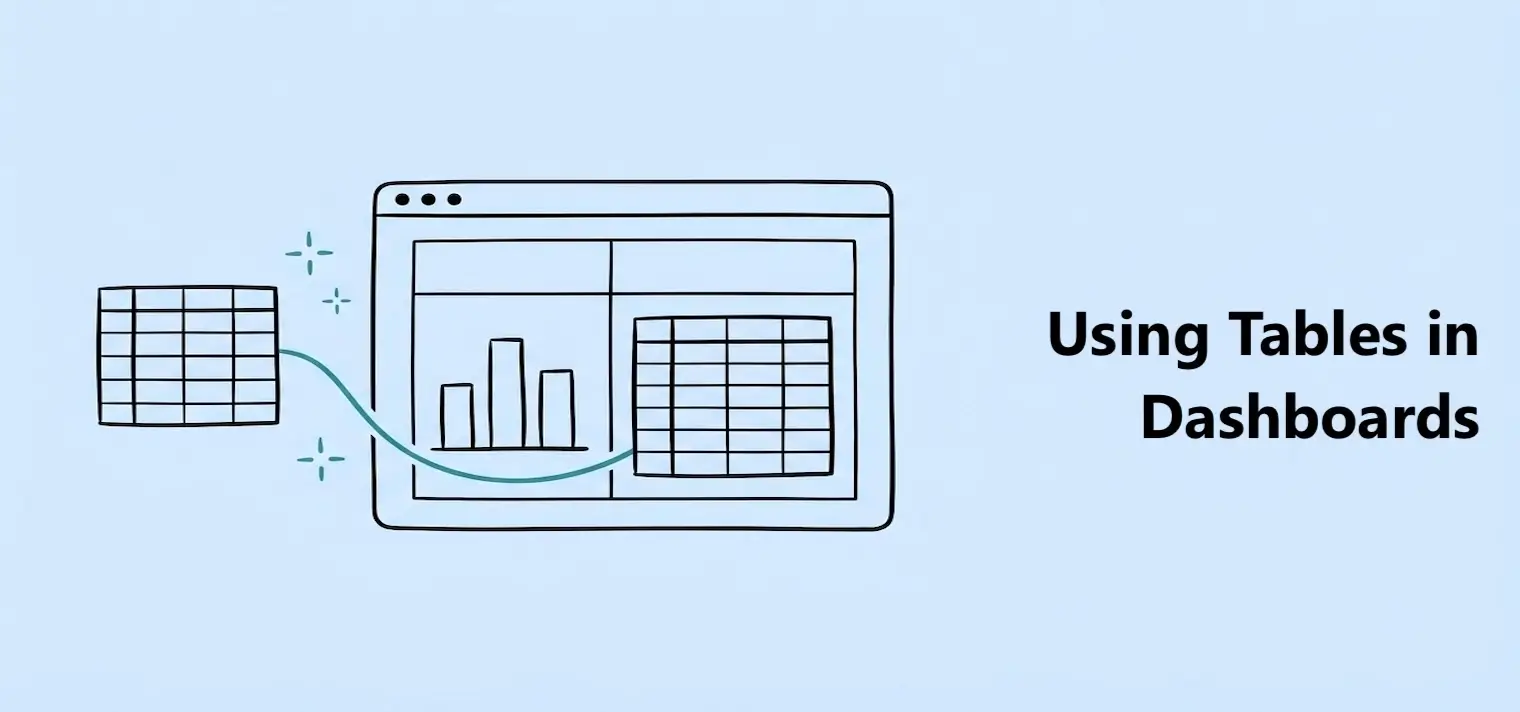
Using Tables in Dashboards
Connect a table to charts, KPIs, gauges, and table blocks.

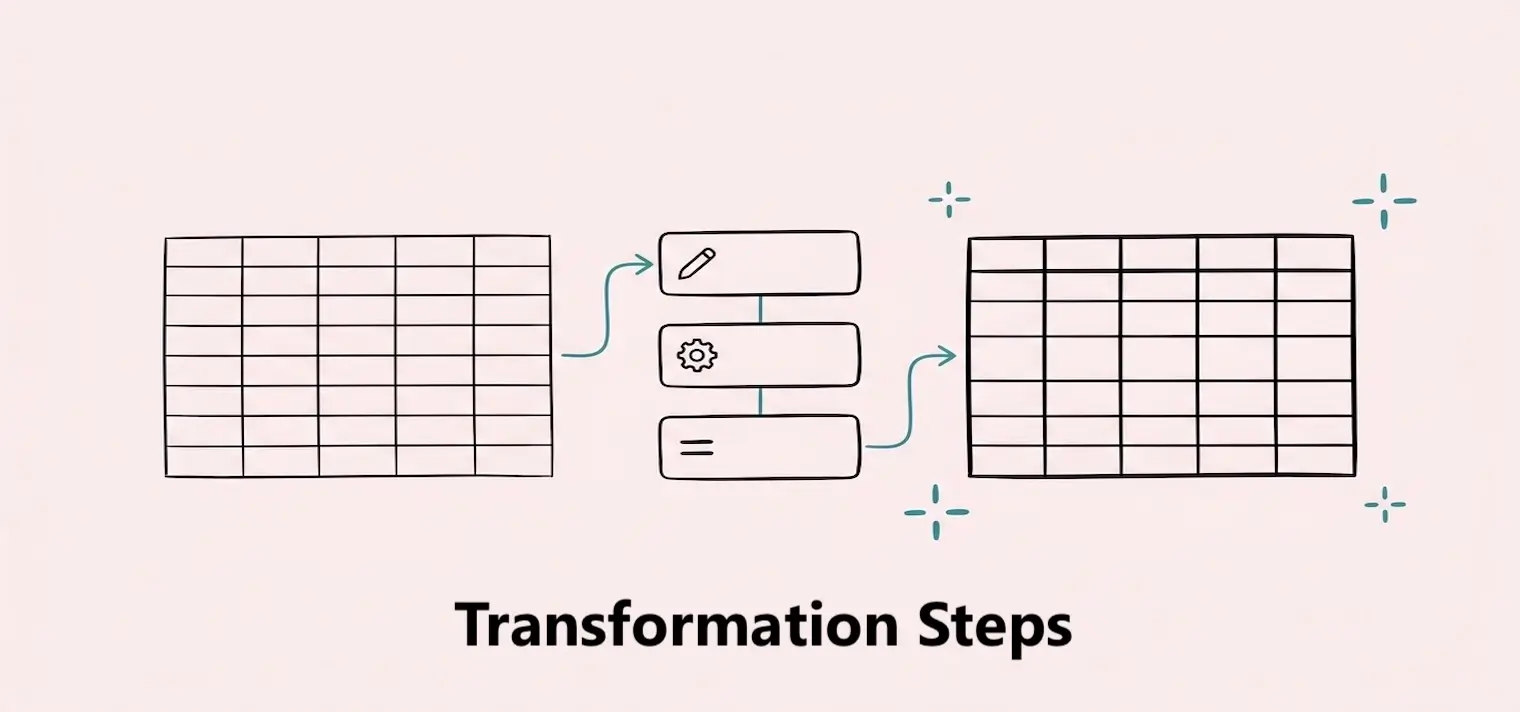
This page explains the steps that currently prepare your table for use in Dashbreeze. Actions such as changing a column type, filtering rows, sorting, calculating values, or joining another table are saved as individual steps.
Open a table and select the Transformations button to see the pipeline. Dashbreeze runs the first step at the top, passes its result to the next step, and continues down the list.
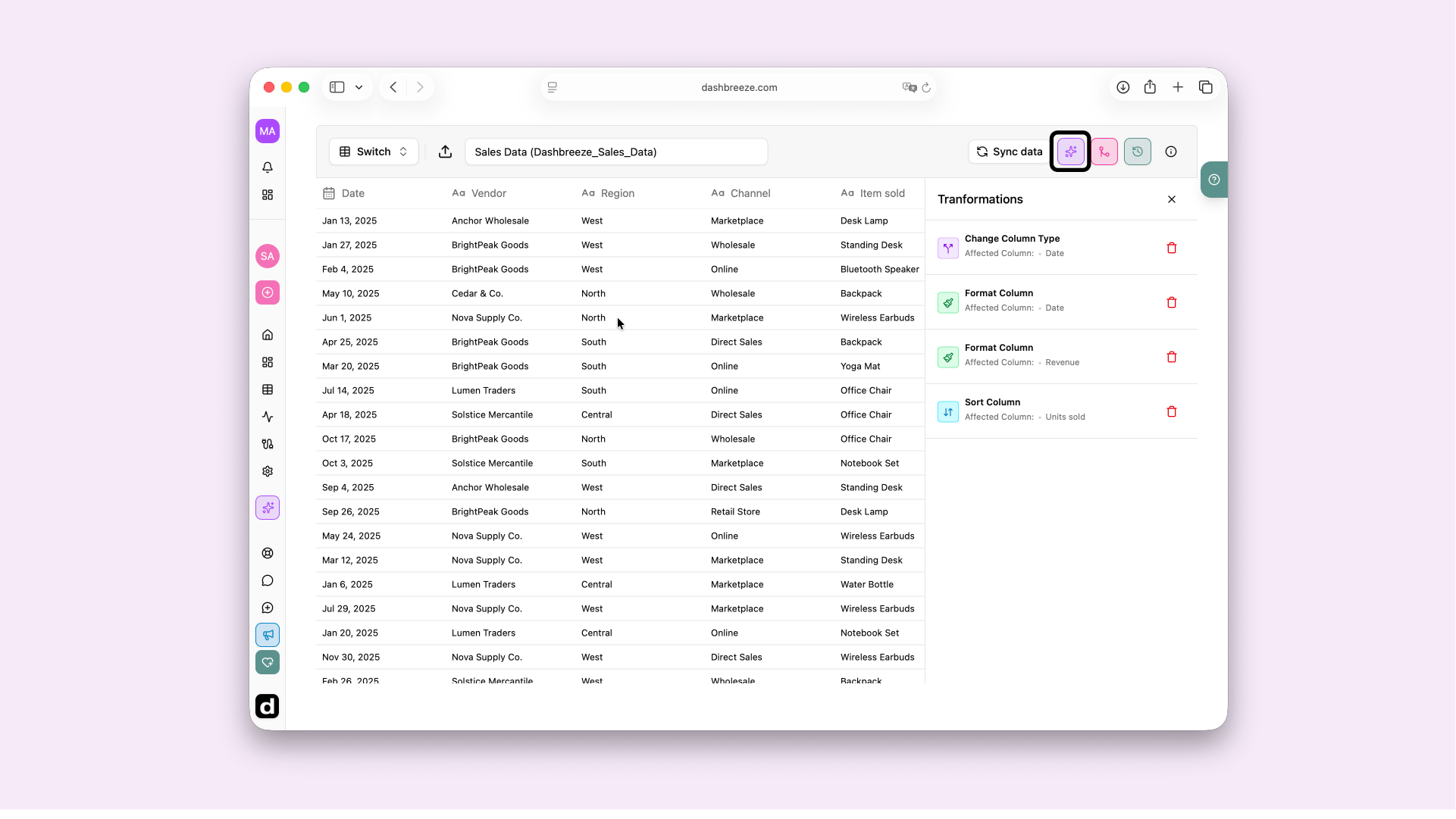
Transformation name
Describes the action, such as Change Column Type, Filter Column, Sort Column, or Join Table.
Affected column
Identifies the column used by the step. Some table-wide steps may not display a column.
Delete button
Removes that step from the active pipeline.
Each step works with the result produced above it—not directly with the untouched source. A step can therefore change what later steps receive.
Example transformation pipeline
Change Order Date column from Text to Date
Dashbreeze first interprets the source text as real dates.
Filter Order Date on or after January 1
The filter receives valid dates from step 1 and keeps the matching rows.
Sort Order Date newest to oldest
The sort receives only the rows that remain after the filter.
If step 1 is removed, Order Date will become Text again. The date filter and chronological sort below it will then fail or produce unexpected results. The same principle applies when a later step uses a calculated or joined column created earlier in the list.
Select the delete button beside a step to remove it. Dashbreeze immediately rebuilds the table by running the remaining steps in their existing order.
Removing the last step
Only that final change is reversed. For example, removing the last sort keeps all earlier filters and formatting but stops that sort from controlling row order.
Removing an earlier step
Later steps still remain and will run without it. Dashbreeze asks for confirmation because those steps may depend on the removed type, column, formula, or join.
Check everything that depends on the step:Removing a calculated or joined column can break later transformations and connected dashboard blocks that use it. Removing a type change can make later filters or calculations incompatible. Review the steps below it and connected dashboards before confirming.
Whenever the table receives refreshed source data, Dashbreeze automatically runs every transformation still shown in the panel, from top to bottom. A deleted step is not applied again. If the refresh adds new rows, Dashbreeze applies these steps to them too.
The source data stays unchanged:Adding or removing transformation steps only changes the table result inside Dashbreeze. It does not edit the original file, spreadsheet, connected app, or database.
These two lists answer different questions. Transformation steps show how Dashbreeze changes the data. The Activity Log shows when Dashbreeze refreshed the data.
Transformation steps
This list contains filters, sorts, joins, and column changes. It shows the steps used now. It does not show past refreshes.
Activity Log
This list shows each refresh. It includes the time and result of the update. It does not show how the data was transformed.
How they work together:A refresh brings in the latest source data. Dashbreeze then applies the current transformation steps to that data. Check the Activity Log for the refresh. Check Transformation Steps for the changes applied after it.