
Managing Tables
Open, rename, or delete tables and understand how each action affects dashboards.

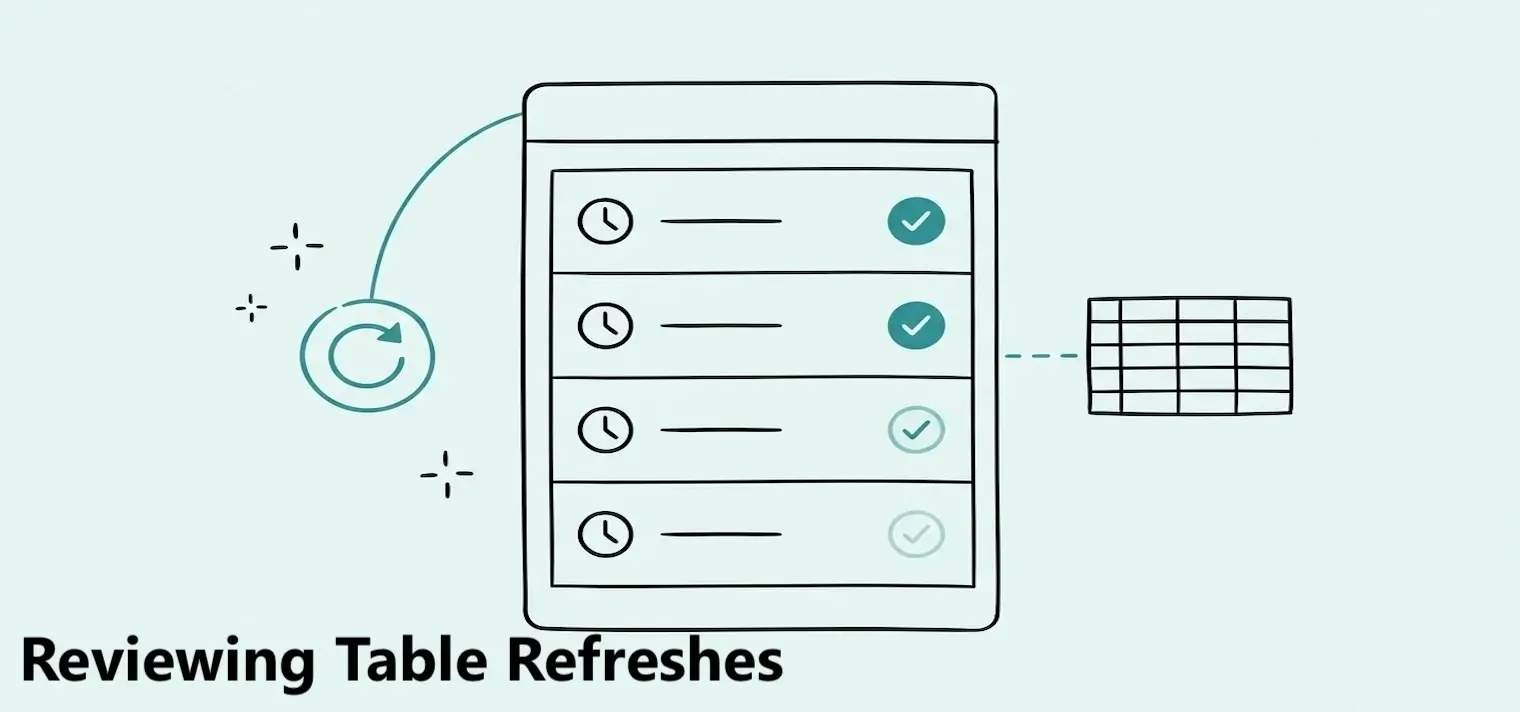
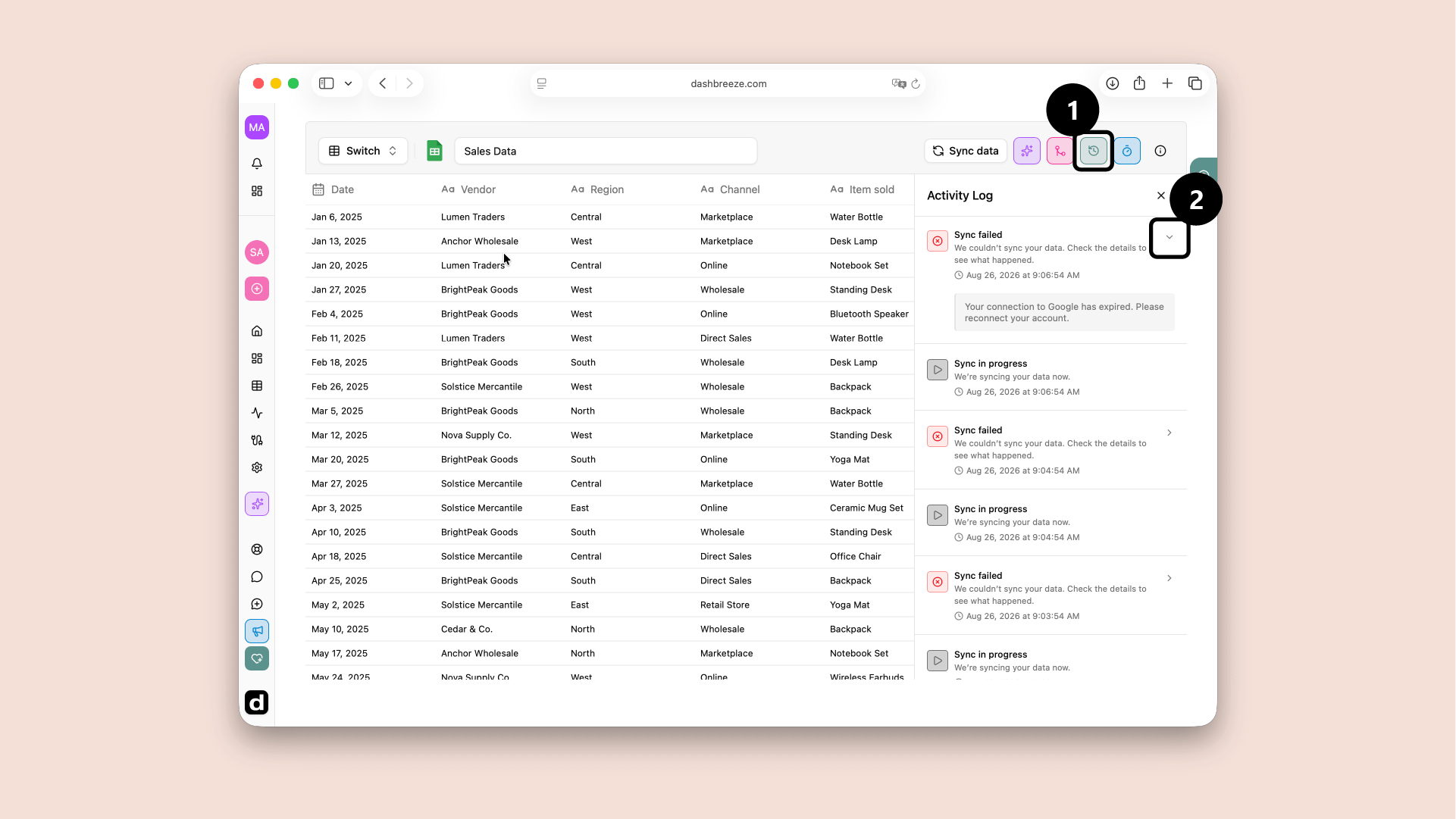
Open a table and select the Activity Log button. You will see when the table refreshed, whether it worked, and why it may have failed.
Every refresh appears here:The Activity Log includes manual refreshes started with Sync data and automatic refreshes started by a schedule. It shows refreshes only for the table you currently have open.
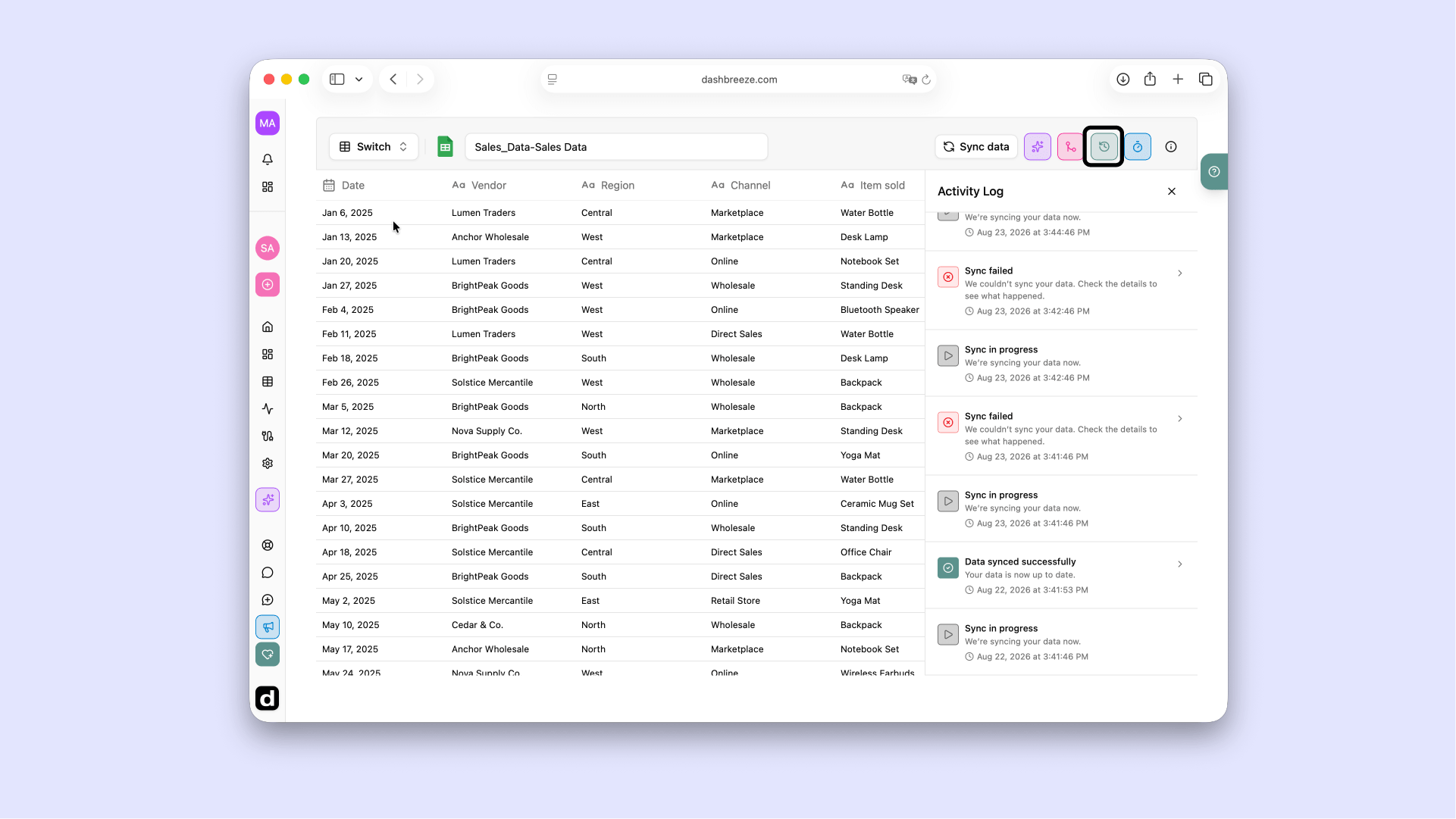
Every entry shows the date and time when the refresh started. Use this to find the most recent successful refresh.
Sync in progress
Dashbreeze is syncing the table now. This entry cannot be expanded.
Data synced successfully
The update finished. Expand it to see the row count, column count, and how long it took.
Sync failed
The update didn't finish. Expand it to see the error message.
Workspace members are notified:When a table sync fails, every member of the workspace receives an email and an in-app notification. The email identifies the table and workspace, warns that the data may be out of date, and includes a link to review the issue.
If a chart or KPI looks out of date, check this log first to see when the table last updated successfully. If the most recent entry is a failure, follow these steps.
A successful refresh only confirms the data update:It does not confirm that every transformation or dashboard block still works. If you made major changes to the original source—for example, renaming several columns in a Google Sheets spreadsheet—review the transformed table and its connected dashboards. They may still depend on the old column names.
Good to know:This log tracks when the table's data was refreshed. To see the steps applied to the table, such as filters or renamed columns, check Managing Transformation Steps instead.